- Login to Arch and select ‘Orders’ from the left-hand side.
- Find the Order that has failed and select ‘View’.
- Look for the ‘Till Integration’ section, this will give you an order status and a reason. (See below screen shot).
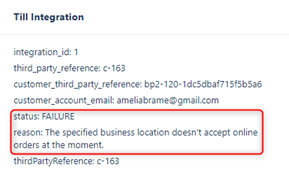
There are multiple Reasons an order can fail.
- ‘The specified business location doesn't accept online orders at the moment’.
- Check the opening times on Arch
- Check the Online ordering is enabled on the tills. (Follow the below steps).
V3 (iKentoo 3.0): Find the "Pencil" on your Integration Device often this is the "Master Till"
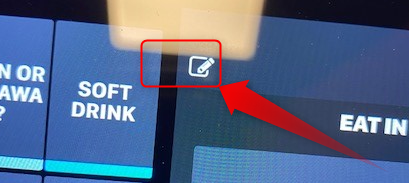
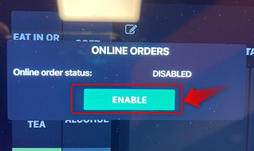
Make sure this is set to "Enabled", it should change to a "Green Colour"
V4 (Lightspeed K): Click on the 4 Dots
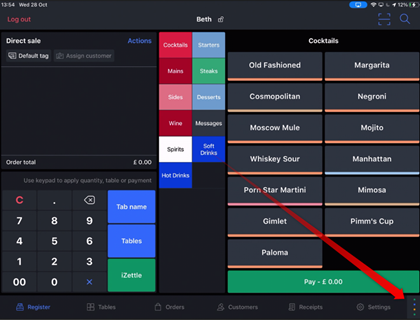
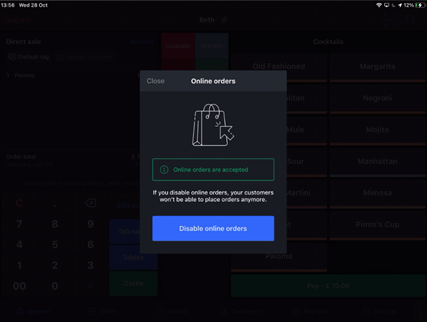
Click on the "Shopping bag"
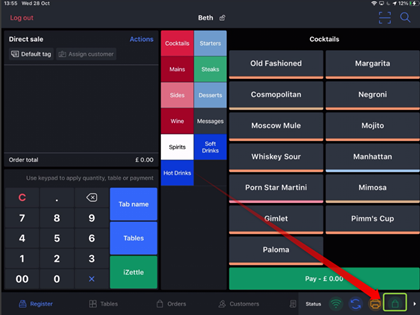
Check if Online orders are "Accepted" or "Disabled"
- ‘The payment amount is greater than the amount due’
- Check the tills have been reloaded
- Check all the items and modifiers in the order exist in Lightspeed (If they don’t exist: Create the item, Add it to the menu, Reload the tills and then add to the menu on arch).
- ‘No such item id: null, sku: null’
- This means an item in the order doesn’t have a remote SKU or doesn’t exist in Lightspeed.
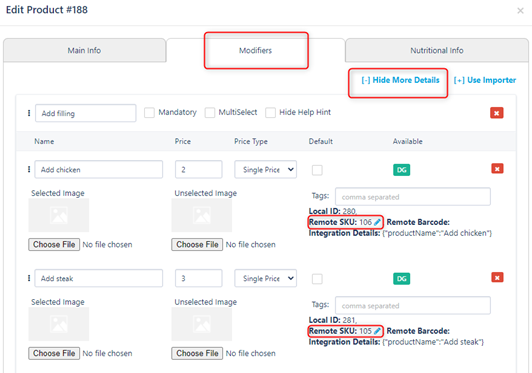
To check if an item has a remote SKU go to ‘Product’s on Arch, find the item in question, Select edit on that item and scroll down to the ‘Integration Data’ Section.

To check if a modifier has a remote SKU follow the same steps to find the item/ sequence, then select ‘Modifiers’. You will then need to select ‘Show more details’, from here you will be able to check if the modifier items have a remote SKU. If the item doesn’t have a remote SKU it has been created in Arch and needs to be removed and creating in Lightspeed.
- ‘Not processed before timeout’
- Check the master till is online
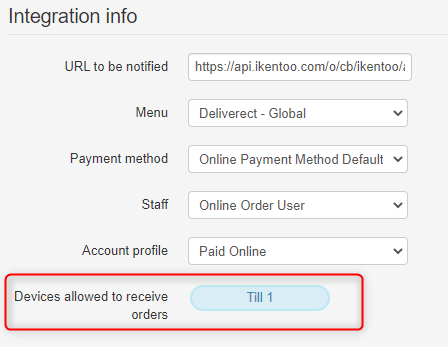
- Make sure a till is linked in the online ordering API section on Lightspeed.
To Check a till is linked to the online ordering go to Integration > Online Ordering and scroll down to the ‘Online Order API’ section. You need to make sure the correct device is selected in the ‘Devices Allowed to receive order’s section.
Comments
0 comments
Please sign in to leave a comment.