In this guide we will cover how to pair an iZettle device to your K-Series iPad.
Firstly ensure the iZettle payment method is set-up and enabled on your configuration, to do this follow the below steps;
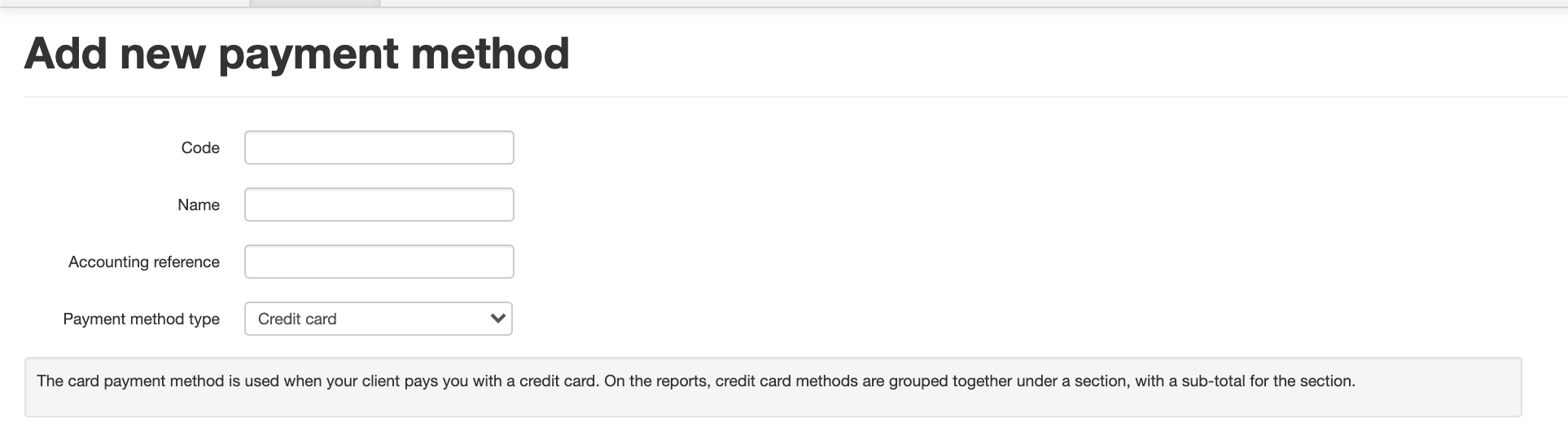
- Open your K-Series Back office > Settings > Payment Methods
- Choose 'Add new Payment Method'
- Use IZTL as the code
- iZettle as the name
- Change Payment method type to iZettle
- Save and reload device
The first time you start the card reader, it automatically enters pairing mode. As K-Series uses BLE technology there is no need to pair this device via the Bluetooth settings.
- Open K-Series and create a dummy transaction choosing iZettle as your preferred payment method
- This will ask you to sign in using your iZettle credentials you set-up when opening the account
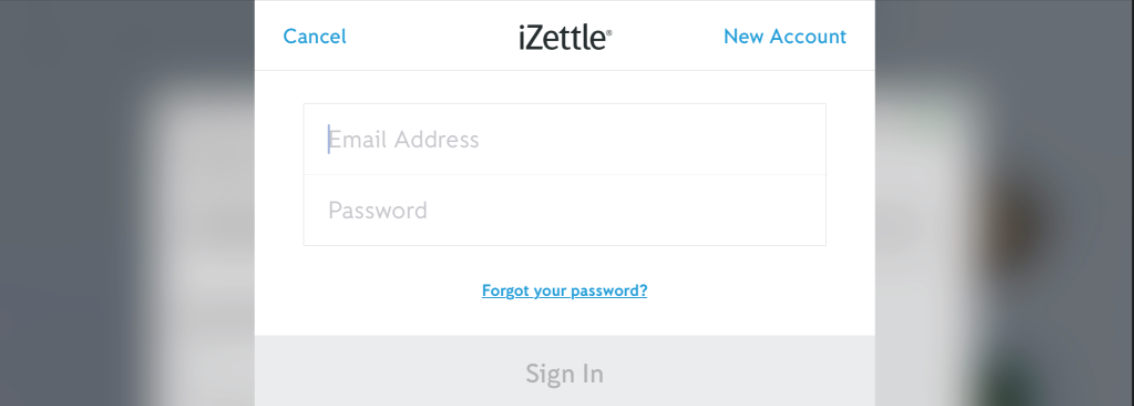
- Once signed it will begin to search for the reader
- When the reader has been found a pair option will appear and a generic code will display on both iPad and iZettle Device
- Ensure the code matches and pair.
You are now ready to use your iZettle device!
If you have any further questions or are experiencing any difficulty during the set-up please book in a meeting with a Tech Advisors here: https://outlook.office365.com/owa/calendar/EposabilityLtd@IOA.Group/bookings/
Comments
0 comments
Please sign in to leave a comment.