**This guide is only relevant if you're already using Deliverect and have added a new Delivery Channel**
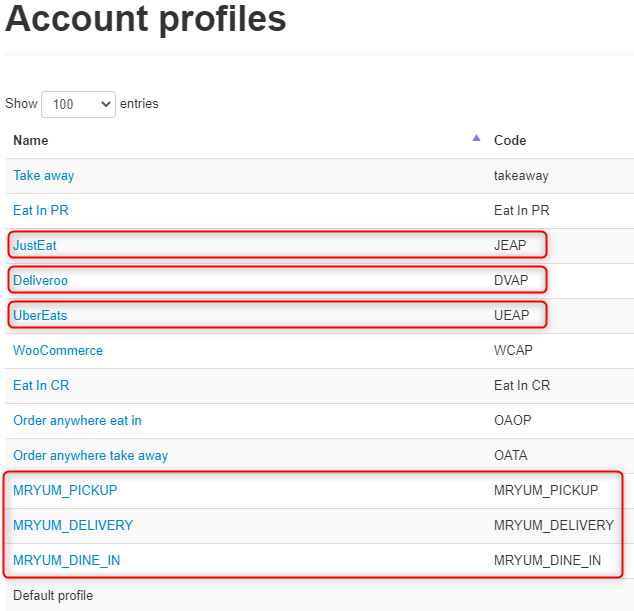
1. Setup the relevant account profiles in K-Series, under “Settings > Account Profiles” to post the transactions accurately, they work from the Code so it's super important that the below is matched including the "Delivery Type" as "Pickup" or the Order number will not be posted.
Account Profiles Link: https://console.ikentoo.com/configuration/tags
Codes:
Just Eat - JEAP
Deliveroo - DVAP
Uber Eats - UEAP
Mr Yum Pick Up - MRYUM_PICKUP
Mr Yum Delivery - MRYUM_DELIVERY
Mr Yum Dine In - MRYUM_DINE_IN

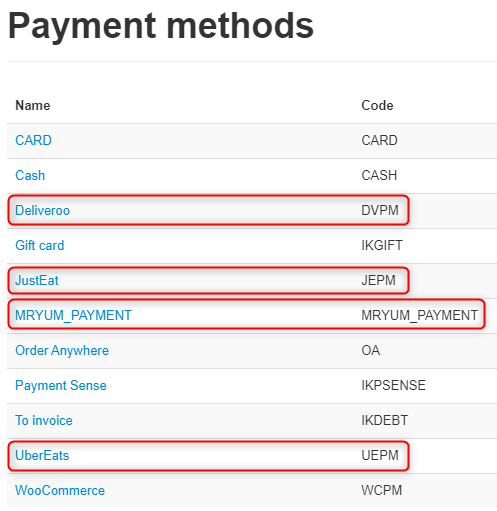
2. Create the Payment Methods, under “Settings > Payment Methods” again they work from the code so it's super important that they are correct.
Payment Methods Link: https://console.ikentoo.com/configuration/paymentMethods
Codes:
Just Eat - JEPM
Deliveroo - DVPM
Uber Eats - UEPM
Mr Yum - MRYUM_PAYMENT
3. In order to ensure the Fees are applied accurately you must also create the following item paying special attention to the “SKU” as this is what Deliverect utilize.
Note: MAKE SURE THE DISCOUNT IS INTERACTIVE NEGATIVE PRICE!

SKU's:
Mr Yum:
Delivery Fee - YUM77
Discount Fee - YUM99
Service Charge - YUM66
Deliveroo:
Delivery Fee - DELD77
Discount Fee - DELD99
Service Charge - DELD66
Just Eat:
Delivery Fee - JE77
Discount Fee - JE99
Service Charge - JE66
Uber Eats:
Delivery Fee - UE77
Discount Fee - UE99
Service Charge - UE66
Comments
0 comments
Please sign in to leave a comment.