Before adding a customer to an order, their profile must exist on Lightspeed Restaurant POS (K). To create a customer profile on Lightspeed Restaurant:
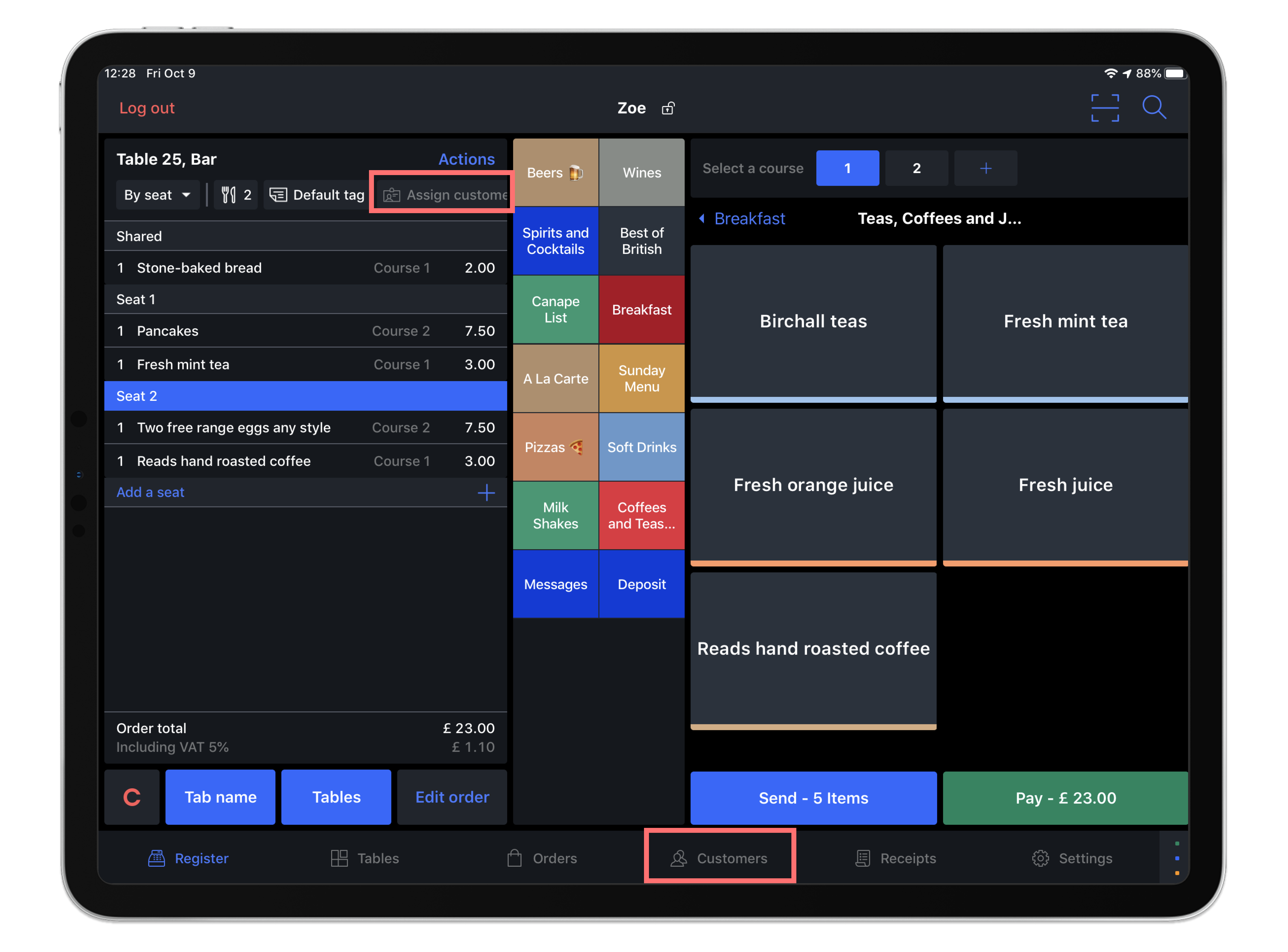
- Select the Assign customer button above the order view or by tapping the Customers tab at the bottom of the screen.
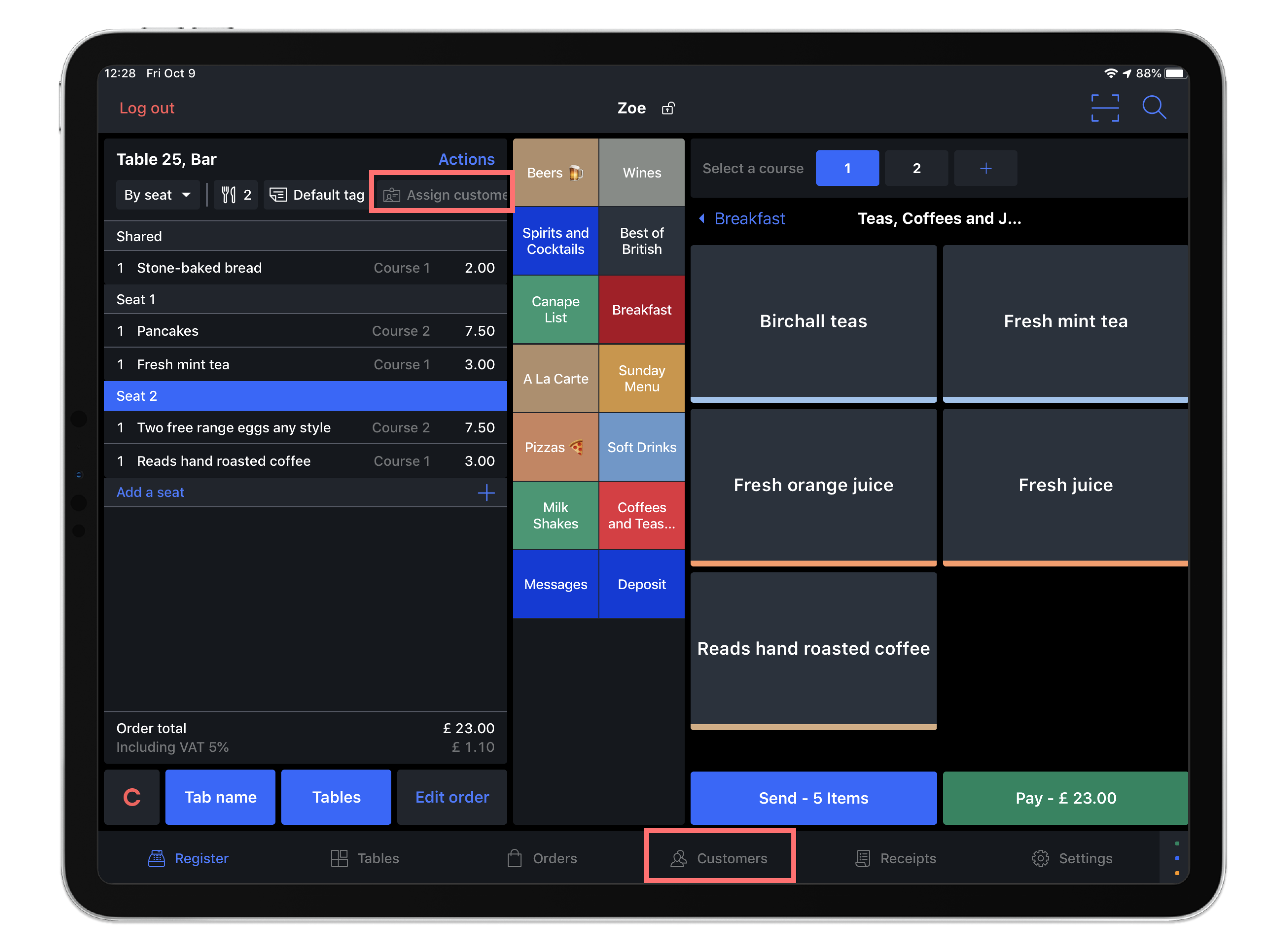
- From the Customer screen, select Add customer.
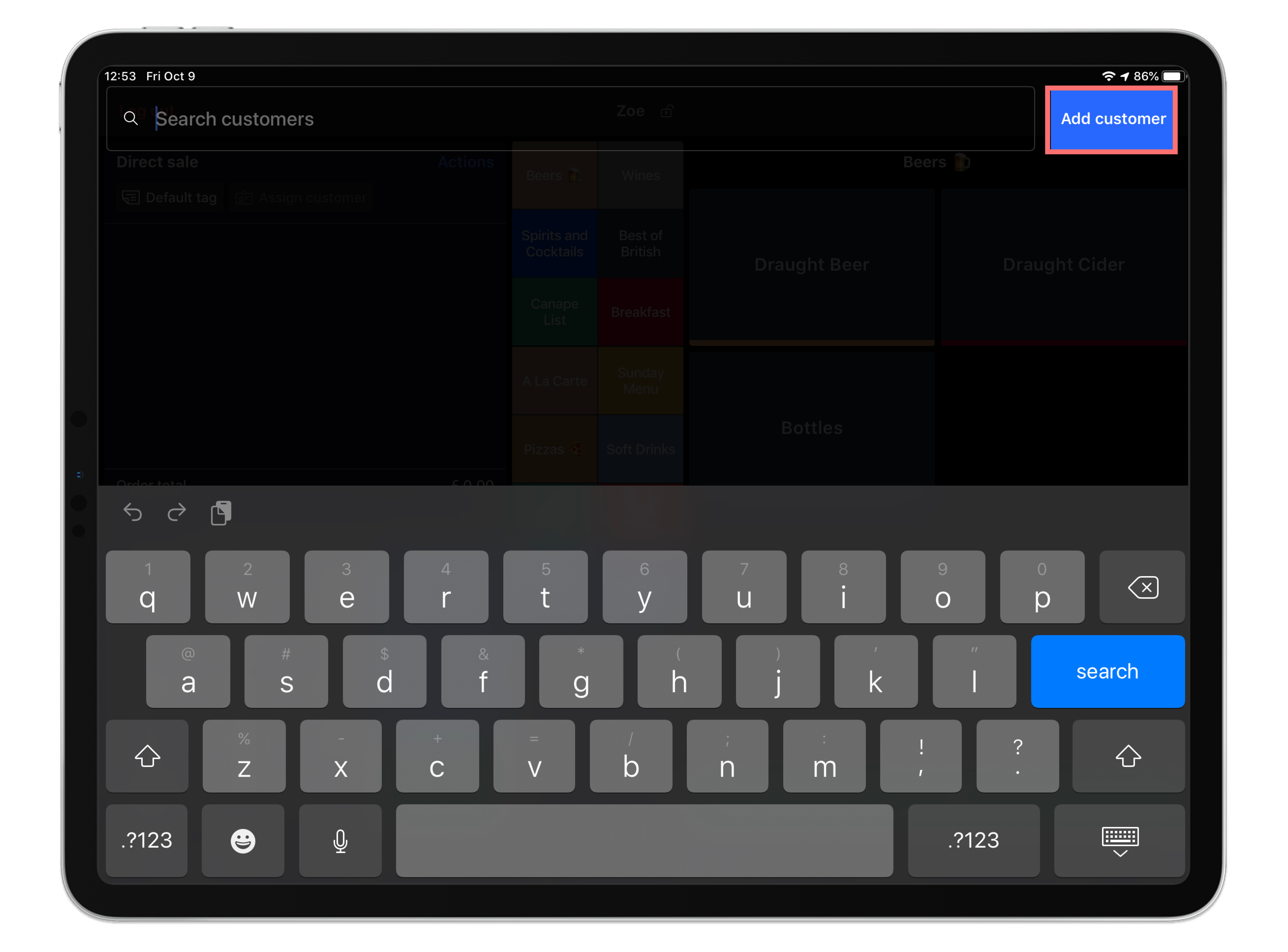
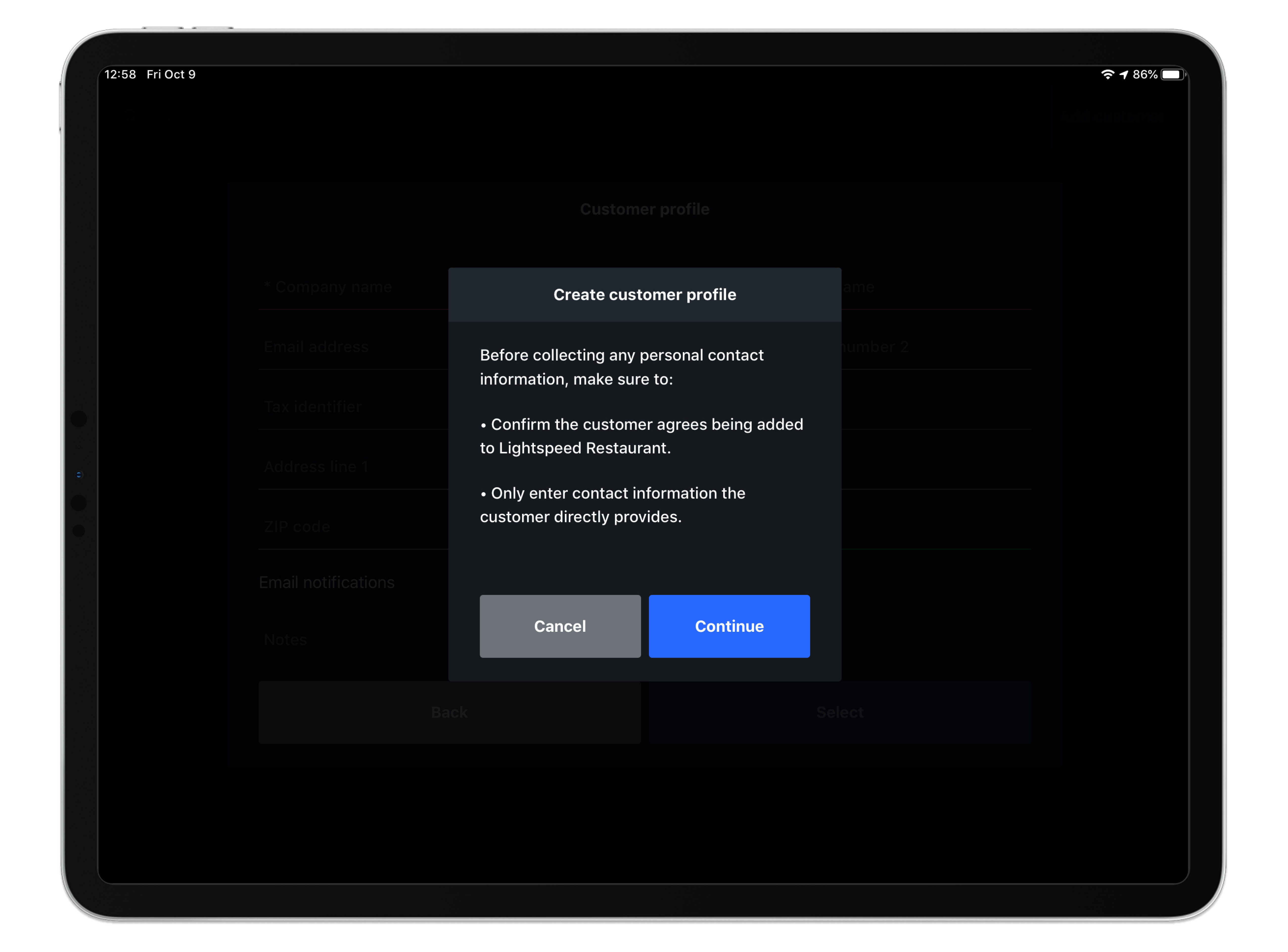
- From the pop-up window, confirm that the customer agrees adding their contact information to Lightspeed Restaurant by tapping theContinuebutton.
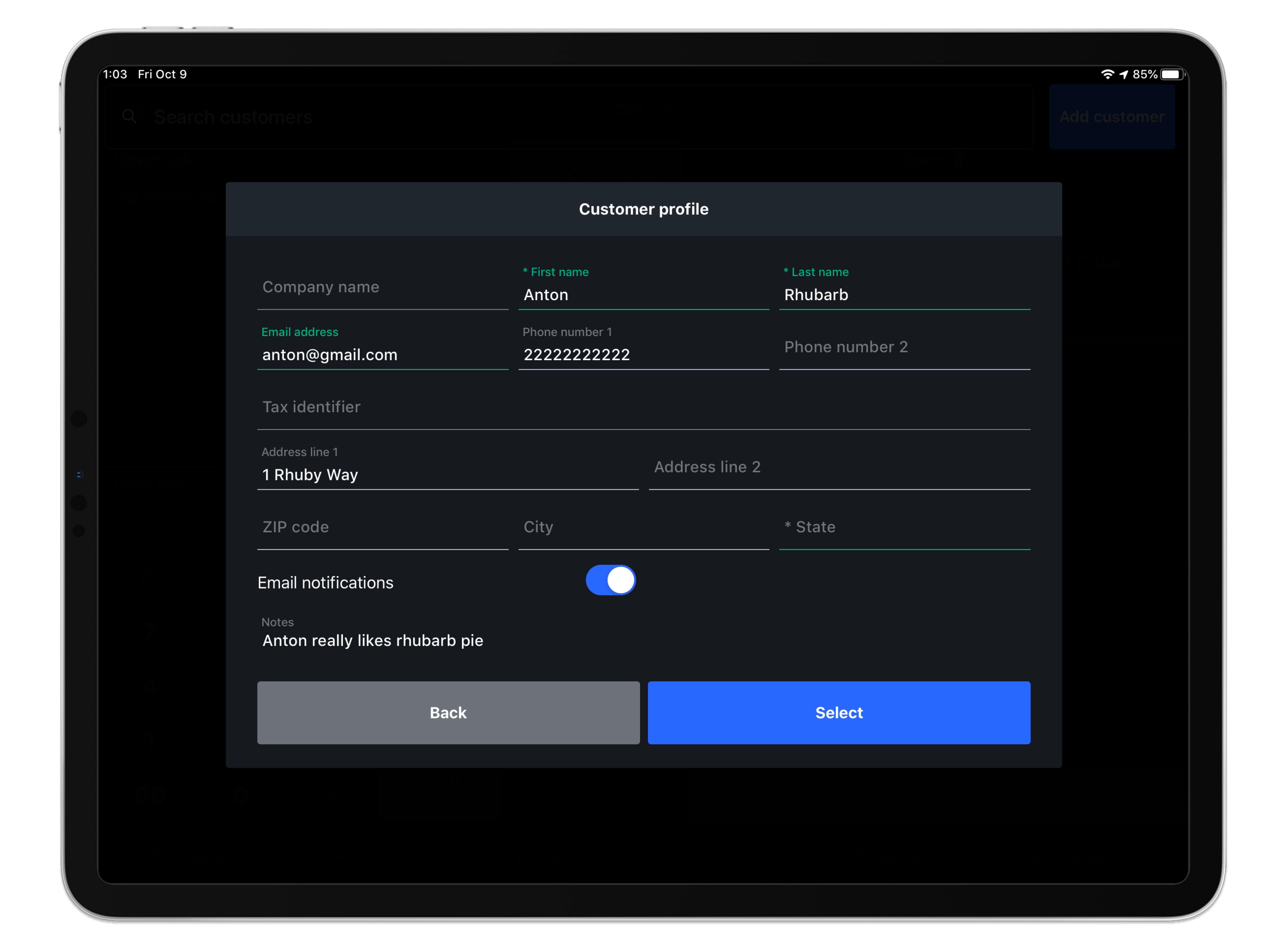
- Add the customer's contact information on the pop-up window. You may add the customer’s name, email, phone, tax identifier (in regions where this is applicable), address, and any other useful information as a custom note. From this window you may also enable Email notifications if the customer agrees to receiving emails from your business (such as an invoice or electronic receipt).
- When you’ve added customer details, tap Select to save your customer profile. If you are creating a customer profile from the Register screen, the new customer profile will be auto-added to the order at this time.
NOTE: Creating a new customer profile will also automatically add the new customer to the open order.
Editing a customer profile
It may happen that you need to update an existing customer's contact information. To edit a customer profile:
- Select the Assign customer button above the order items in receipt view or by tapping the Customers tab at the bottom of the screen.
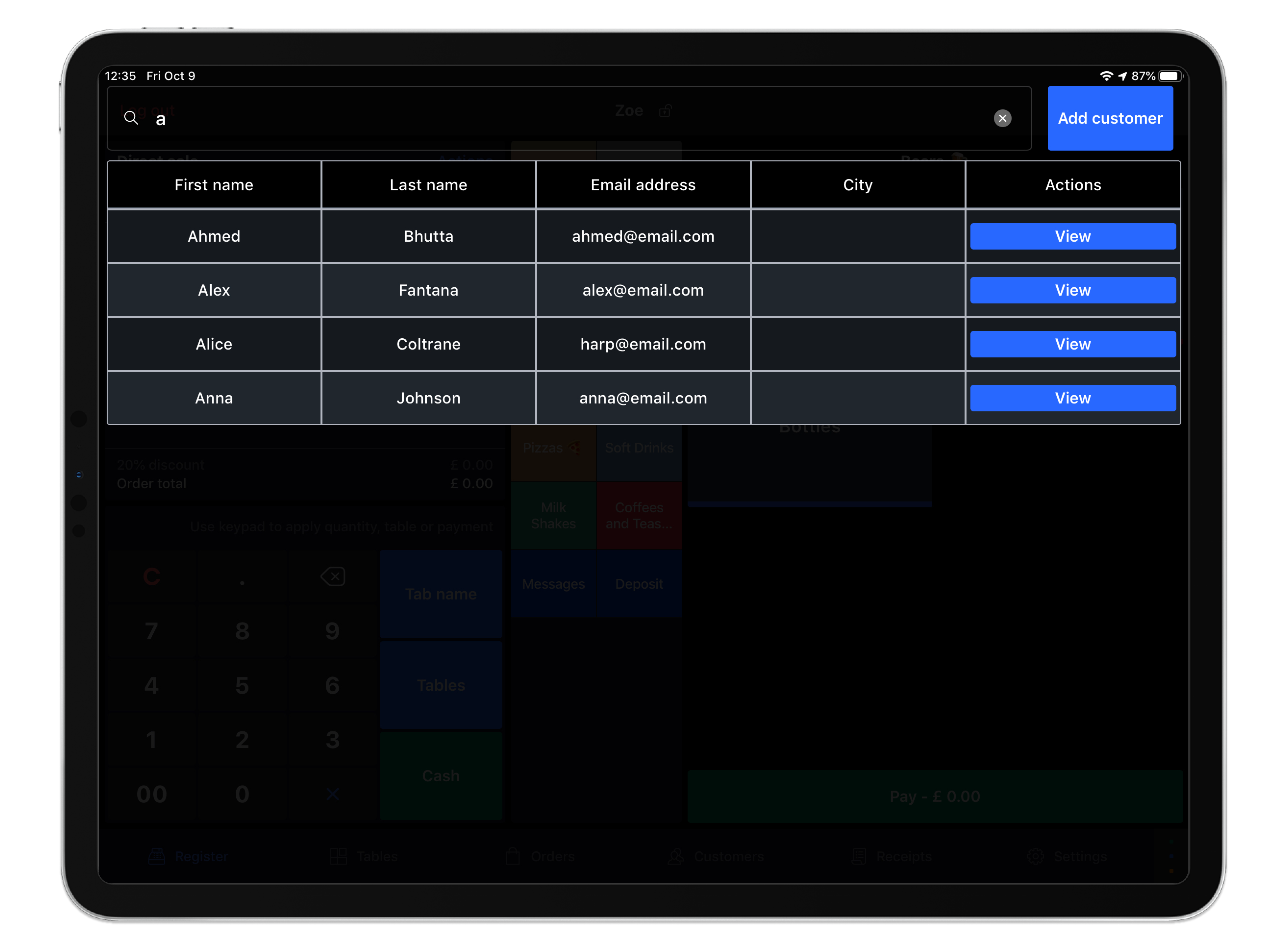
- In the Search bar, type an identifier from the customer profile (such as their phone number, email or name). A list of results will auto-populate as you type.
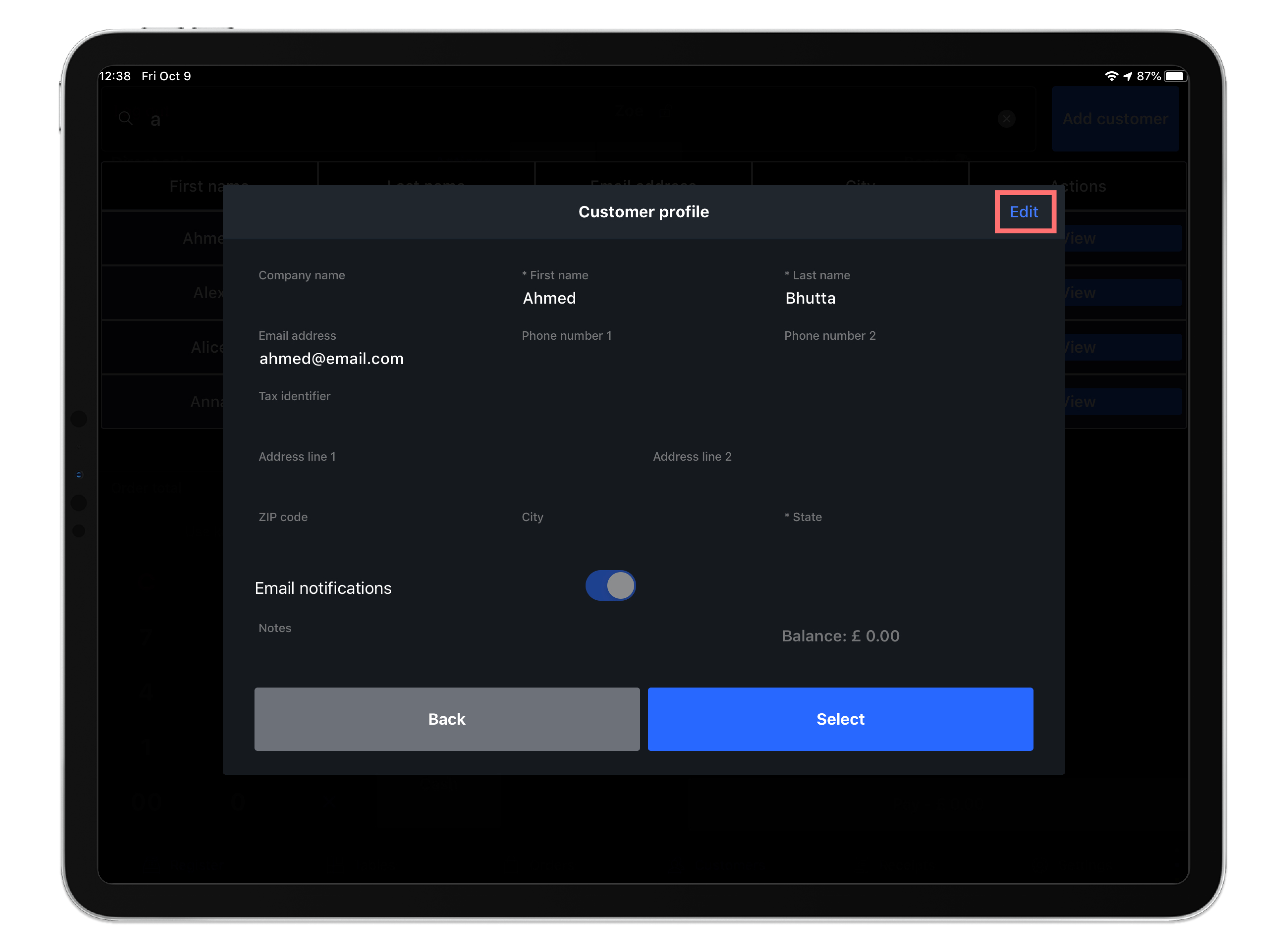
- Tap View to the right of their desired customer’s contact info. A pop-up window for the customer’s information will open.
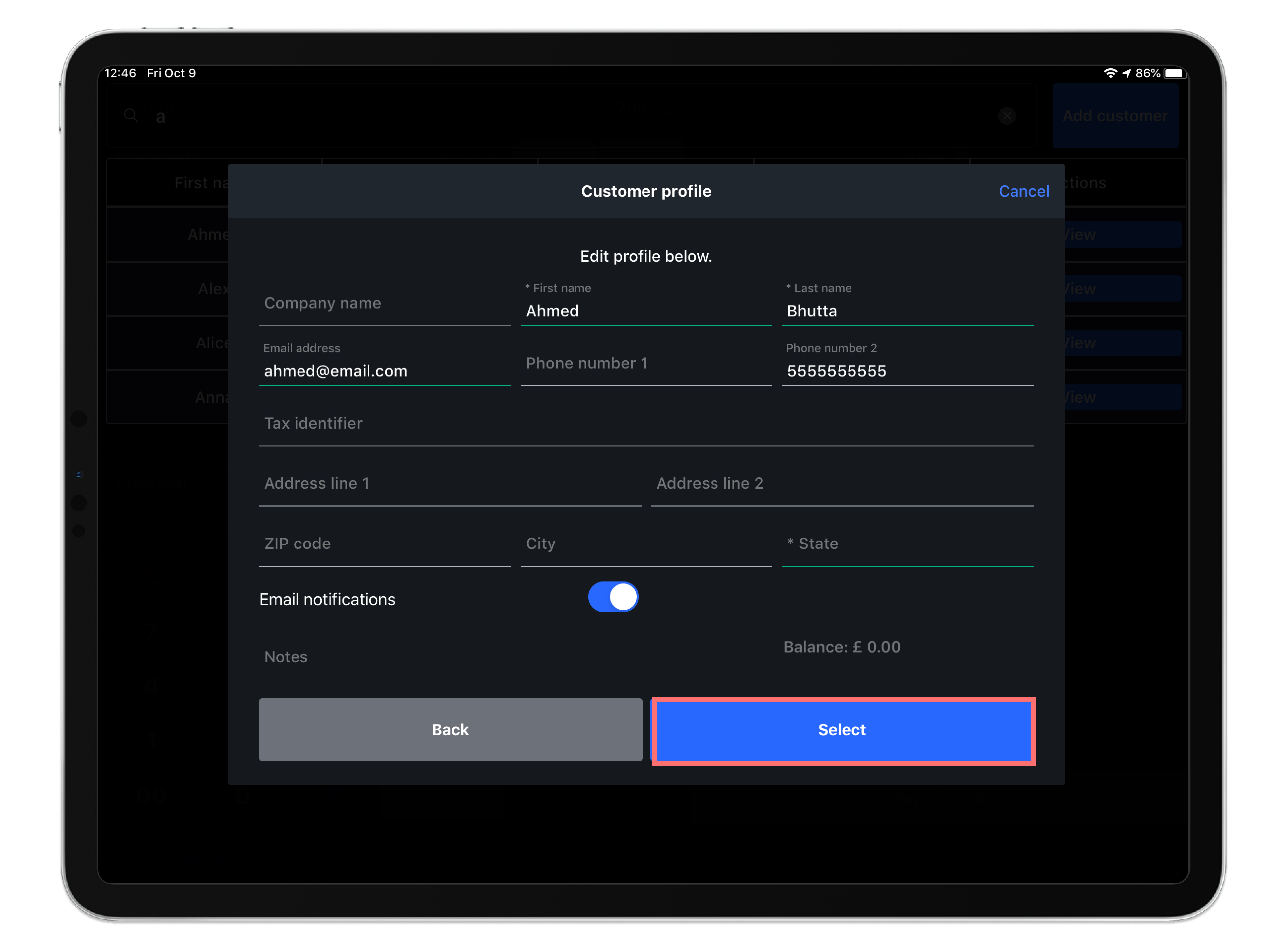
- Tap Edit at the top right of the Customer window and adjust the desired customer details. You'll be able to then adjust or add customer information such as their phone number, email or address.
- When you are done editing customer details, tap Select.
NOTE: Editing and saving a customer's profile on Lightspeed Restaurant will also auto-add the customer to an open order on the POS.
Comments
0 comments
Please sign in to leave a comment.