Add all required payment methods in your Lightspeed (K Series) POS to the Back Office. When adding payment methods to your Back Office in Lightspeed Restaurant, you can choose from different payment method types. Input fields change depending on the selection. Therefore, it is important to select the correct payment types in order to be able to fill in the corresponding payment information. While payment methods define the usage on the POS, payment types are the specific data for the corresponding payment method.
The cash payment method is normally set by default, so you don’t need to add a cash payment method. Lightspeed K Series POS accepts most card payment methods. Credit card payments refer to all payments where your client pays you with a credit card. On the reports, credit card methods are grouped together under a section, with a sub-total for the section.
Invoice payment methods refer to customer invoicing, where an order is paid for at a later date. The PMS (property management system) payment method is used for “pay on the room” for hotel services.
Adding card payment methods
From the Back Office, you can add all card payment methods in order to accept payments in your Lightspeed K Series POS, which allows your clients to pay you with a credit card.
- Log in to the Back Office with your Lightspeed Restaurant account credentials.
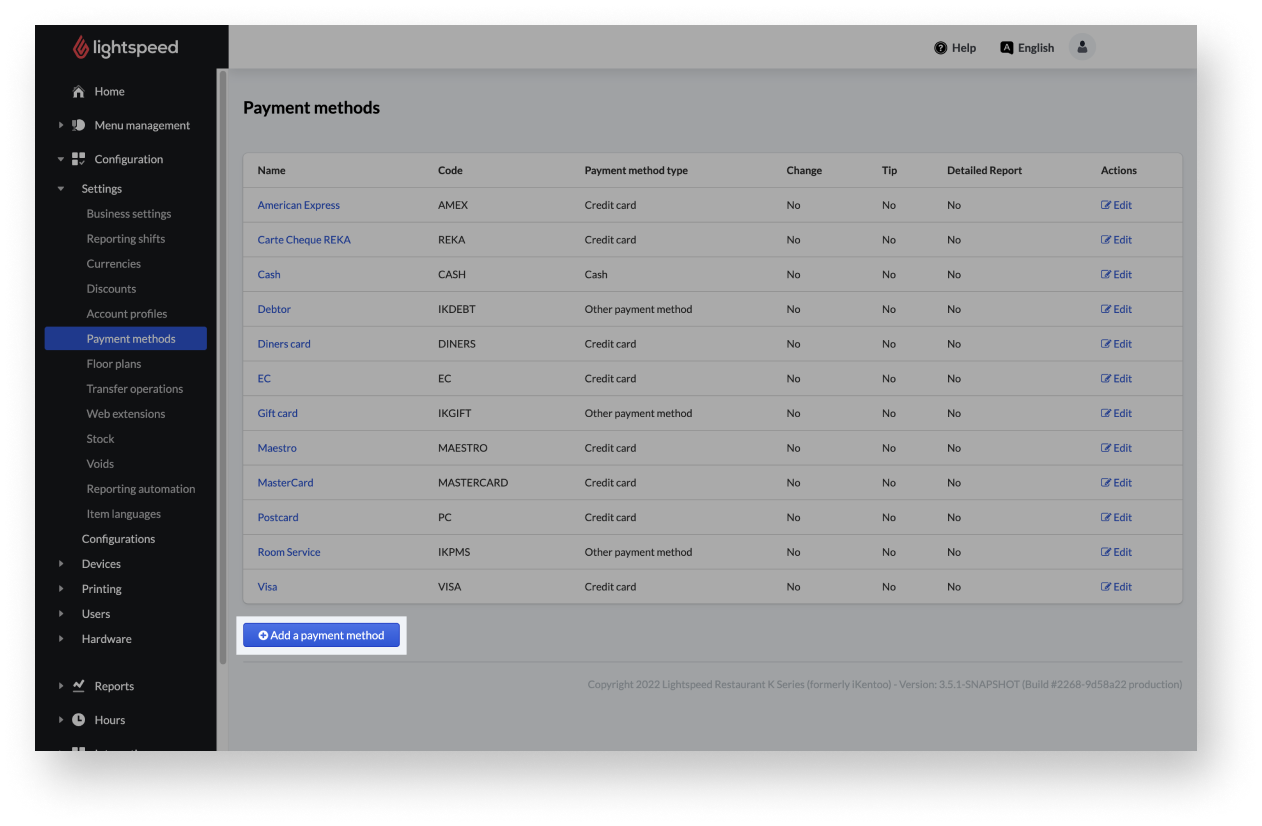
- From the navigation menu, select Configuration > Settings > Payment methods.
- Select Add a payment method.
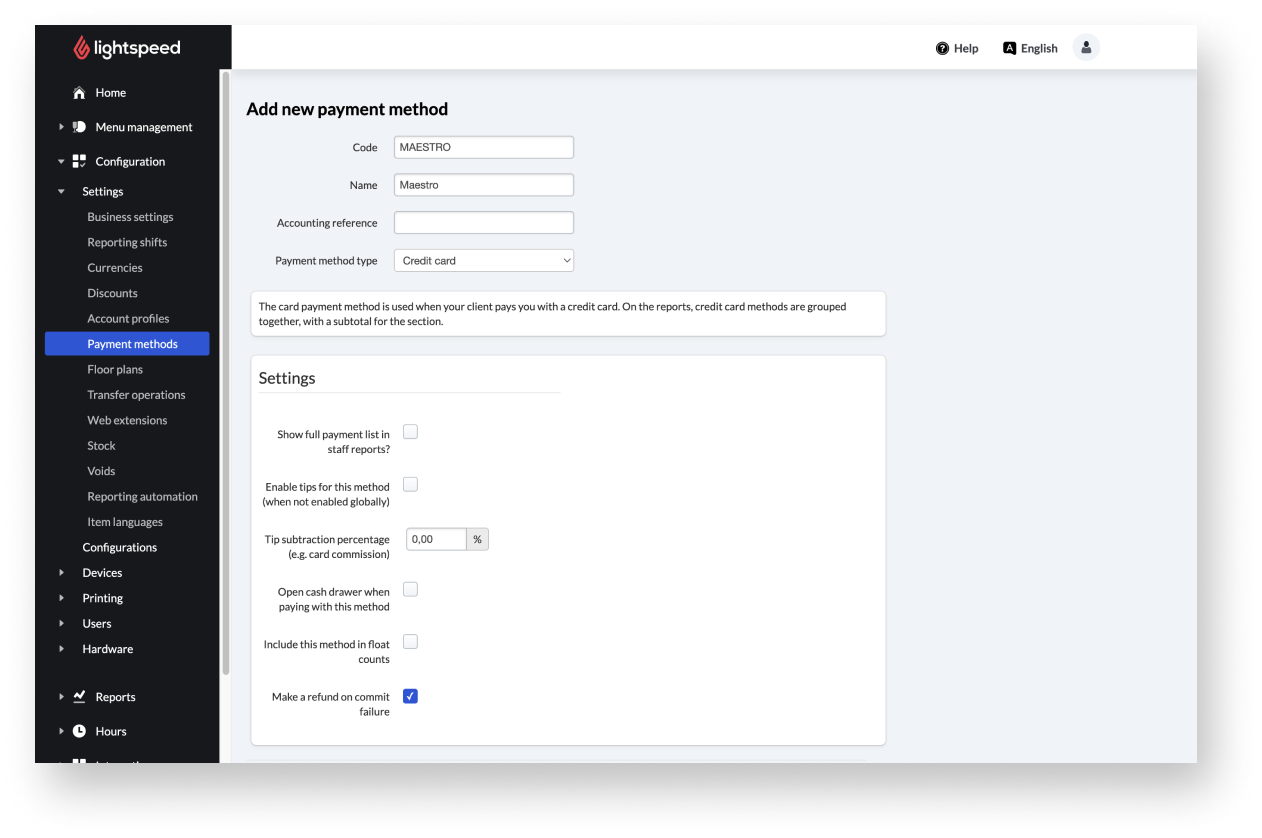
- Enter the payment method settings:
- Code: Enter a short unique code. For instance: MAESTRO.
- Name: Enter the name of the payment method as it will be displayed on the device and on the consumer receipt. For instance: Maestro.
- Accounting reference: Not mandatory.
- Payment method type: Select Credit card.
- Activate the settings checkboxes as required.
- Select Save.
Card payment settings
| Setting name | Description |
| Code | Unique payment method short code. |
| Name | The name of the payment method shown throughout the POS and the consumer receipt. |
|
Accounting reference (not mandatory) |
This is used for accounting integrations, such as MEWS. Based on this code, the correct payment method can be mapped. |
|
Payment method type |
With card payments, the payment type is a credit card. |
|
Settings |
Activating the settings shown by clicking on the checkboxes:
|
Adding PMS payment methods
The PMS payment method is used to “pay on the room” for hotel services. The receipt will be charged to the room. If you need this, please contact our Support team for help.
Adding invoice payment methods
Invoice payment method is used when the payment is still pending and will be made at a later date. You can only use invoices in connection with Customer accounts. The created invoices are assigned to the customer accounts and can be found in Consumers > Debtors > Accounts receivable.
- From the navigation menu of the Back Office, select Configuration > Settings > Payment methods.
- Select Add a payment method.
- Enter the required information:
- Code: Enter the short codeIKDEBT.
- Name: Enter the name of the payment method as it will be displayed on the device and on the consumer receipt. E.g.: Invoice.
- Accounting reference: Not mandatory.
- Payment method type: Select Other payment method.
- Calculate change when paying with this method?: Checkbox stays unselected.
- Activate the settings checkboxes as required.
- Select Save.
Invoice payment settings
| Setting name | Description |
| Code | Unique payment method short code. |
| Name | The name of the payment method shown throughout the POS and the consumer receipt. |
|
Accounting reference (not mandatory) |
This is used for accounting integrations, such as MEWS. Based on this code, the correct payment method can be mapped. |
|
Payment method type |
With card payments, the payment type is a credit card. |
|
Settings |
Activating the settings shown by clicking on the checkboxes:
|
Editing payment methods
After adding payment methods from the Back Office, you may wish to further edit them. To edit:
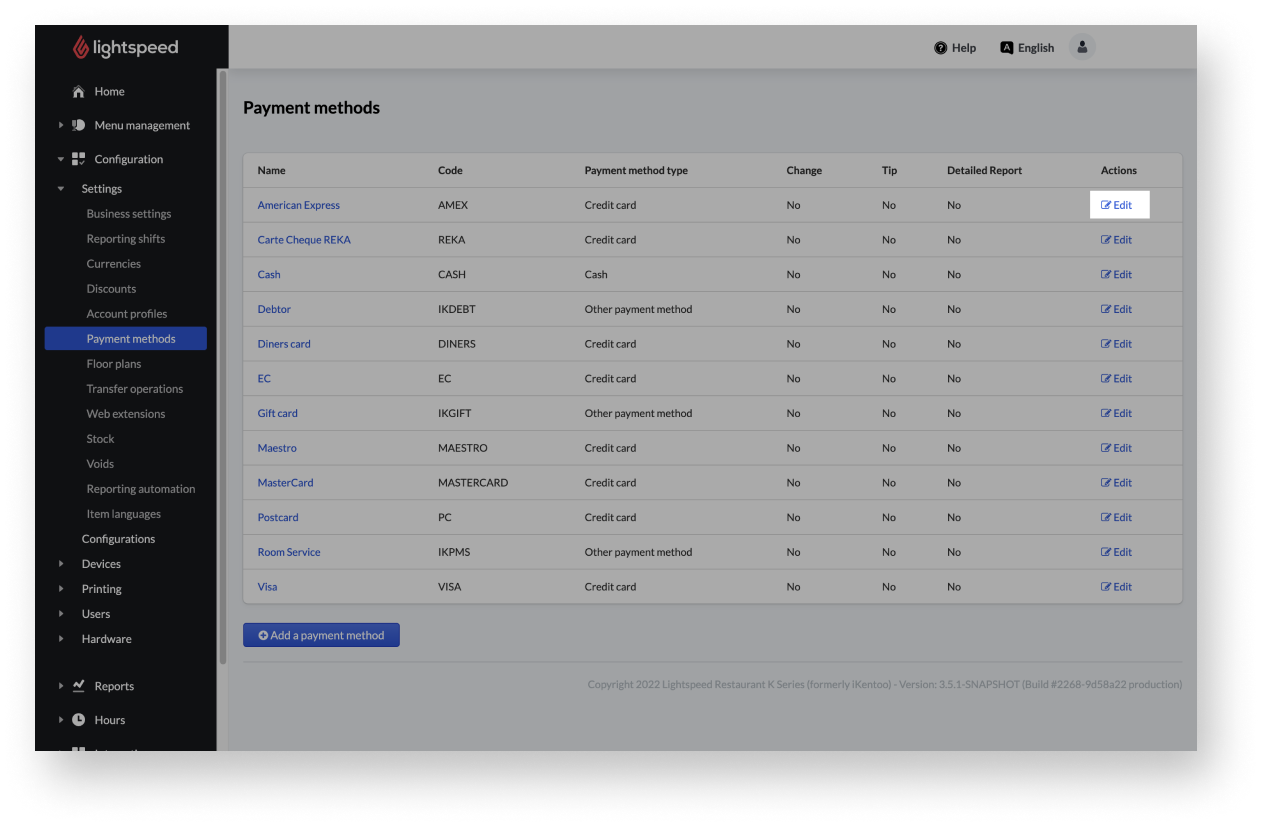
- From the navigation menu of the Back Office, select Configuration > Settings > Payment methods.
- Select Edit next to the payment method you would like to change.
- Make the desired changes.
- Select Save.
Comments
0 comments
Please sign in to leave a comment.