You can add a detailed description to an item that is shown to the user on the POS. The description appears when tapping and holding the item for a few seconds. The customer may find it helpful to know more about the item, such as what ingredients go into the food or some background information on a particular wine. From the Back Office, you can set the languages used for description entry.
- Log in to the Back Office with your Lightspeed credentials.
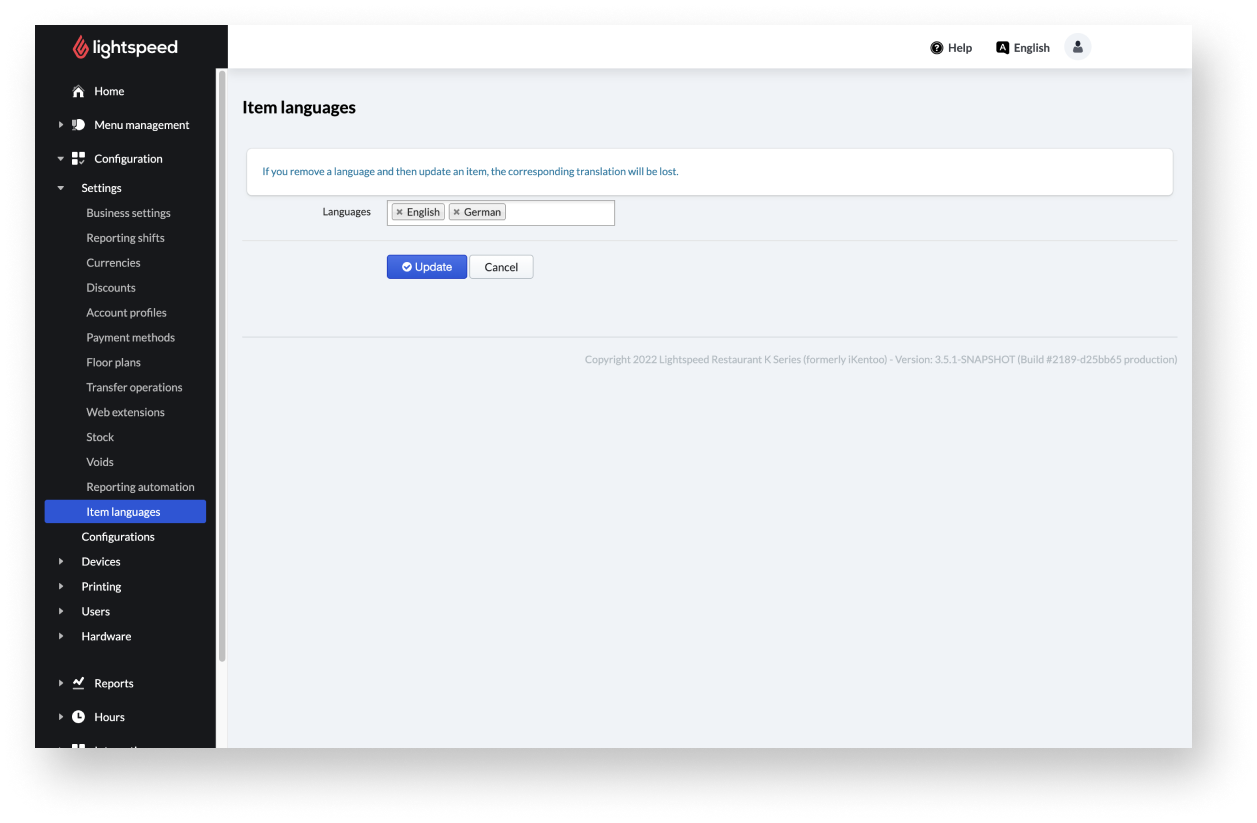
- From the main navigation menu, select Configuration > Settings > Item languages.
- Select the enter field next to the Languages enter field and choose the required languages from the drop-down menu.
- When you’re done choosing languages, select the Update button.
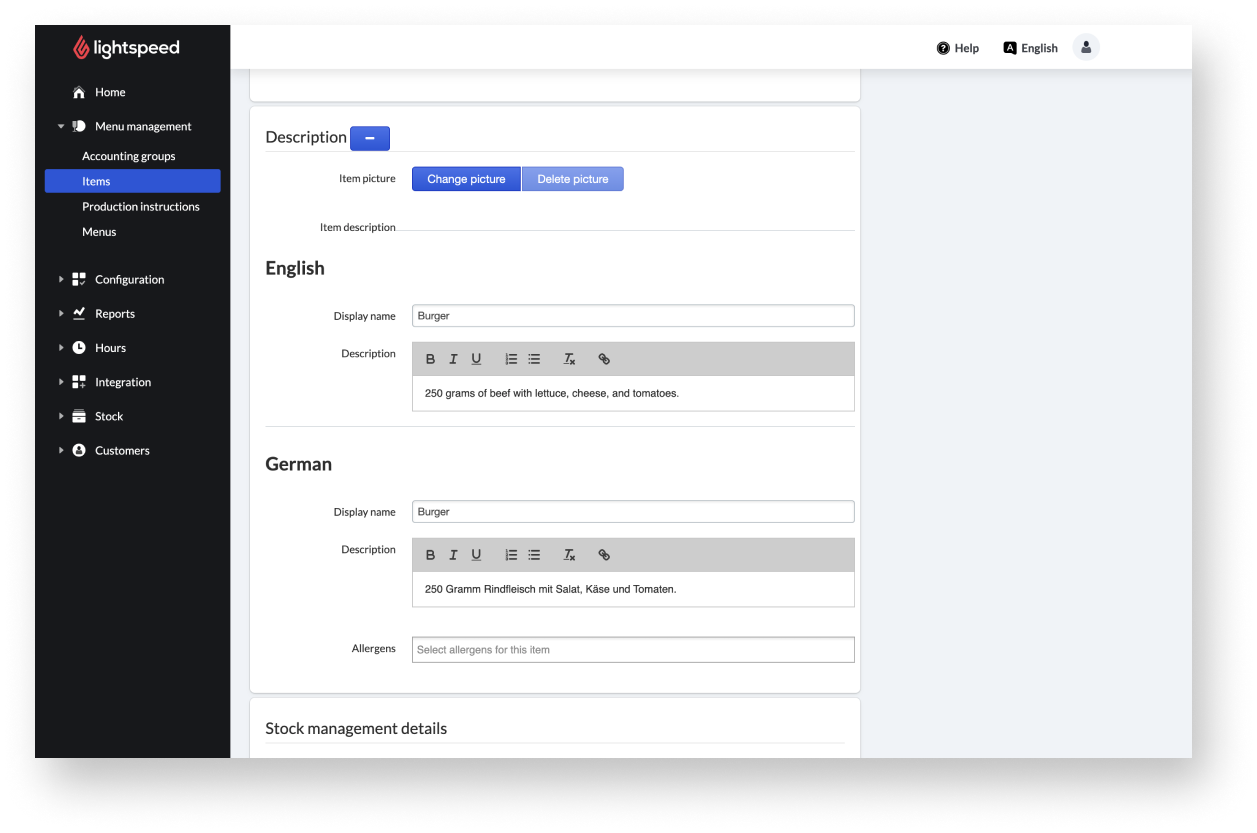
By navigating to Menu management > Items in the Back Office, you can then add the desired description in the previously selected languages to new or existing items.

Comments
0 comments
Please sign in to leave a comment.