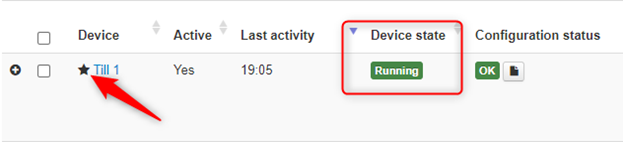
1. Check the master till is online and running on the Lightspeed BO. (The master till will have a star next to the device name).
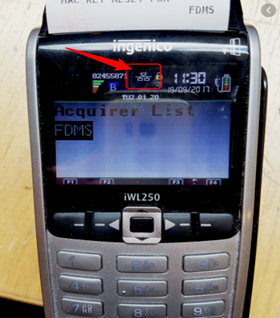
2. Check the PDQ is online. This is done by checking the colour of the Ethernet icon on the PDQ screen (See Below).
- Green means Online.
- White Means Offline Or cable disconnected
- Red means Offline but the cable is connected
If the PDQ is offline try the below steps.
- Reseating the Ethernet cable at both ends
- Making sure the PDQ starts charging when put on the base (If it doesn't its a power issue)
- Try a different wall/ switch port and make sure the ports working (Check with a laptop)
- Try a known working ethernet cable
3. Check the websocket is running on the till.
- Select the folder icon under the ‘Configuration Status’ column on the devices page then select ‘Request Logs’ (You will only need logs for 1 day).
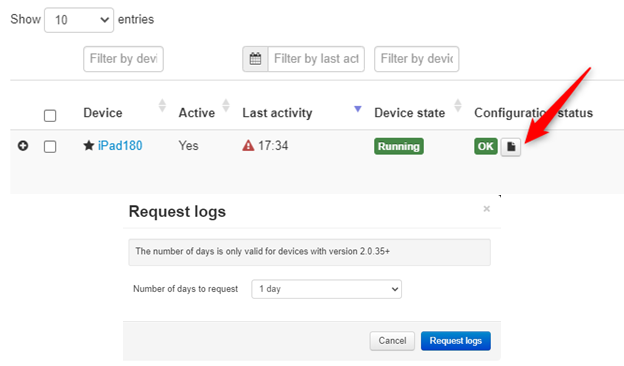
- Once the logs have downloaded select ‘Device Logs’ under the actions column and download the logs.

- In the log file search for ‘Websocket’. When the websocket has started successfully you will see the below lines in the logs.
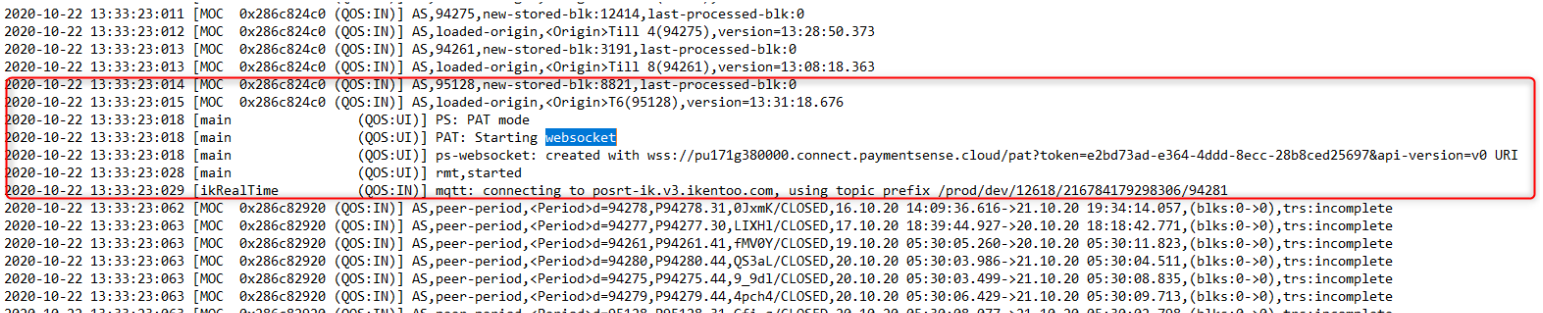
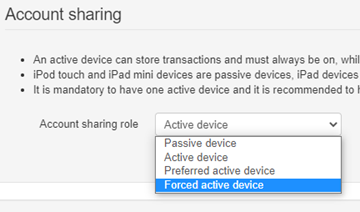
- If you’re unable to find this in the logs you will need to force start the websocket, this is done by going into the device settings of the master till and changing the account sharing role to ‘Forced Active Device’. Once done you will need to reload the till before changing it back to ‘Active Device’.
- You will then need to download the logs again and check to see if the websocket has started.
Comments
0 comments
Please sign in to leave a comment.