
- Reboot the device. Press and hold both the Clear (yellow) button and the ‘-.’’ (below the number 9) until the device reboots.
- Complete a TMS call. Following these steps
- Press Menu x 2
- F3 for Supervisor
- Enter the Supervisor code (123456 or 01483)
- Press Menu again
- Select Call TMS
This will pull down any updates which the device may need.
3. Check the PDQ is online, This is done by checking the colour of the Ethernet icon on the PDQ screen (See Below).
- Green means Online.
- White Means Offline Or cable disconnected
- Red means Offline but the cable is connected
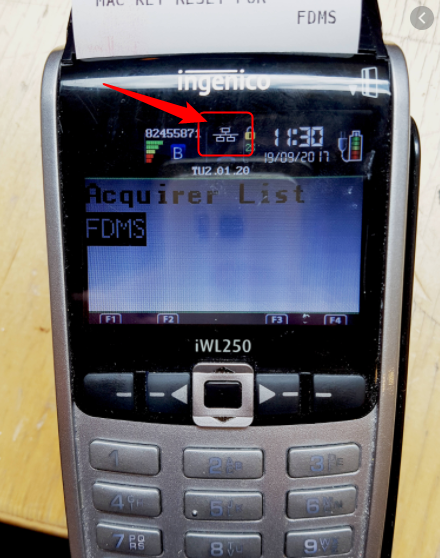
If the PDQ is offline try the below steps.
- Reseating the Ethernet cable at both ends
- Making sure the PDQ starts charging when put on the base (If it doesn't its a power issue)
- Try a different wall/ switch port and make sure the ports working (Check with a laptop)
- Try a known working ethernet cable
4. Check the Till is linked to the correct PDQ. This is done by going to Configuration > Devices on Lightspeed, Selecting the tills number and checking the 'Payment Terminal to connect to'.
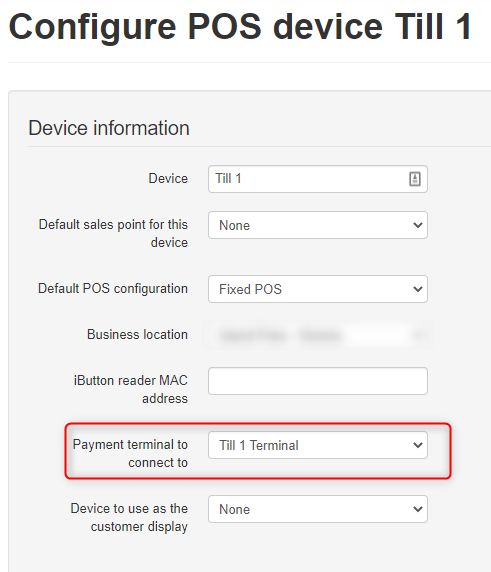
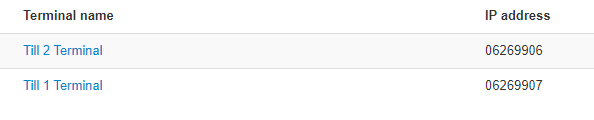
You will then need to check the TID number for this terminal, This is done by going to Configuration > Hardware > Payment terminal. You will need to check this TID number matches the one for the PDQ. (You can get the PDQ's TID number by doing a TMS Call).
5. Make sure the PDQ is in till mode.
Press F4 from the home screen
Enter password (123456 or 01483 by default)
'Standalone Mode' will appear on the screen
Select Standalone mode OFF (Till mode ON message will pop up)
Press red cancel button to restart the terminal
Comments
0 comments
Please sign in to leave a comment.