Transfer operations take money from one payment method and add it to another. It’s helpful to create transfer operations from the Back Office to correct POS transactions without having to cancel the entire invoice. It can also be used when a payment method is going from no money to money, such as invoices or gift cards. For instance, a customer wants to settle an open invoice payment. The payment method then changes from invoice, to the corresponding payment method used, such as Master card. The prerequisite for using transfer operations is that the payment methods are already created in the Back Office.
Transfer operations can be added and modified from the Back Office. To use transfer operations on your POS, you can add a transfer operation button to a menu. To use the button, the user needs the respective right "User can transfer items from one account to another".
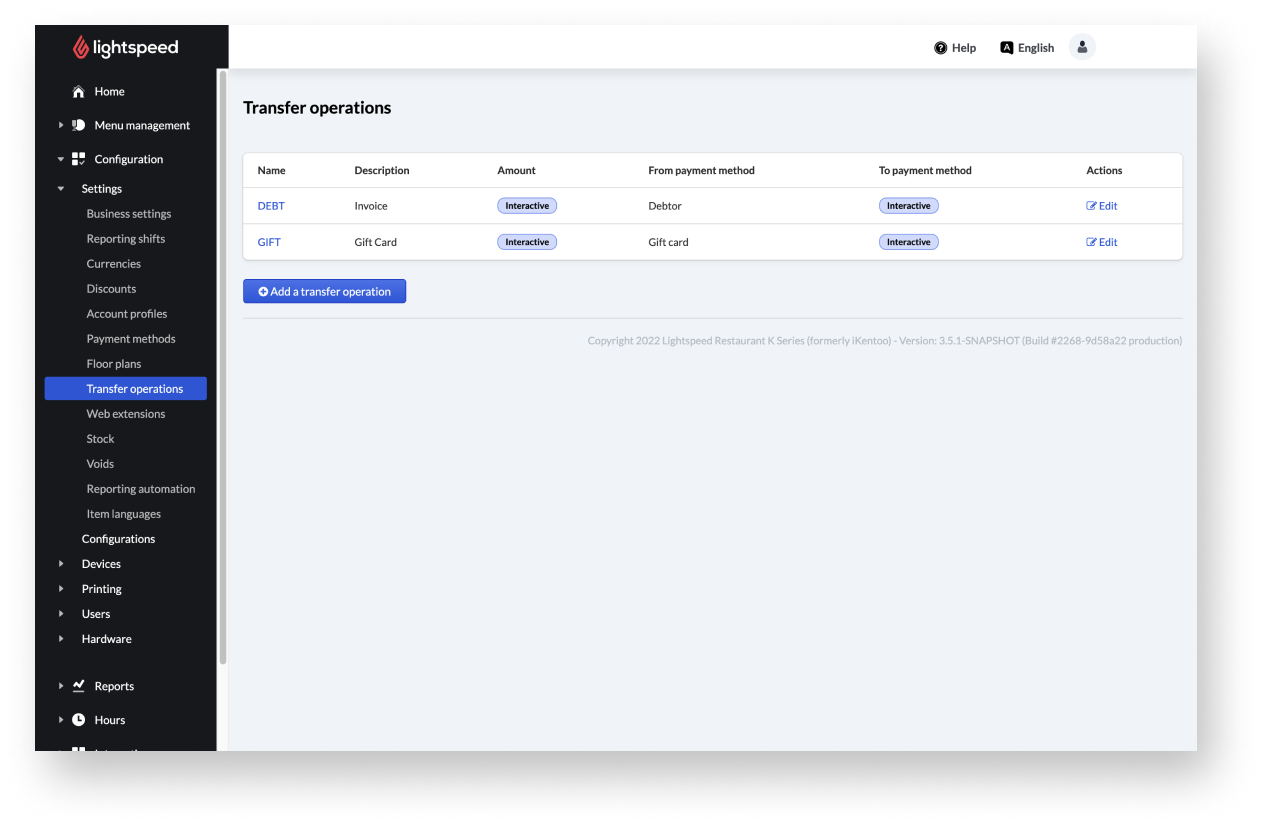
Adding transfer operations
Transfer operations change your invoice amount from one payment method to another. Add the transfer operations needed from the Back Office.
- Log in to the Back Office with your Lightspeed credentials.
- From the navigation menu, select Configuration > Settings > Transfer operations.
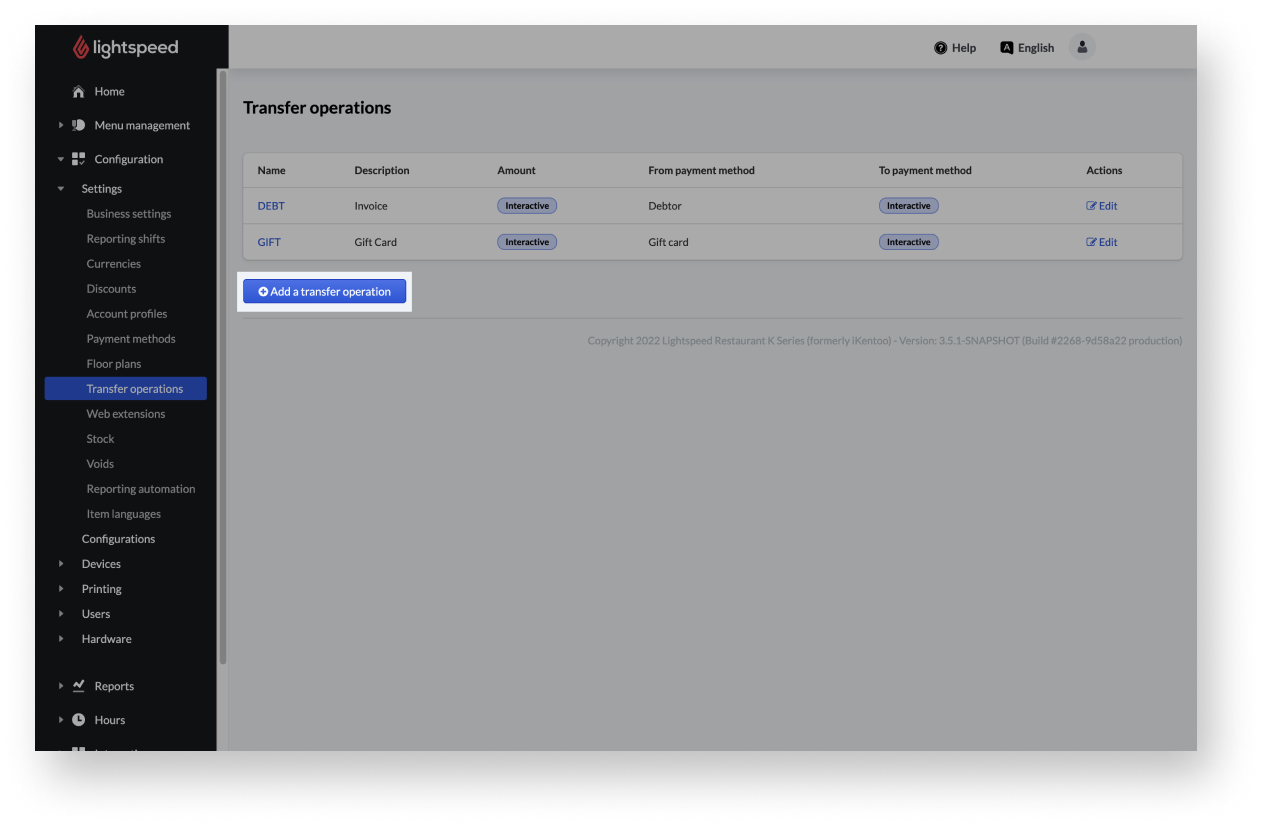
- Select the Add a transfer operation button at the bottom of the Transfer operations page. The Add a new transfer operation page appears.
- Enter the required transfer operations settings, such as the Name, Description, transfer amount and define from which payment method the amount is removed and to which payment method the amount is added.
- When you’re done adding transfer operation settings, select the Save button at the bottom of the page.
Transfer operation settings
| Setting name | Description |
| Name | The name of the transfer operation shown in the Back Office. |
| Description as shown on the receipt | Additional information about the transfer is shown to the customer on a receipt. Amount of money to transfer |
| Amount of money to transfer | Defines the amount which is removed from one method and added to another. If nothing is entered here, the amount can be entered manually on the POS. |
| This transfer operation removes money from | The payment method from which an amount is subtracted. All payment methods (Configuration > Settings > Payment methods) that were previously created from the Back Office are available for selection. If nothing is entered here, the payment method can be entered manually on the POS. |
| This transfer operation adds money to | The payment method to which the subtracted amount is added. All payment methods (Configuration > Settings > Payment methods) that were previously created from the Back Office are available for selection. If nothing is entered here, the payment method can be entered manually on the POS. |
Editing transfer operations
Once transfer operations are created on Lightspeed Restaurant (K Series), you can always modify them from your Back Office. This is helpful for instance, if you need to change the name of the transfer operation or update the payment method from which an amount is subtracted and added to another payment method.
- Log in to the Back Office with your Lightspeed credentials.
- From the navigation menu, select Configuration > Settings > Transfer operations.
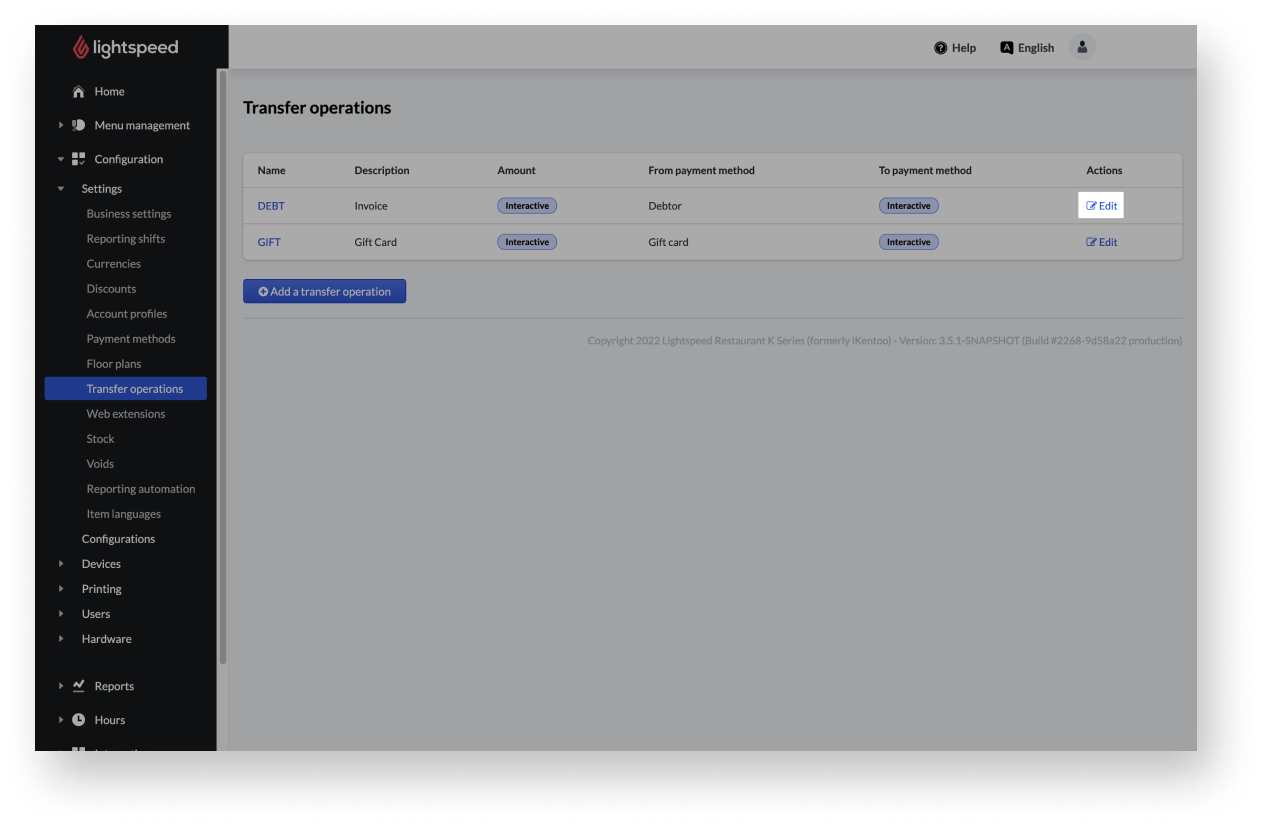
- Select the Edit button next to the appropriate transfer operation. The update transfer operation page appears.
- Make the required changes.
- When you’re done editing transfer operation settings, select the Save button at the bottom of the page.
Comments
0 comments
Please sign in to leave a comment.