About modifiers
In Lightspeed K Series, product modifiers can be understood as both production instructions and sub-items.
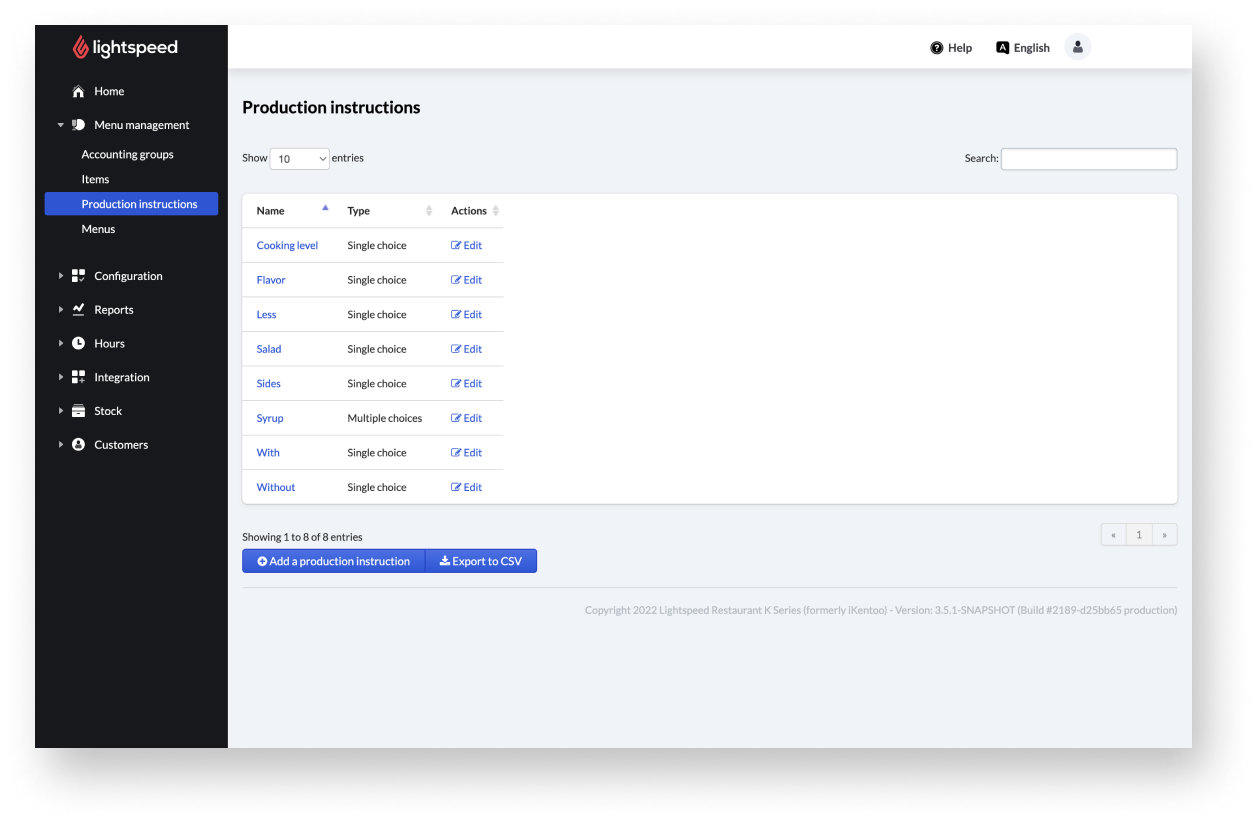
One type of modifier on Lightspeed Restaurant (K Series) includes production instructions. Production instructions inform the kitchen on specific preparation information for an item. Production instructions can be configured as automatically tied to an item, so whenever a POS user adds that item to an order, they are prompted to include the relevant preparation info. Production instructions are usually not associated with an extra cost and don't appear on reports. You can create, edit and export production instructions from your Back Office.
Another type of modifier on Lightspeed Restaurant (K Series) includes sub-items. Sub-items are order items that are attached to a main item. An example of a sub-item could be “salad dressing” for the main item “salad.” You can give the sub-item any price you want. For instance, you can have a sub-items price included in the parent item price, or define the extra cost by adding a default price for the sub-item.
There are two ways to use modifiers on the POS. One option is to add instruction buttons to menus, so that the instruction can be added to any item at any time needed. The other option is to assign modifiers directly to items from the Back Office. For instance, when a steak order is made, the POS will ask what type of sub-items or preparation instructions to use.
Adding modifiers
In Lightspeed K Series, product modifiers can be understood as both sub-items (items automatically attached to a parent item) and production instructions (preparation notes attached to an item). You can add both sub-items and production instructions from the Back Office.
Adding production instructions
Production instructions in Lightspeed Restaurant (K Series) are used to inform the kitchen on specific cooking information such as rare, medium, well for cooking options. These additional information for the kitchen are not associated with an extra cost and won't generate statistics.
- Log in to your Back Office with your Lightspeed Restaurant credentials.
- From the main navigation menu, select Configuration > Settings > Production instructions.
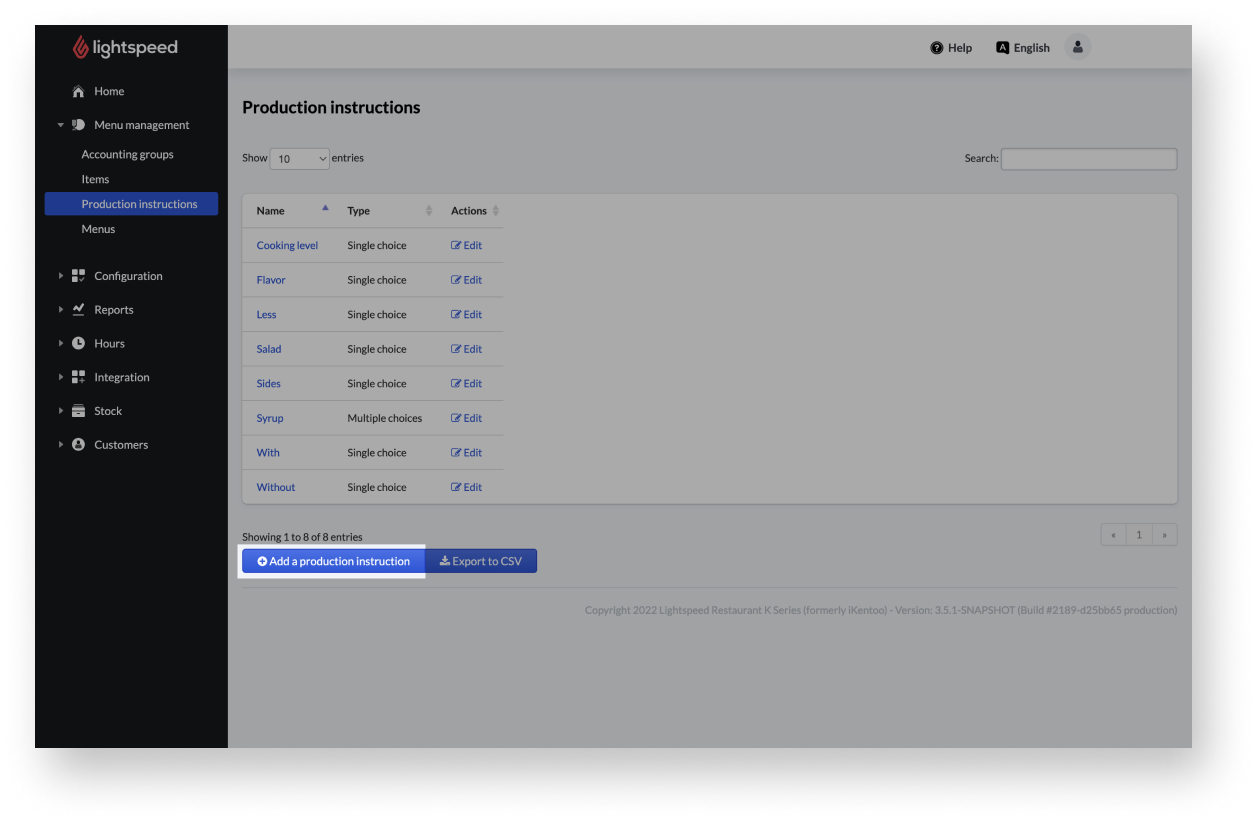
- Select the Add a production instruction button at the bottom of the production instructions page. The add a new production instruction page appears.
- Enter the required information, such as Name, Type and Value of the instruction.
- When you’re done entering the production instructions information, select the Save button.
Production instruction settings
| Setting name | Description |
| Name |
The name of the modifier, displayed in the Back Office. |
| Type |
The instruction type defines, if the user can choose one (single choice) or several instructions (multiple choices) on the POS. |
| Use the '#' symbol for the quantity when only one instruction |
This helps to give more clarity to the chef between the details of the order and the quantity on a production ticket. You can replace the numbers of the modifiers of an order by using #. Without# With# 1xCheeseburger 1xCheeseburger 1x rare #rare |
| Value |
The Value input field allows more detailed information about the instruction. For example, the name of the instruction is "less". More specific information is then entered in the Value field, such as "less sugar", "less salt" or "less sauce". To add the value to the instruction, enter the name of the information in the Value field and select the + button next to the field. You can add several values to an instruction. |
Adding sub-items
Sub-items are order items that are attached to a main item. An example of a sub-item could be “salad dressing” for the main item “salad.” You can give the sub-item any price you want. For instance, you can have a sub-items price included in the parent item price, or define the extra cost by adding a default price for the sub-item. Creating sub-items are mainly created the same way as regular items.
Follow the steps in the article Adding items in detail to create a sub-item and make sure that the checkbox “This item is a sub-item” on the Create a new Item page is enabled. The enabled checkbox influences the behavior on the POS. The sub-item cannot be selected unless the parent item has been selected first. The parent item can be any item, so the sub-item is not tied to any specific one. Make sure that your sub-items are organized within your menu screen so the user knows that he can add a sub-item to the previously selected item. S If the extra cost is already defined in the parent item, then you do not need to set a price for the sub-item. If not, then enter the extra cost in the Back Office when adding the sub-item.
Sub-items are sometimes used as Combos.
Comments
0 comments
Please sign in to leave a comment.