The ability to put food & drink orders in your customer's hands has begun to become the norm, and with Arch at your disposal, you've already got a seamless tool that is fully integrated with your Lightspeed K-Series set up, waiting to be deployed
This guide will show you how to:
- Create tables that are available
- Create a printable QR code linking that table to your menu
- Print the QR code per table, allowing your customer to be automatically seated
Here is how you do it:
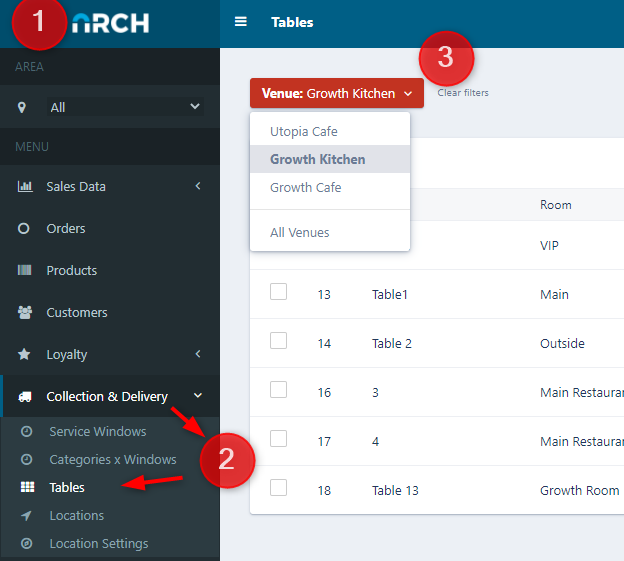
1. Log in to your Arch back of house venue back office
2. Head to Collection and Delivery > Tables > Add Table
3. Choose the venue you want to create tables for
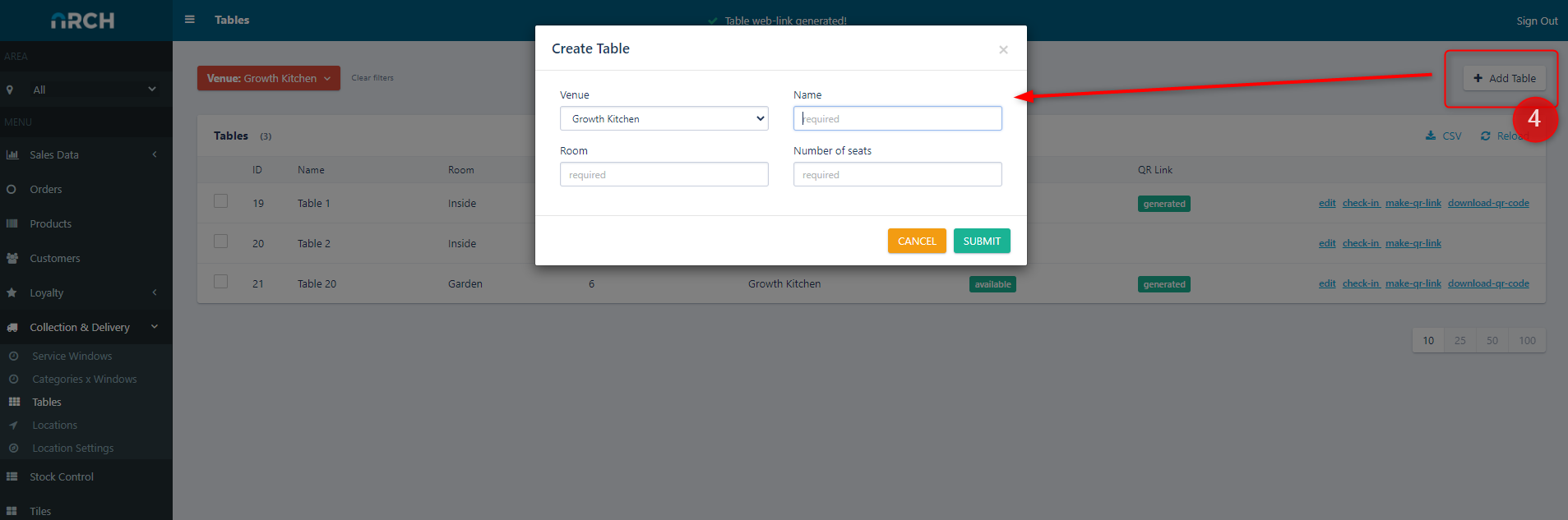
4. Go ahead and Add a Table (top right), and then fill in the information.
Venue - the venue you're adding a table to
Name - what do you call/label the table? (example: table 1)
Room - where is this table? (example: inside or garden)
No of seats - how many people does it normally hold?
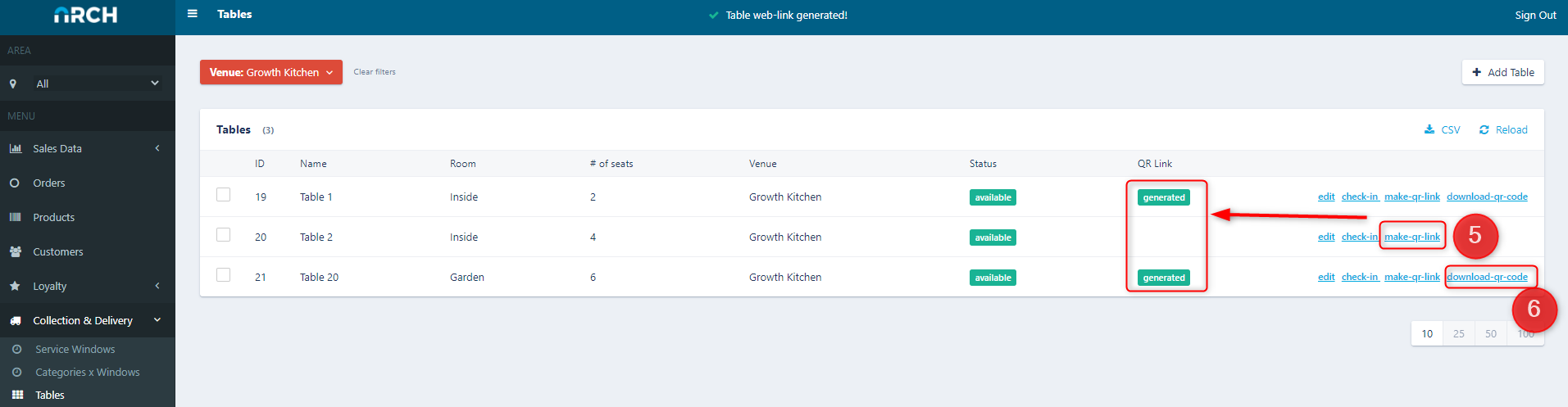
5. Create a QR code for this table (you can see the word 'generated' when done)
6. Download for printing by clicking 'Download QR code'.
To note:
- It downloads PNG ready to go
- each download will be labelled with the table number for printing
- repeat this for each table you need printed
Please make sure you test yours too before sticking it on each table and then...You're now ready to go!
What does this look like for your customer?
1. They are automatically seated so that you know exactly where the order is going to.
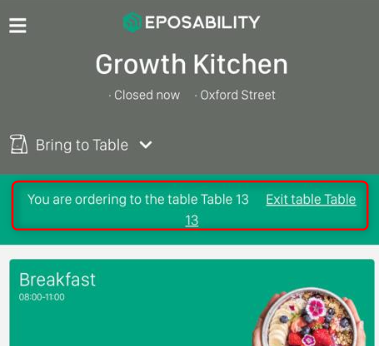
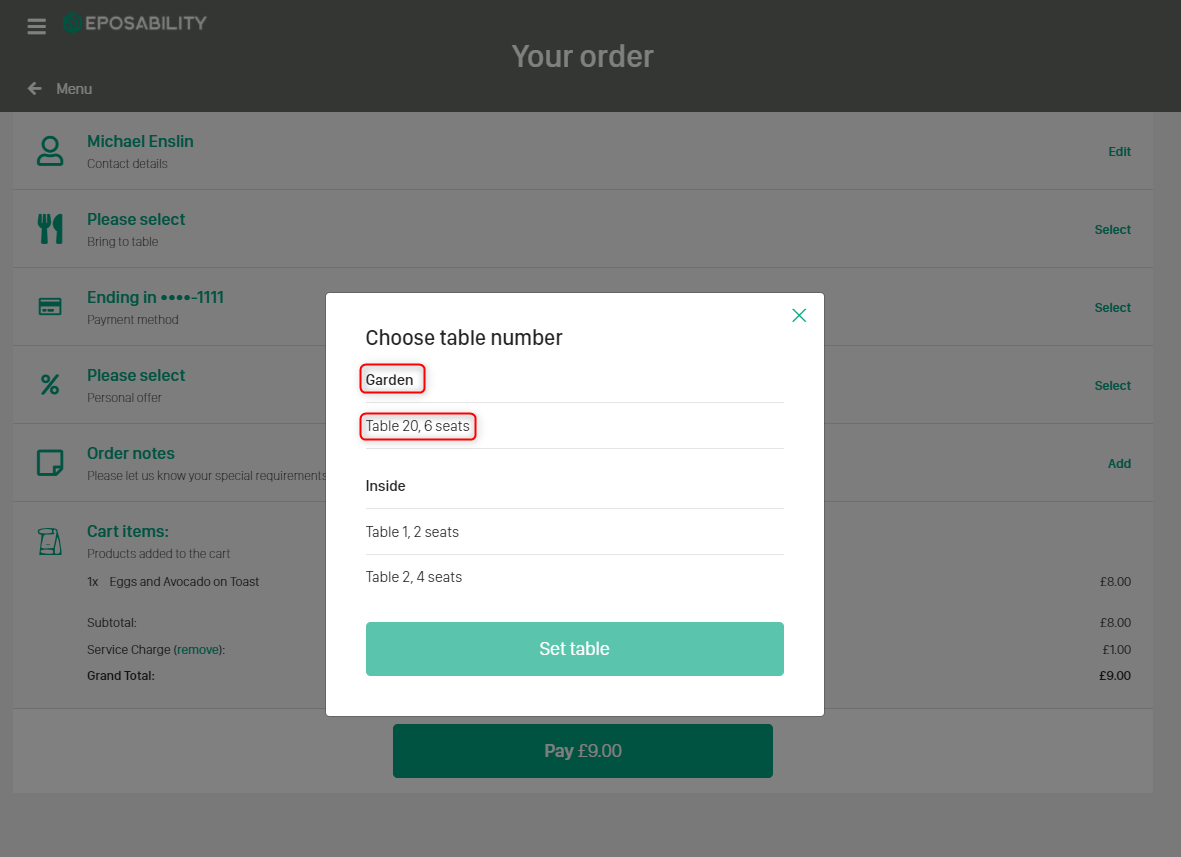
2. When they go to pay there is additional confirmation of where they are seated, table and room/section.
3. Here's a QR code for you to try

If you have any questions or would like some additional help then please book in time with our tech advisors using our bookings calendar - Support with a Tech Advisor (click-me)
Comments
0 comments
Please sign in to leave a comment.