Create customer profiles to track contact details and purchases for each customer and to set up customer rewards or invoicing in Lightspeed Restaurant. Add new customers individually from the Back Office or at the POS, or import customers from the Back Office to add them in bulk. After creating a customer, attach them to orders in the Restaurant POS app to link them to their transactions.
After adding some customers, visit the Customers page in the Back Office to export customer data, view their transaction history, and make changes to or delete customers.
Add a customer to an order either by tapping Assign customer from the Register screen or navigating to the Customer screen. If the customer does not yet exist on Lightspeed Restaurant, easily create a new customer account from the Customer screen.
Adding an existing customer to an order
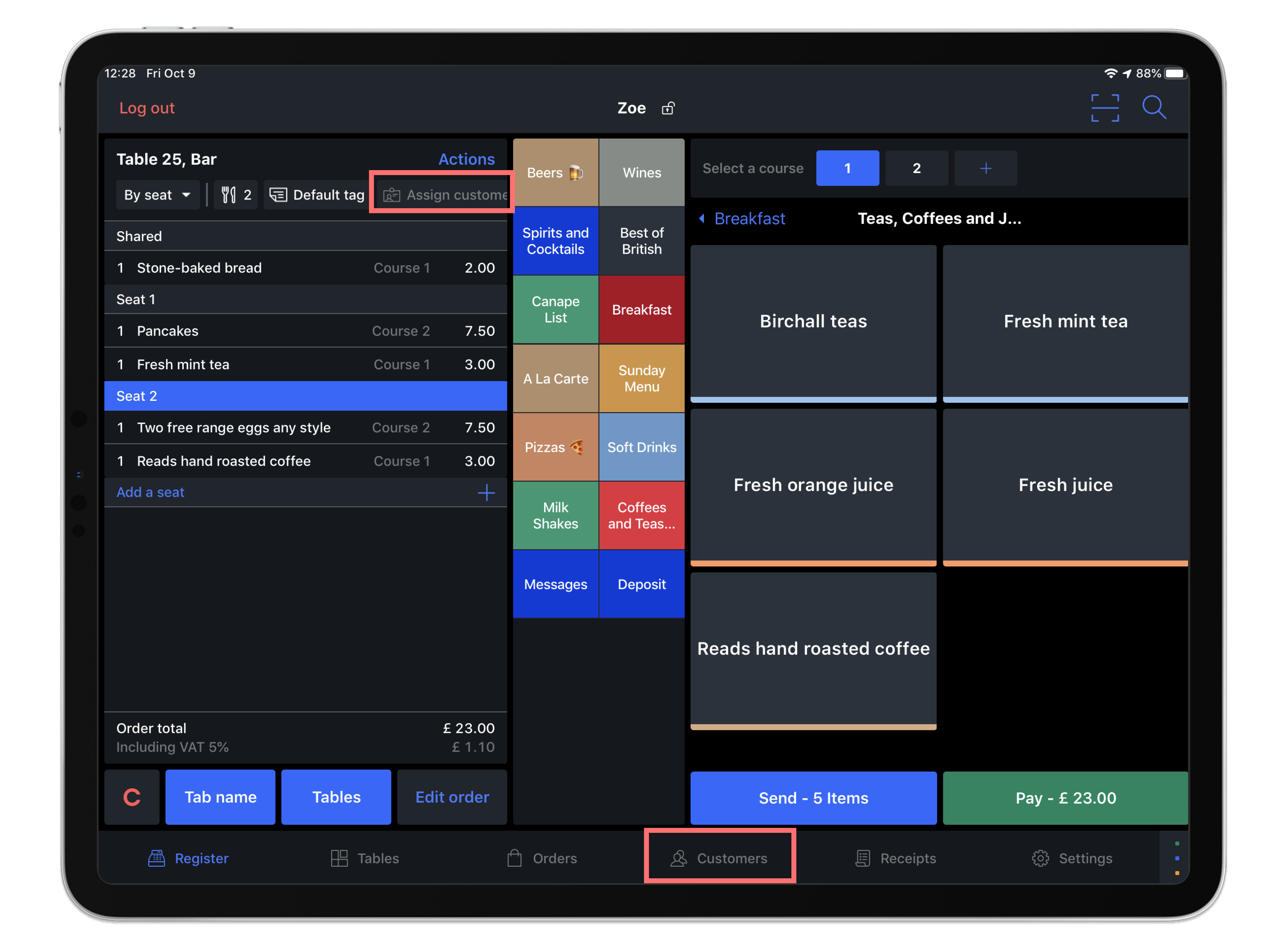
- Select the Assign customer button above the order items or by tapping the Customers tab at the bottom of the screen.
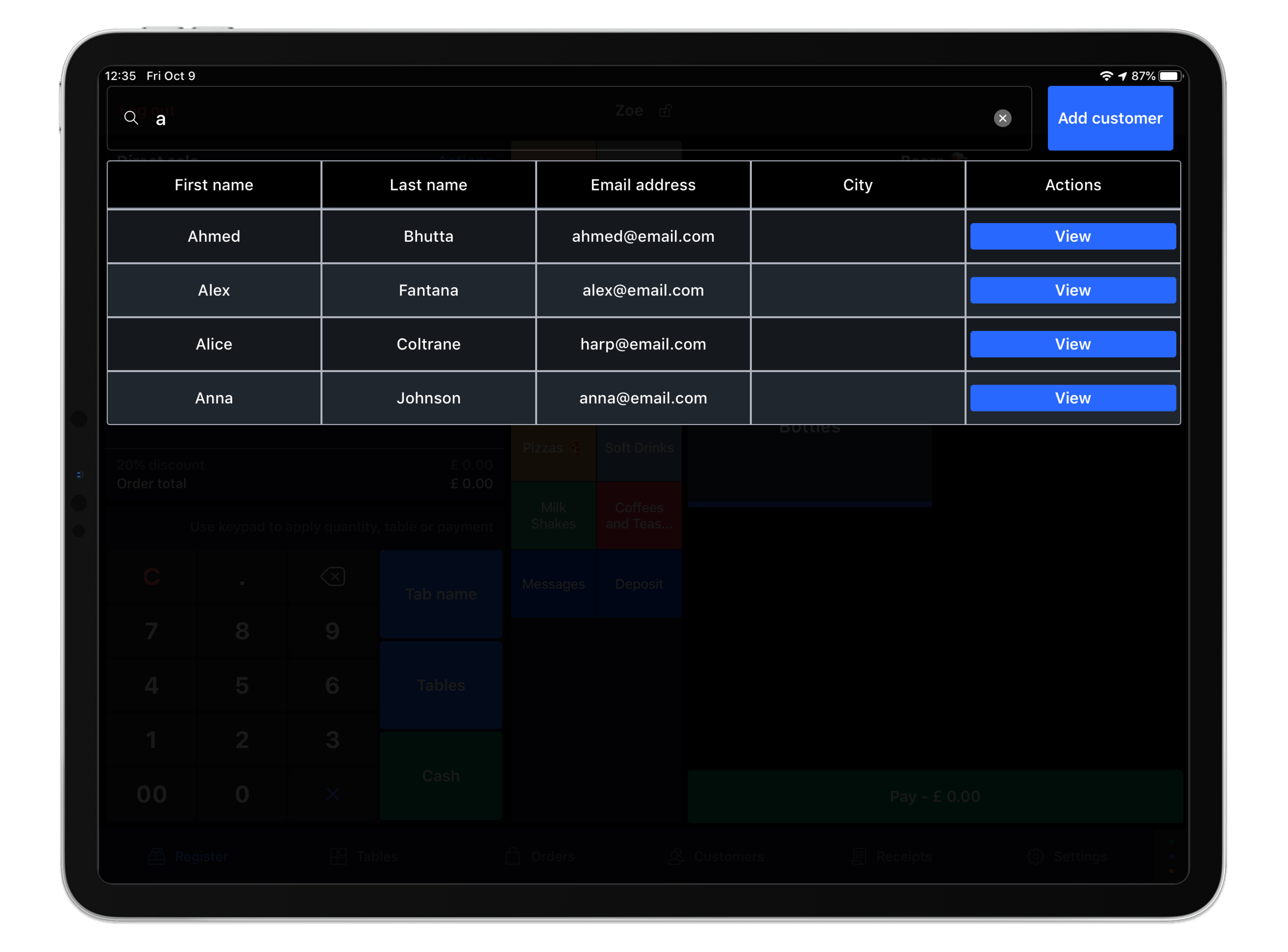
- From the Customer screen, use the Search bar to type an identifier from the customer profile (such as their phone number, email or name). A list of results will auto-populate as you type.
- Select the desired customer from this list by tapping the customer’s name. If the customer does not yet exist on Lightspeed Restaurant, you can create a new customer profile and attach the new customer to the order.
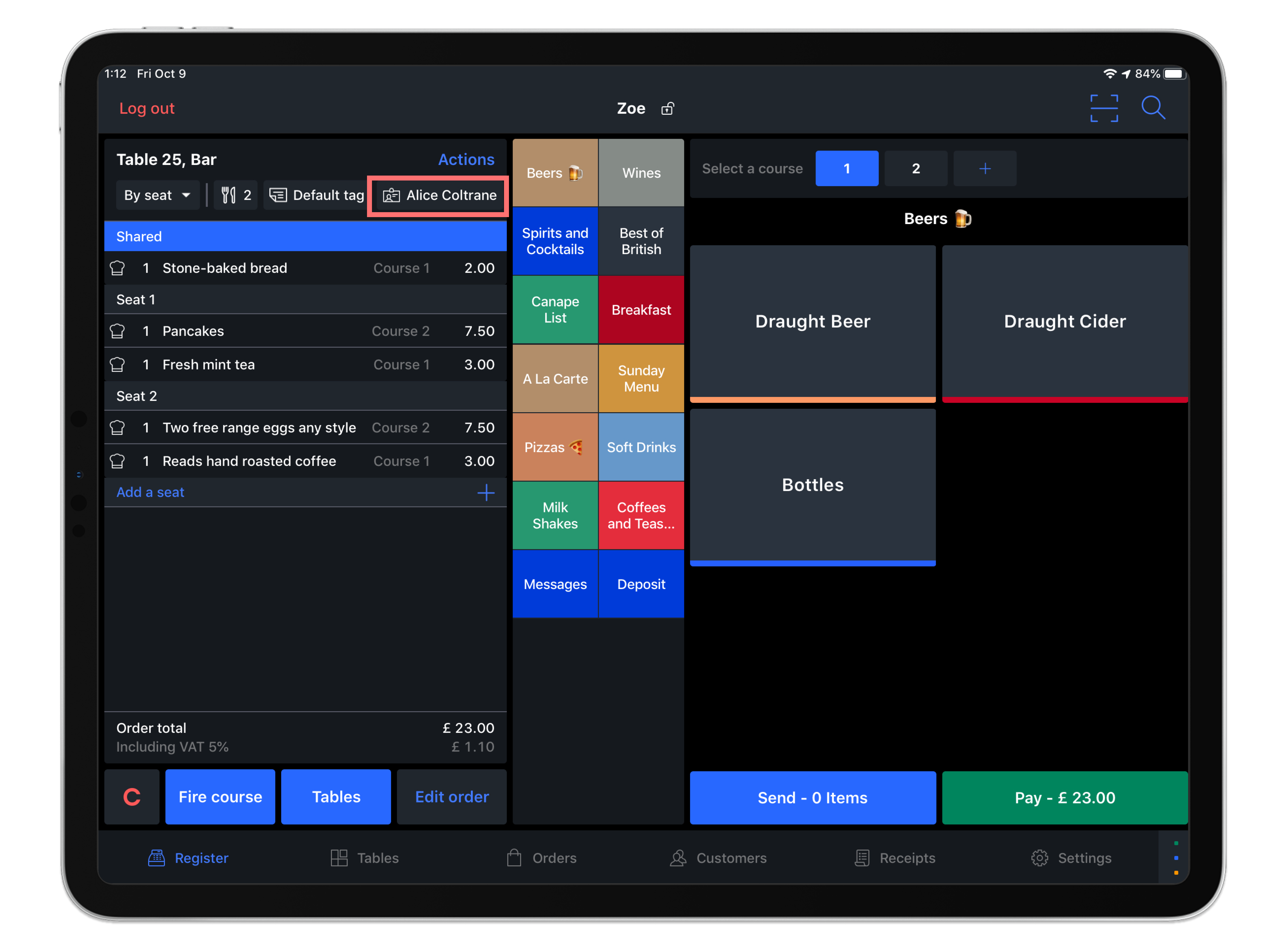
- Once selected, the customer will be added to the order and you will be automatically brought back to the Register screen. You can see the customer has been linked to the order if their name is listed at the top of the order view.
Removing a customer from an order
It happens that you may need to remove or change an order's assigned customer. To remove a customer from an order, follow these two simple steps:
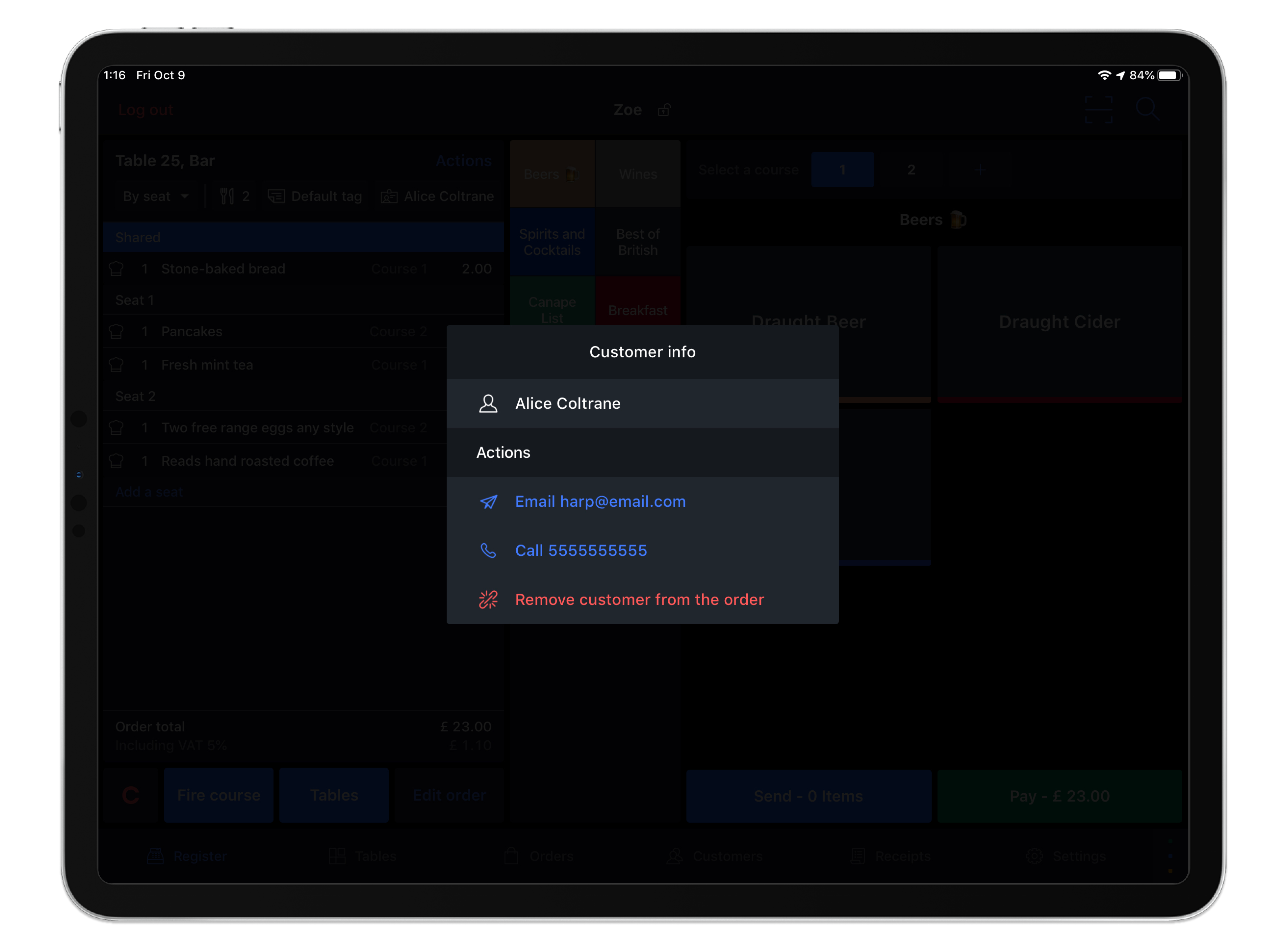
- From the Register screen, tap the customer name above the order items.
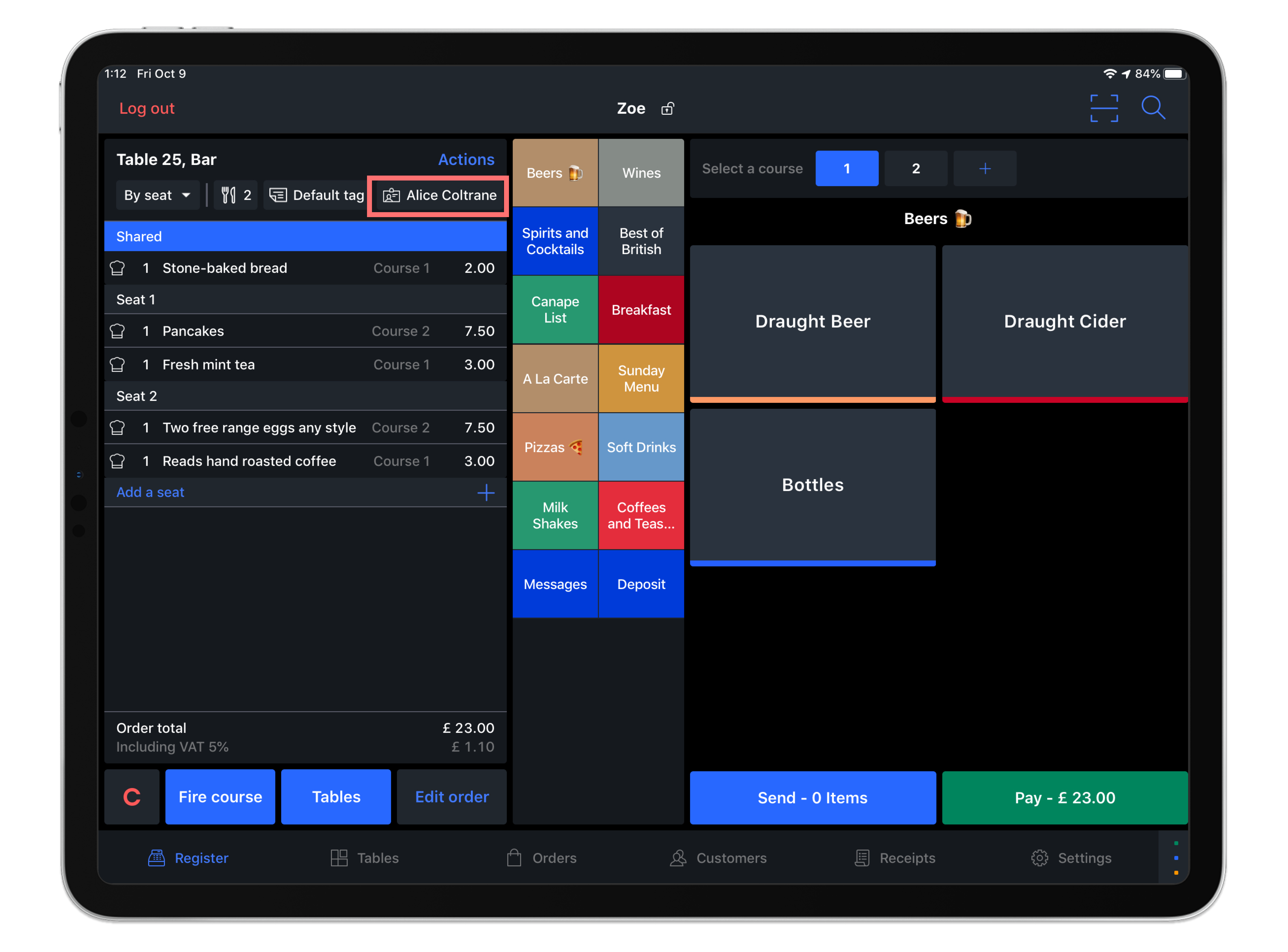
- A Customer information window will open displaying the customer’s name. Tap Removecustomer from the order to unlink their profile.
Comments
0 comments
Please sign in to leave a comment.