The Order management screen provides an overview of all open orders from the Restaurant POS app. From this screen, you can toggle between pickup, delivery, and bar tab orders and apply filters to see specific order information. Additionally, you can perform quick actions, including updating the order status, assigning an order to another staff member, or unlinking a customer from an order.
Viewing dine-in orders
The Dine-in tab shows an overview of all open table orders, offering details at a glance and quick access to orders.
- In the Restaurant POS app, tap Orders, which defaults to the Dine-in tab.
- To sort orders, tap a column header once for ascending order or twice for descending.
- Search for a specific order by typing the order, user, or customer name in the search field.
- To edit an order, tap the order to open it on the Register screen. Visit editing and reviewing orders for help editing orders.
See the Dine-in tab table below for descriptions of each column within the tab.
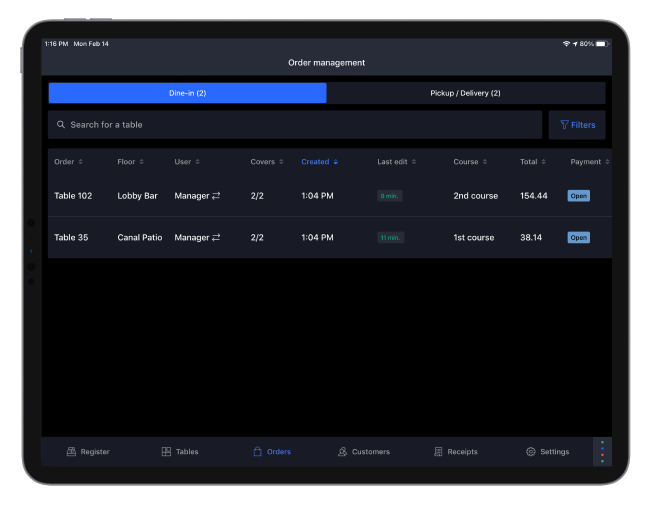
Dine-in tab
| Column name | Description |
| Order | Table number or order name. |
| Floor | The name of the floor plan where the order was started. |
| User | Staff member who created the order. Tap the user's name to transfer the order to another clocked-in staff member. |
| Covers | Number of patrons dining, followed by the number of available seats at a table. |
| Created | Time when the order was placed. |
| Last edit | Time of the last change made to the order. |
| Course | Most recent course sent to the kitchen. |
| Total | Total balance left to be paid on the check. This will update automatically as order payments are made. |
| Payment | Current payment status of the order:Open,Receipt Printed, or Paid. If enabled in the account profile settings, the order will be removed from the order management screen automatically when the check is fully paid. |
| Customer | Name of the customer assigned to the order. Tap the pop-out icon  to see customer details, such as their email and phone number, or remove the customer from the order. to see customer details, such as their email and phone number, or remove the customer from the order. |
Viewing and managing pickup and delivery orders
The Pickup / Delivery tab shows an overview of all open takeaway orders. It allows you to quickly update the order’s customer, user, or status. Orders that appear on this tab can be entered by hand or made automatically via an online ordering integration. For more details on online ordering, visit Online ordering.
To access and manage the Pickup / Delivery tab.
- In the Restaurant POS app, tap Orders.
- Select Pickup / Delivery.
- To sort orders, tap a column header once for ascending order or twice for descending.
- Search for a specific order by typing the order number in the search field.
- To edit an order, tap the order, and it will open on the Register screen.
See the pickup / delivery tab table below for descriptions of each column within the tab.
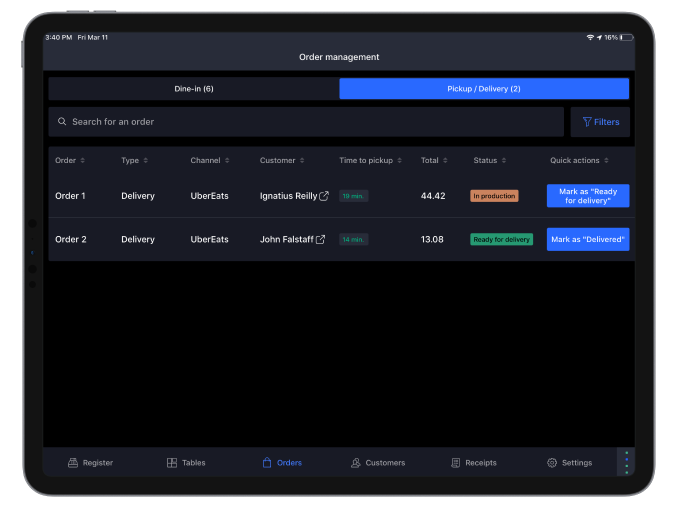
Pickup / Delivery tab
| Column name | Description |
| Order | Order number. |
| Type | Whether the order is intended for Delivery or Pickup. This setting is determined by the account profile that was used to place the order. |
| Channel | Name of the account profile used to place the order. |
| User | Staff member who created the order. Tap the user's name to transfer the order to another clocked-in staff member. |
| Customer | Name of the customer assigned to the order. Tap the pop-out icon to see customer details, such as their phone number and email (Note: Customers cannot be unlinked from orders made online). |
| Created | Time of when the order was placed. |
| Time to pickup | Amount of time remaining for the order to be completed. Adjust the default Time to pickup by going into the settings of the account profile used for takeaway or online orders, then set the Delivery delay to custom delay, and finish by adjusting the time in minutes. |
| Total | Total balance left to be paid on the check. This will update automatically as order payments are made. |
| Items count | Number of items ordered. |
| Status | Current preparation status of the order: Received, In production, Ready for delivery, Delivered, Ready for Pickup, or Picked up. |
| Payment | Current payment status of the order: Open, Receipt Printed, or Paid. If enabled in the account profiles settings, the order will be removed from the Order management screen automatically when the check is fully paid. |
| Quick actions | Use the button here to advance the order to the next phase of production, for example, to mark an order ready to pick up. Tap More actions to set the status manually, adjust the pickup time, or pay and close an order. |
Viewing bar tabs
The Bar tabs tab shows an overview of all open bar tabs started at the POS. From this area, you can view the name, order total, customer, and other details of each tab. Search or sort the list to find a specific tab, and tap a tab to open and modify it.
Important: This tab is only visible when the bar tabs feature is enabled in the Back Office
- In the Restaurant POS app, tap Orders.
- Select Bar tabs.
- To sort the table, tap a column header once for ascending order or twice for descending.
- Search for a specific bar tab by typing its name in the search field.
- To edit a bar tab, tap the tab, and it will open on the Register screen. See managing and closing bar tabs for help editing bar tabs.
See the bar tabs tab table below for descriptions of each column within the tab.
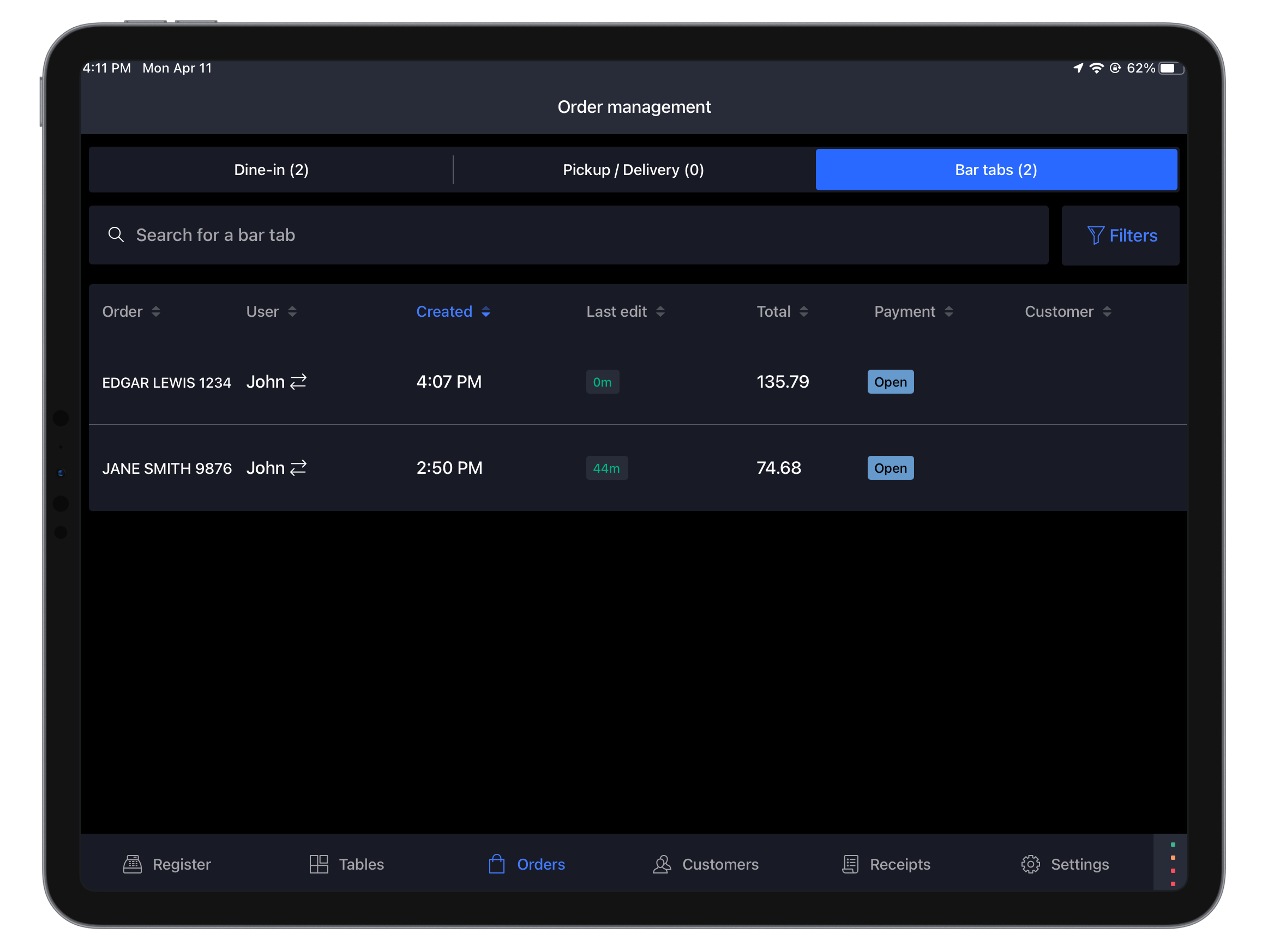
Bar tabs tab
| Column name | Description |
| Order | Name of the bar tab. If a debit or credit card was pre-authorized when opening the tab, this will be the cardholder’s name. |
| User | Staff member who opened the bar tab. Tap the user's name to transfer the tab to another clocked-in staff member. |
| Created | Time of when the bar tab was opened. |
| Last edit | Time of when the bar tab was most recently modified. |
| Total | Total balance left to be paid on the check. This will update automatically as order payments are made. |
| Payment | Current payment status of the order: Open, Receipt Printed, or Paid. If enabled in the account profile settings, the order will be removed from the Order management screen automatically when the tab is fully paid. |
| Customer | Name of the customer assigned to the order. Tap the pop-out icon to see customer details, such as their phone number and email (Note: Customers cannot be unlinked from orders made online). |
Filters and customizations
Customize the Order management screen to: show or hide columns, filter orders based on specific criteria, and organize the order in which columns appear.
Note: Applied filters and customizations are unique for each screen (Dine-in, Pickup / Delivery, and Bar tabs) and unique to each device. If you want a consistent Order management screen across devices, repeat the steps below as needed.
Filtering orders
Apply filters to the Order management screen to view only the orders with a particular Type, User, Channel, Order status, Payment status, or Floor.
- In the Restaurant POS app, tap Orders.
- Select a screen to filter: Dine-in or Pickup / Delivery.
- Tap Filters.
- Tap Filter content(default).
- Select any Type, Channel, User, Order status, Payment status, or Floor, that you wish to view in the orders. For example, filter the payment status by Open orders to see only the unpaid orders.
- Tap Close to finish.
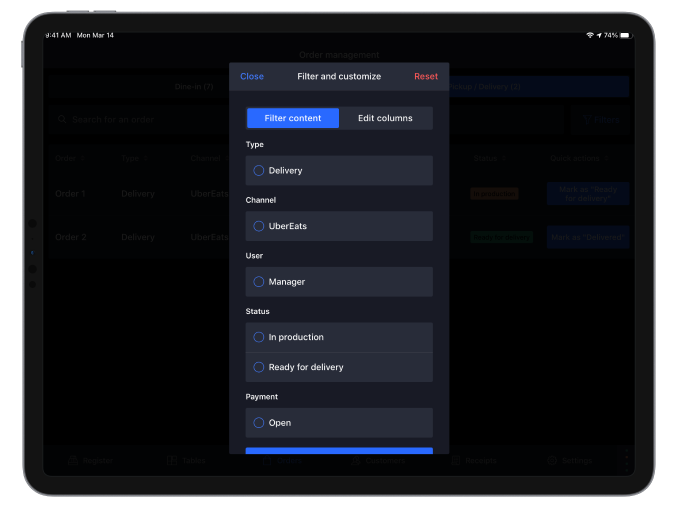
Hiding and reordering columns
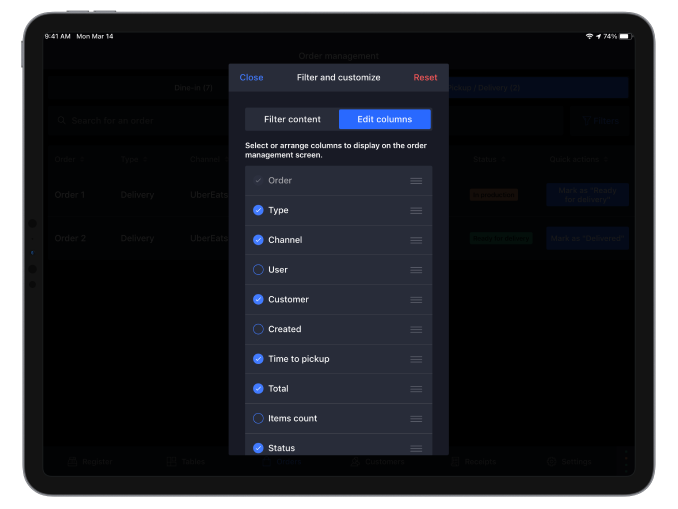
Hide columns from the Order management screen to see only the information that is relevant to your business. Columns can also be rearranged to reflect their relevance, order of importance, or other preferences.
- In the Restaurant POS app, tap Orders.
- Select the screen to edit: Dine-in or Pickup / Delivery.
- Tap Filters.
- Tap Edit columns.
- Deselect the name for any column you wish to hide.
- (Optional) Reorder columns as needed with steps 6a-6b.
- Tap and hold the menu icon
 beside a column.
 - Drag and drop the column to where it should appear in the list.
- Tap and hold the menu icon
- (Optional) Tap Reset to restore default settings.
- Tap Close to finish.
Comments
0 comments
Please sign in to leave a comment.