The New stock transfer page allows you to move items from one stock location to another. The transfer is reported in the stock movements section of the Back Office.
- Log in to the Back Office with your Lightspeed credentials.
- From the navigation menu, select Stock > New stock transfer.
- Fill in the stock transfer settings, then select the Save button.
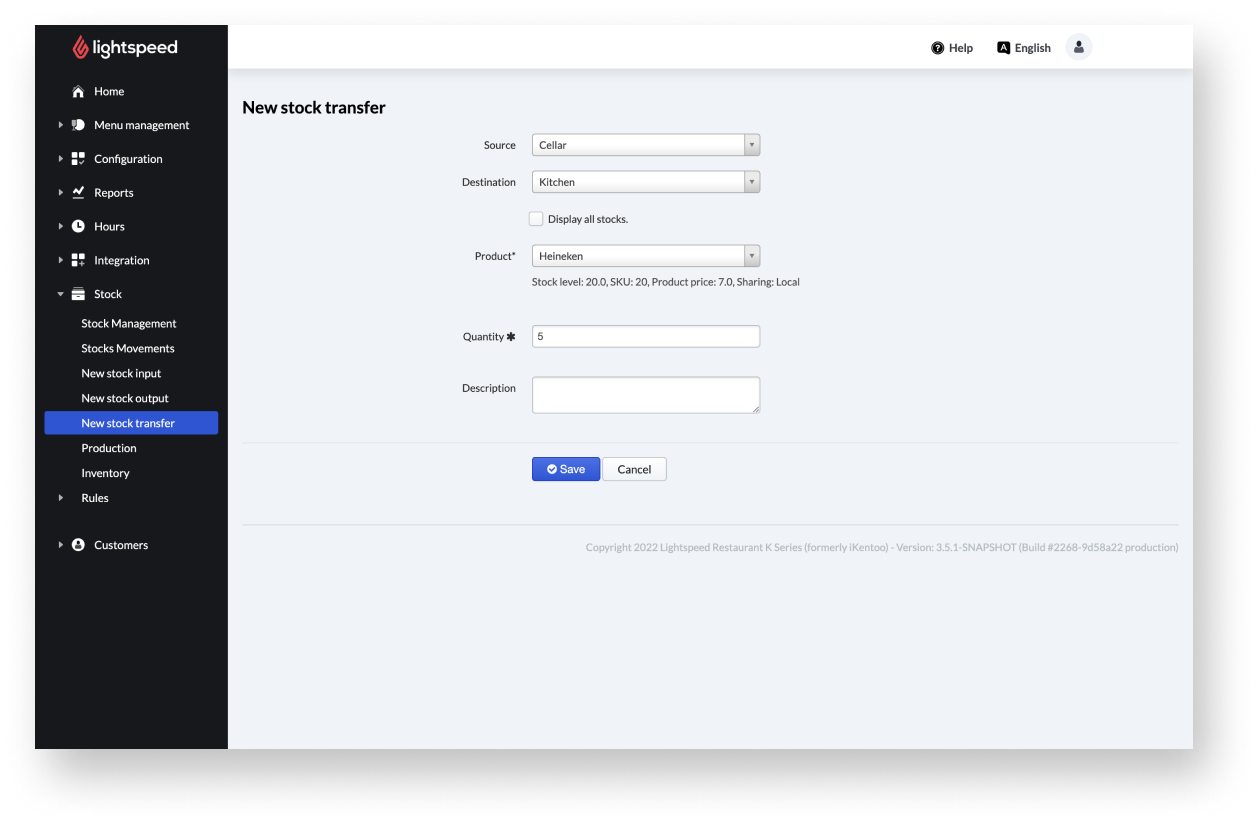
Stock transfer settings
| Setting name | Description |
| Source | The stock location from which the item will be deducted. All stocks created in Configuration > Settings > Stock are available for selection. |
| Destination | The stock location to which the item will be added. All stocks created in Configuration > Settings > Stock are available for selection. |
| Display all stocks | By checking this box, stocks from other business locations linked to your account will also be displayed. |
| Product |
This item will be moved from one stock to another. All items created in Menu management > Items are available for selection. |
| Quantity |
The number of items that will be moved. |
| Description |
Optional details to the stock movement. |
Comments
0 comments
Please sign in to leave a comment.