POS devices represent the physical hardware used to access the K Series POS app. You can manage your POS device settings from the Back Office>Configuration>Devices. Managing your POS devices from the Back Office is important so you can then use them to properly access the POS (K) app.
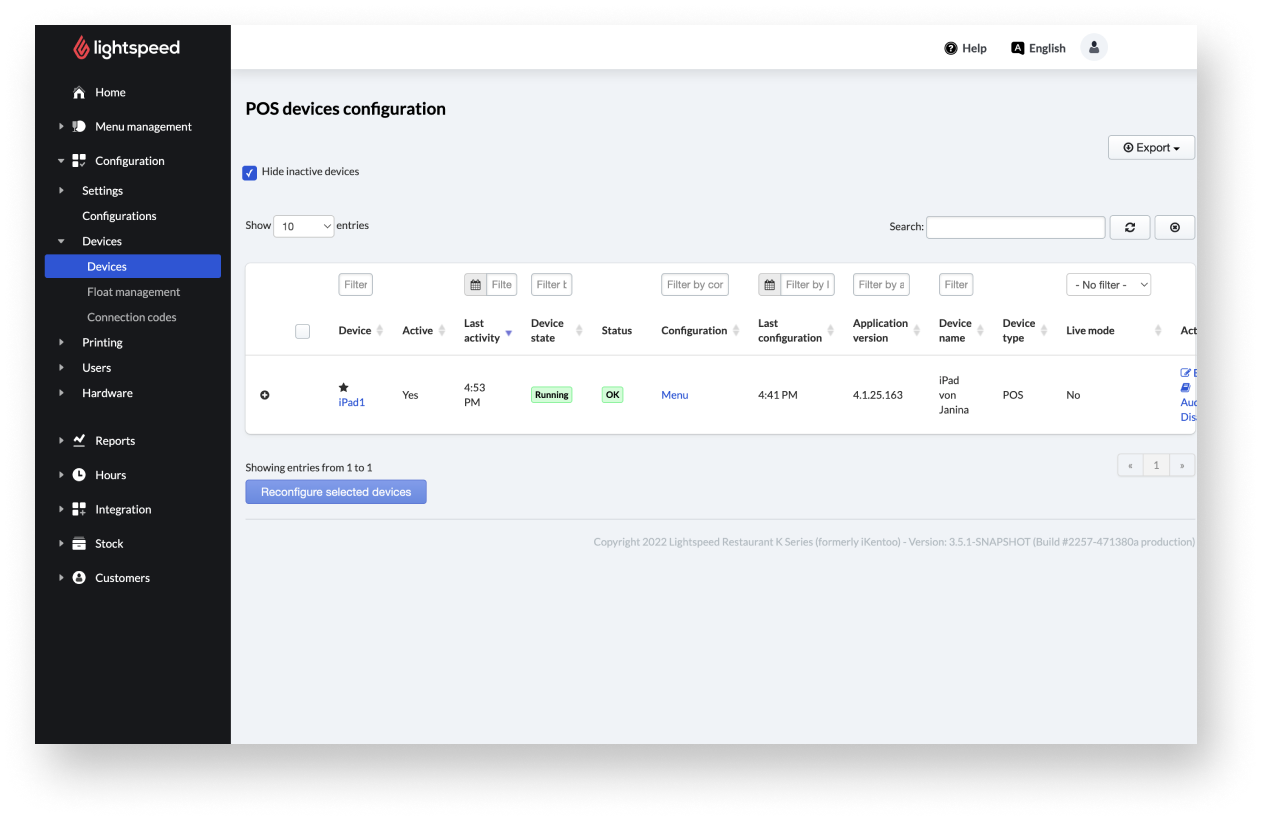
For a POS device to appear in Back Office, you’ll need to have logged in to the POS (K) app with that device using a connection code.
Once you have connected your devices to the POS (K) app, we recommend creating POS configurations. POS configurations represent a series of settings representative of your business that can be applied to your devices. This helps ensure your that are specifically tailored to your business and devices.
POS devices represent the physical hardware used to access the K Series POS app. You can manage your POS device settings from the Back Office>Configuration>Devices. Within the following articles, we will discuss POS devices, configuring POS devices, connection codes, and float management.
In the articles about POS devices, learn how to manage your devices at your site via the Back Office. The POS devices under the K Series Back Office refer to the physical hardware the app runs on.
In the articles about POS configurations, learn about the settings you can apply to POS devices according to your establishment’s business needs. In addition, configurations connect the POS app to your Lightspeed Restaurant Back Office.
Connection codes can be understood as the keys which connect the POS app on your devices to your Lightspeed Restaurant Back Office account. After downloading the POS app, create connection codes from the Back Office, so you can then log in to the POS app.
Finally, learn more about float management at your establishment, such as configuring cash floats and cash drawers and assigning float management to your POS devices.
Comments
0 comments
Please sign in to leave a comment.