About POS configurations
What are POS configurations?
POS configurations can be understood as a collection of settings that are controlled from the Back Office and applied to your POS devices. These configurations allow the Lightspeed Restaurant app to access a specific group of settings that can be customized and edited as needed.
Why are POS configurations important?
POS configurations allow you to customize Lightspeed Restaurant's settings and workflows to fit your business uniquely. For example, a business may use table service and/or pay-at-order counter service. Depending on your desired workflows, you can edit the POS configurations so that these settings are automatically applied to an associated POS app. Additionally, you can create multiple configurations for your business, but a device can only be associated with one configuration at a time.
What types of settings are included in POS configurations?
You can manage multiple device settings, such as printing settings, payment options, and user permissions.
Adding POS Configurations
Set up a POS Configuration to edit the settings of your POS Devices to suit your business needs and workflows. If your business has multiple POS devices with unique functions, you can create multiple POS Configurations and assign them to specific devices to either limit or enhance the functionality of the device.
We currently support two versions of the POS Configurations page for Lightspeed Restaurant K Series: Configurations 2.0 and Legacy Configurations.
Lightspeed Restaurant accounts created after October 4, 2022, will haveConfigurations2.0enabled by default. Existing accounts will continue to use Legacy Configurations but will be migrated to the newer version at a later date.
To figure out which version of the POS Configurations page you're using, refer to the screenshots contained within this article and see if they match what's in your Back Office.
Adding a POS Configuration
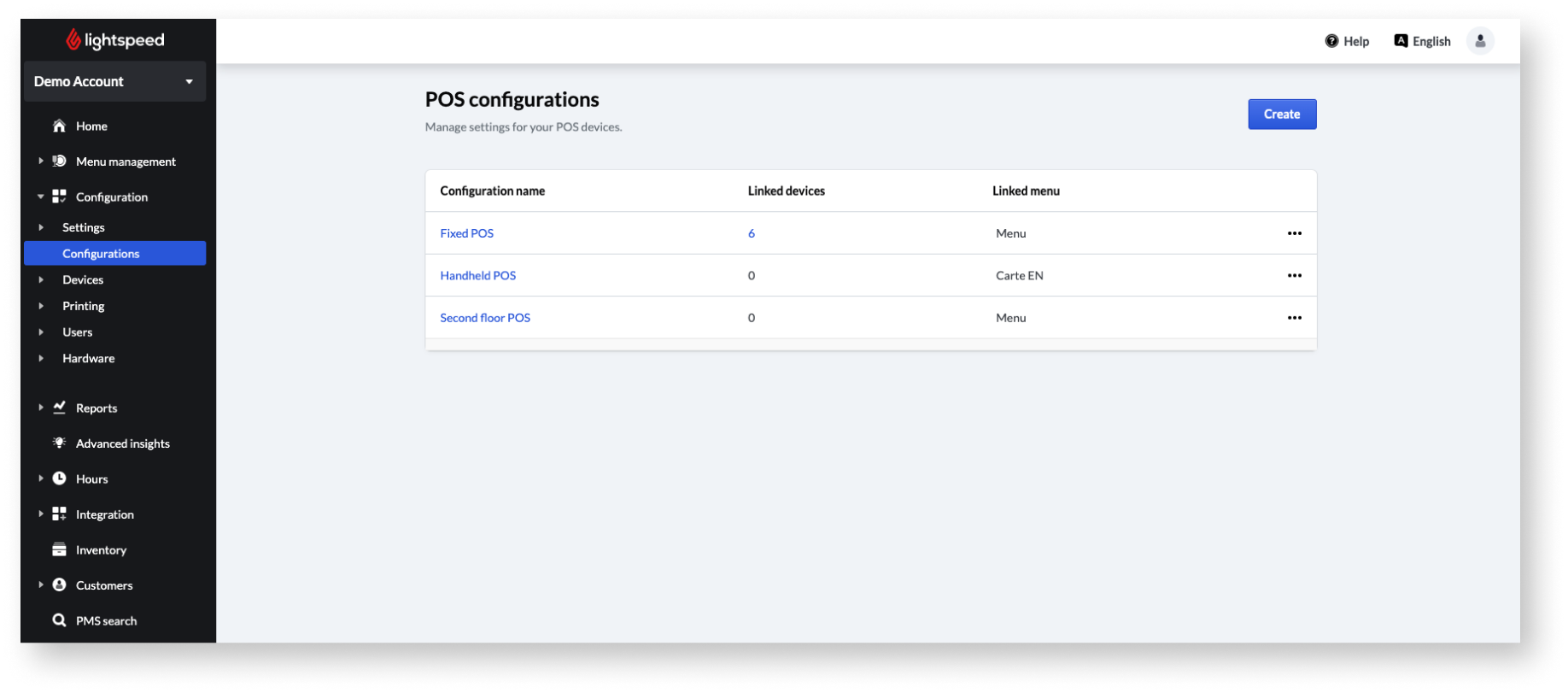
To add a new configuration:
- Log in to the Back Office with your Lightspeed credentials.
- From the navigation menu, go to Configuration>Configurations.
- Click Create.
- Enter a Configuration name and select a Configuration to duplicate from the available drop-down.
- Click Create to finish.
Managing POS configurations
From the configurations page, you can perform a few quick actions to save time:
- Click the three dots •••within the same row as the configuration you wish to edit to show a list of available options:
- Duplicate: Create a customizable copy of an existing configuration with the same settings.
- Rename: Change the name of a configuration.
- Delete: Remove an outdated or unused configuration. Important: a deleted configuration cannot be restored.
- In the Linked menu column, click the menu to reveal a drop-down that allows you to quickly change the menu associated with a particular configuration.
- In the Linked devices column, click the number in that row to see all devices linked to the selected configuration.
Comments
0 comments
Please sign in to leave a comment.