About production centers
Production centres are one of the three pillars to ensure that your POS system is able to print. A production centre can be thought of as the printing destination for order preparation tickets. As such, they're often located in a kitchen or bar.
Adding production centers
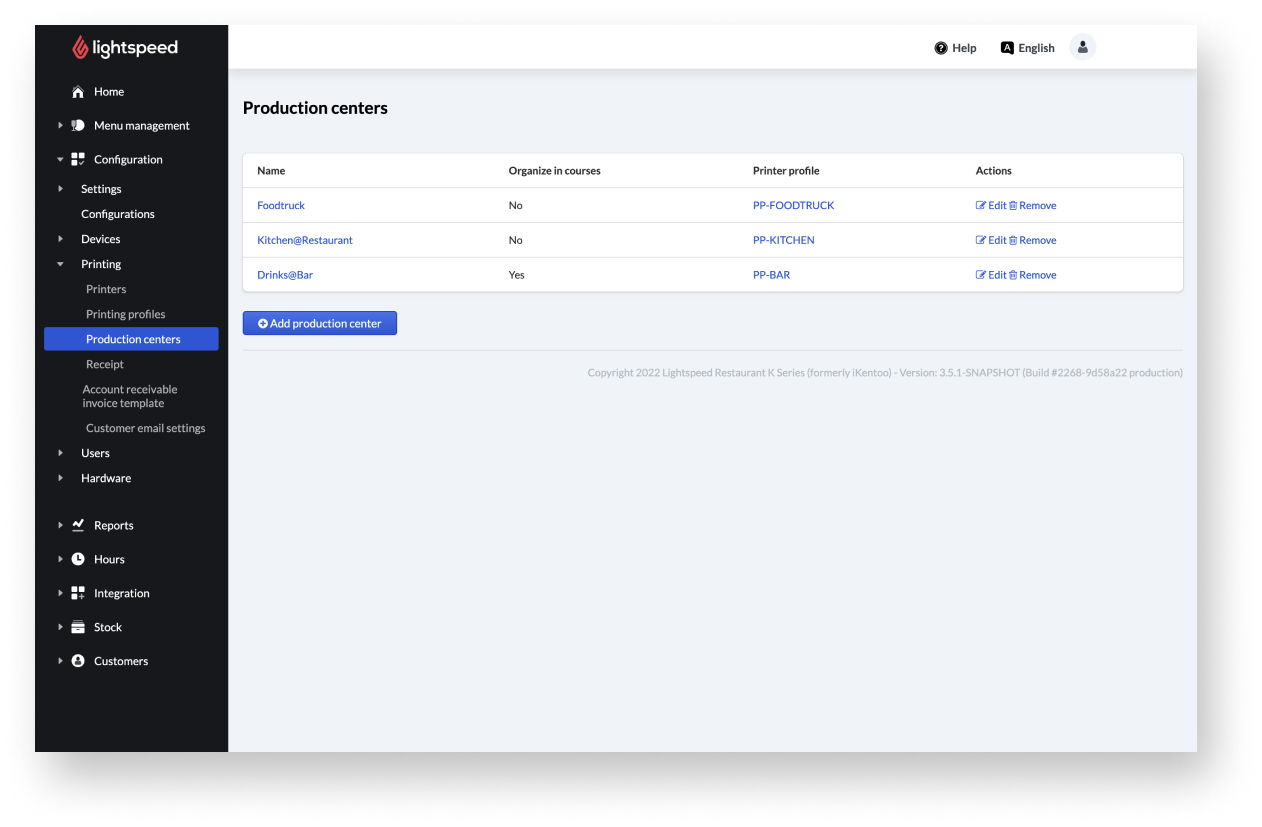
Production centers are one of the three pillars which enable printing with your POS. The other pillars include both the settings for the devices and the printing profiles. Production centers can be understood as the printing destination for printing jobs. You can configure settings for a production center such as printing destination, printing templates, and IP address information for the destination printer from the Back Office. The following article explains how to add production centers from the Back Office.
Adding production centers:
- From the main navigation bar of the Back Office, go toConfiguration > Printing > Production centers.
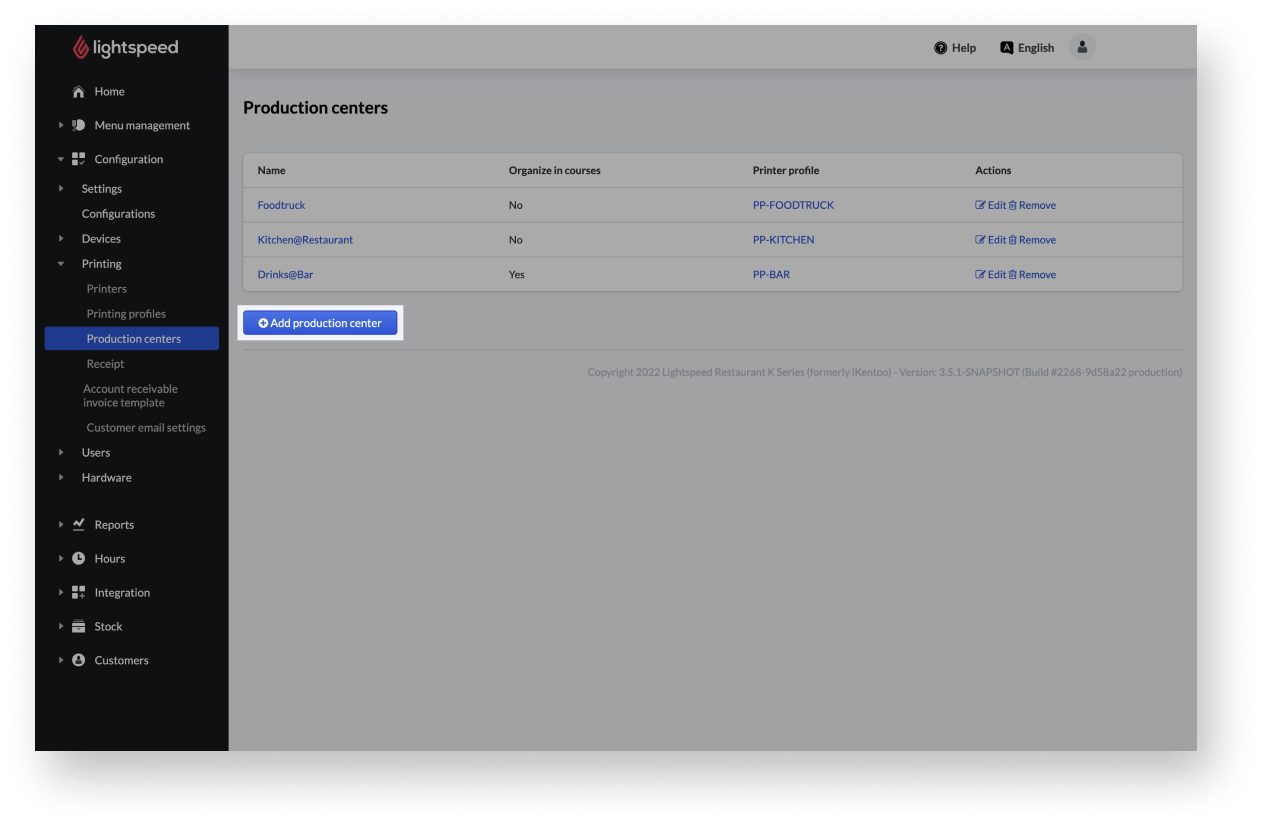
- Select+ Add production center.
- Fill in the form to customize the production center.
- SelectSaveto add the production center to the Back Office.
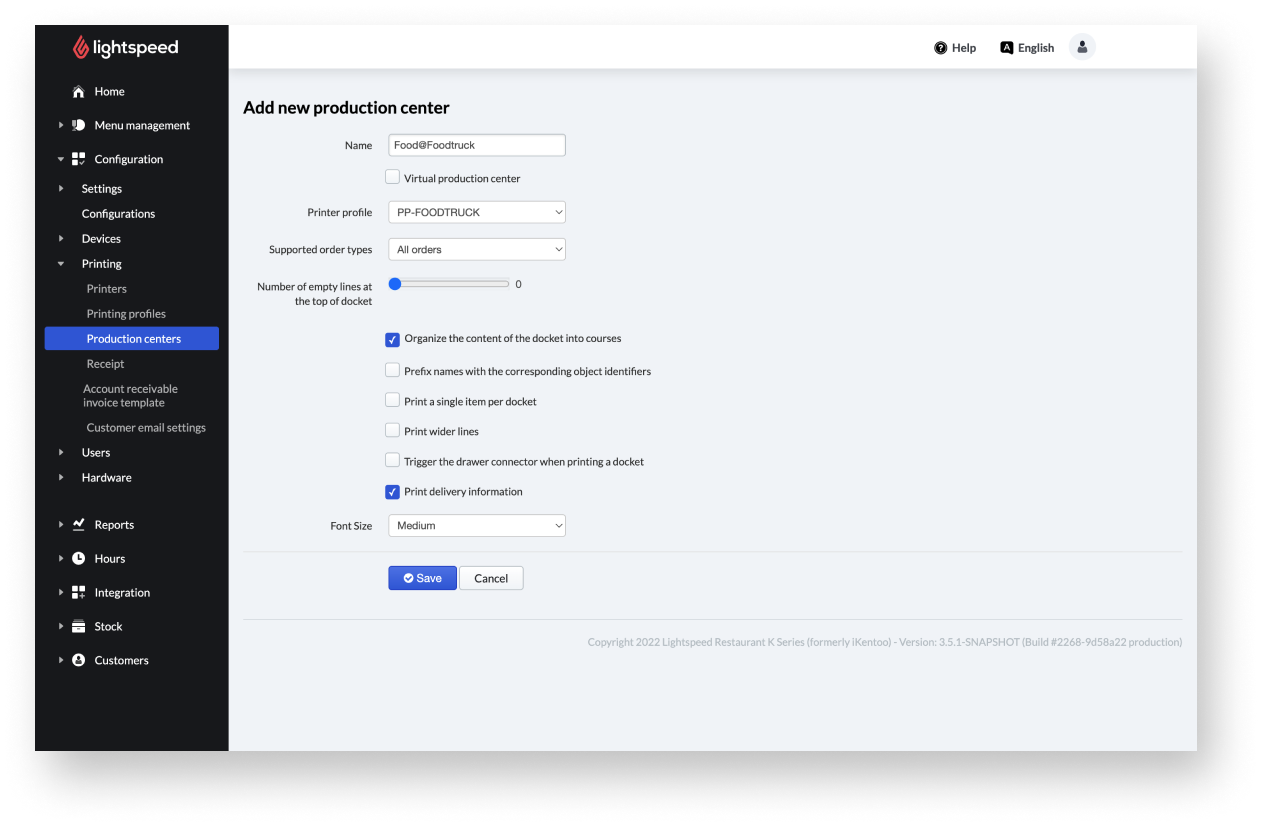
| Name: | Enter a proper name for the production centers. |
| Virtual production center: |
Select if you want to use a kitchen display system. NOTE: If selected, the view of the form changes. There only still remain two fields. You'll find the description of them on the bottom of the table marked with an asterix. |
| Printer profile: |
Select the desired printer profile from the dropdown menu. NOTE: Shows all printer profiles that are added under Configuration > Printing > Printing profiles |
| Supported order types: | Choose an order type from the dropdown menu. |
| Number of empty lines at the top of docket: | Set a number of empty lines to appear at the top of an order ticket by using the slider. |
| Select the checkbox of the following opportunities to activate them: |
|
| * Destination IP address: | The used IP address of the kitchen display. |
| * Virtual protocol: |
Choose between two modes: Ticket Mode (FSR) groups items by order; Production Mode (QSR) groups identical items into a virtual ticket |
Editing or deleting production centers
Should it ever become necessary, and you need to clean up your production center settings, you have the option to edit or delete them.
Editing production centers
To edit an existing production center:
- From the navigation bar go to Configuration>Printing>Production centers.
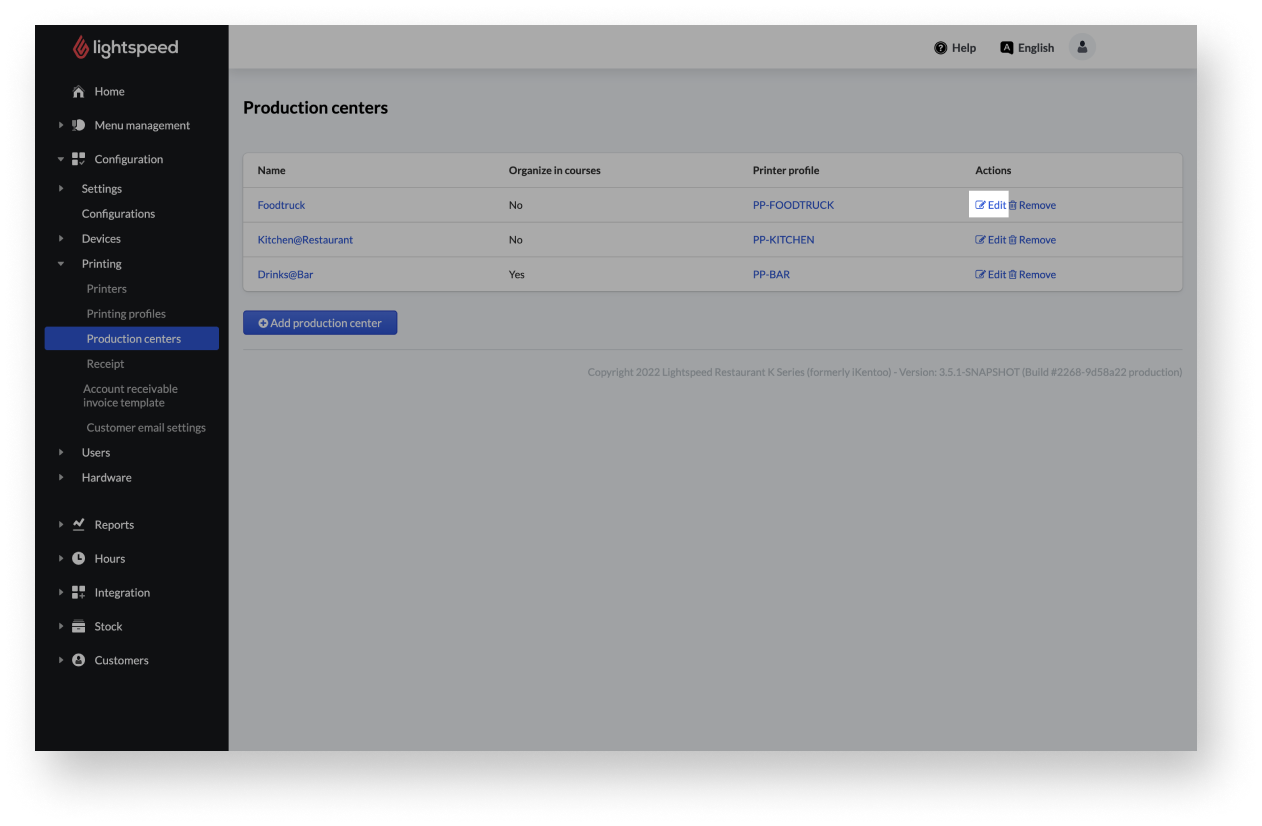
- Select Edit next to the production center to be adjusted.
- Make the desired changes.
- Select Save to apply your changes to the desired production center.
Deleting production center
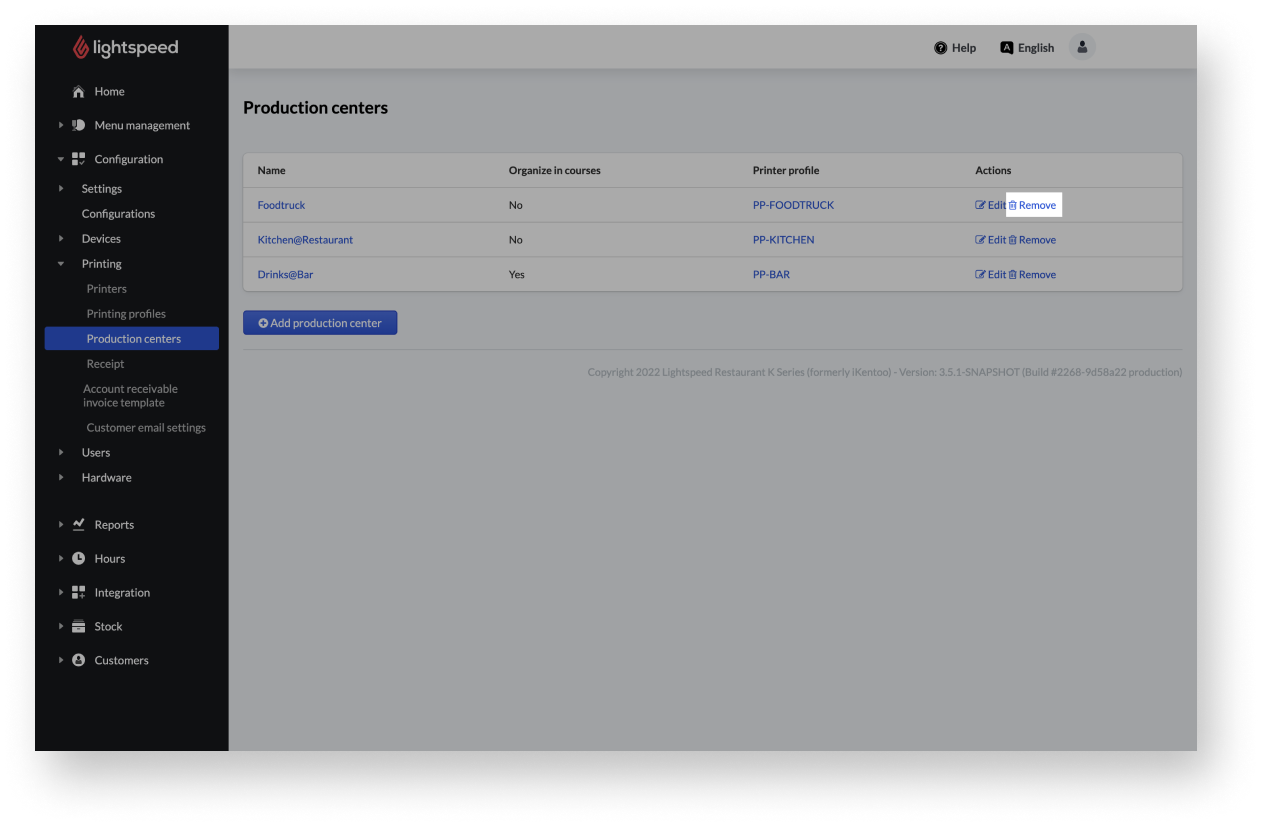
If you ever need to remove a production center, you can do so from the Back Office.
- From the main navigation bar of the Back Office, go to Configuration > Printing > Printing profiles.
- Select Remove next to the printing profile to be deleted.
Note that no confirmation prompt appears and the Production Center is deleted immediately.
Comments
0 comments
Please sign in to leave a comment.