Editing or deleting printers
If you ever need to edit a printer’s settings (for instance, if the IP address has changed):
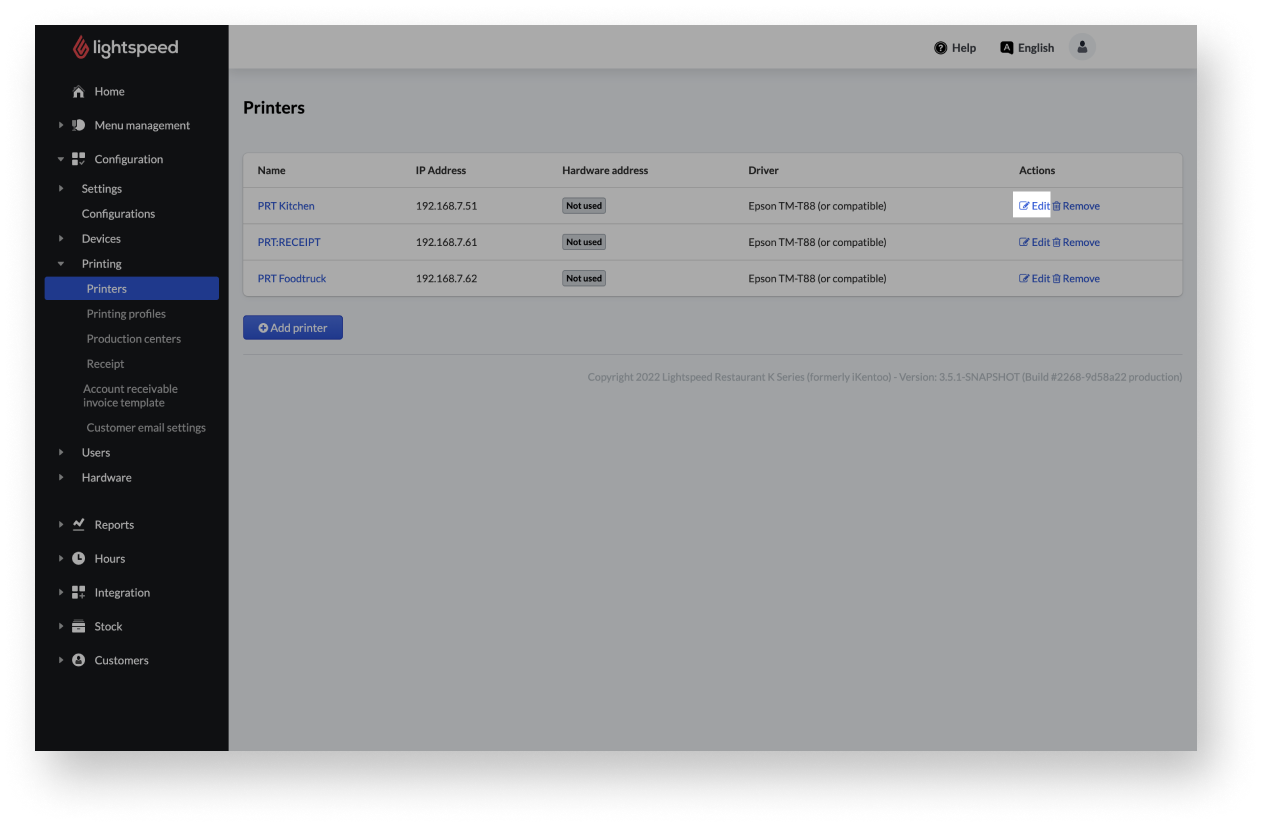
- From the navigation bar of the Back Office, go to Configuration> Printing > Printers.
- Select Edit next to the printer to be changed.
- Apply the desired changes for the selected printer.
- When you are done adjusting the printer settings, select Save.
For more information on understanding the printer settings, please see Adding printers.
Deleting printers
Do you have a printer in the Back Office that needs to be removed? You can do some from the Printing section of the Back Office.
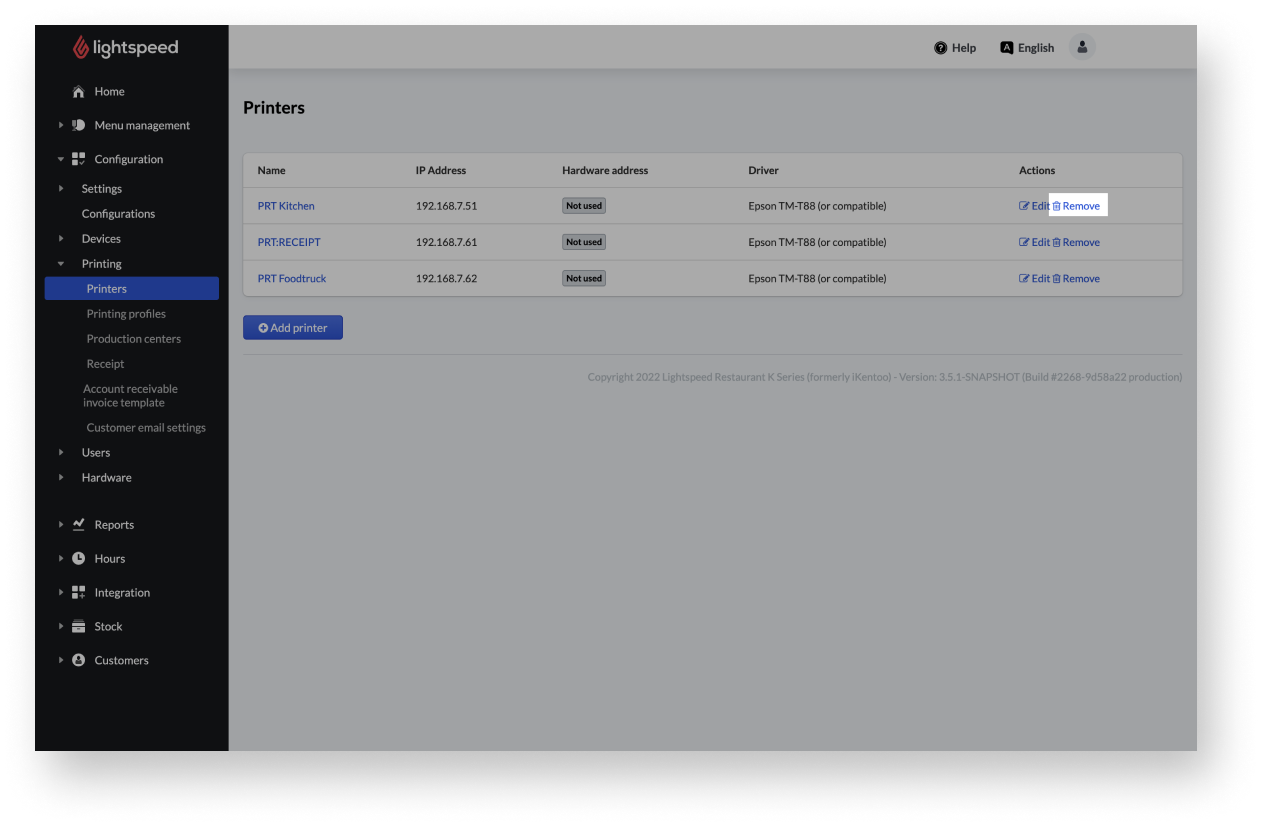
There is no confirmation prompt after selecting Remove. The printer will be removed from the printer list in the Back Office immediately.
- From the navigation bar go to configuration > Printing > Printers.
- Select Remove next to the printer to be changed.
Comments
0 comments
Please sign in to leave a comment.