You can always edit a Back Office user if you ever wish to adjust their access permissions or need to archive (deactivate) the user.
If a POS user ever forgets their unique password and PIN (used to open a user shift on the POS), an admin user can adjust this by editing the user's information on the Back Office.
It may be necessary to add the same users to several locations if you have multiple business locations. See editing business locations for more information.
Edit a Back Office user
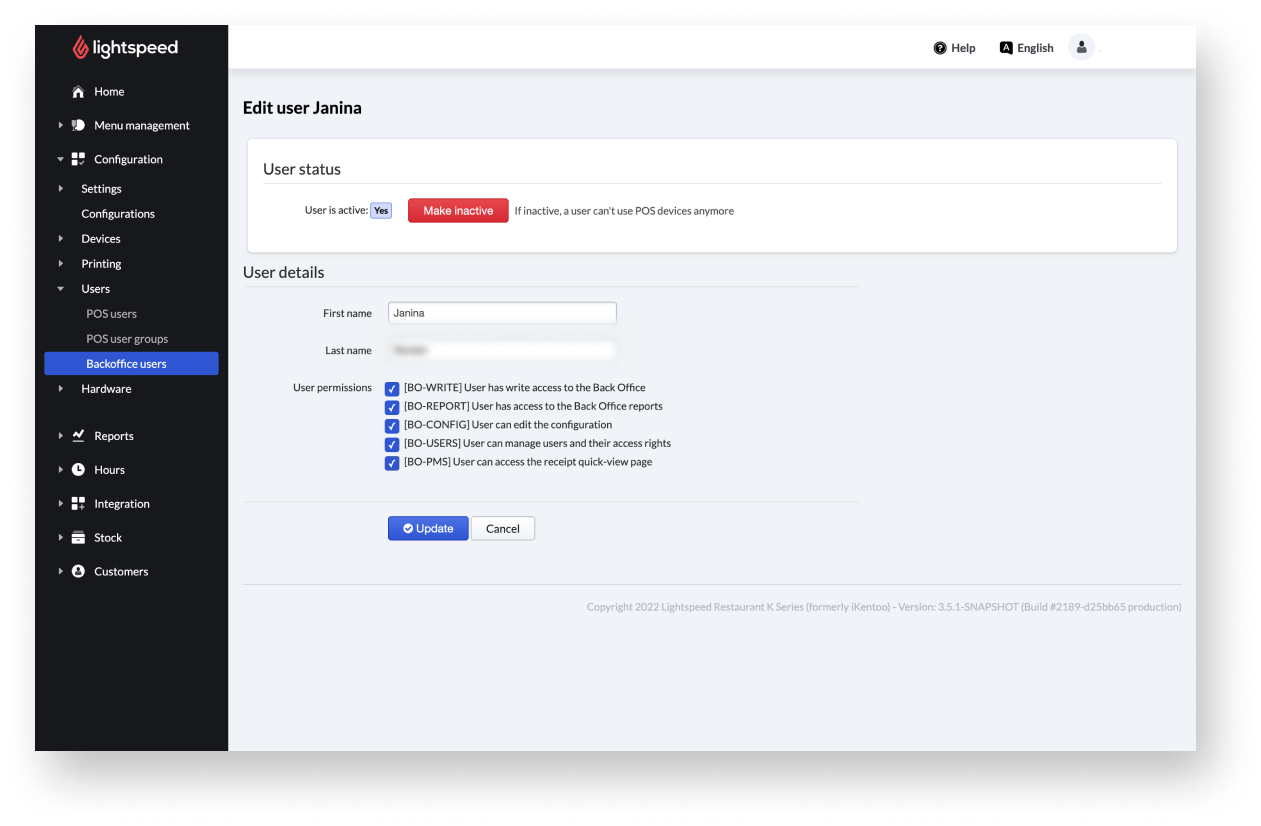
You can always edit a Back Office user if you ever wish to adjust their access permissions or need to archive (deactivate) the user. To edit Back Office users:
- Log in to the K Series Back Office.
- From the navigation menu, select Configuration > Users > Back Office users.
- Select Configure.
- Define the user status.
Note: The user status shows the user activity. This means if the user is allowed to use the POS (active) or not (inactive). - Change the user details as needed.
- Select Update.
Editing business location for Back Office users
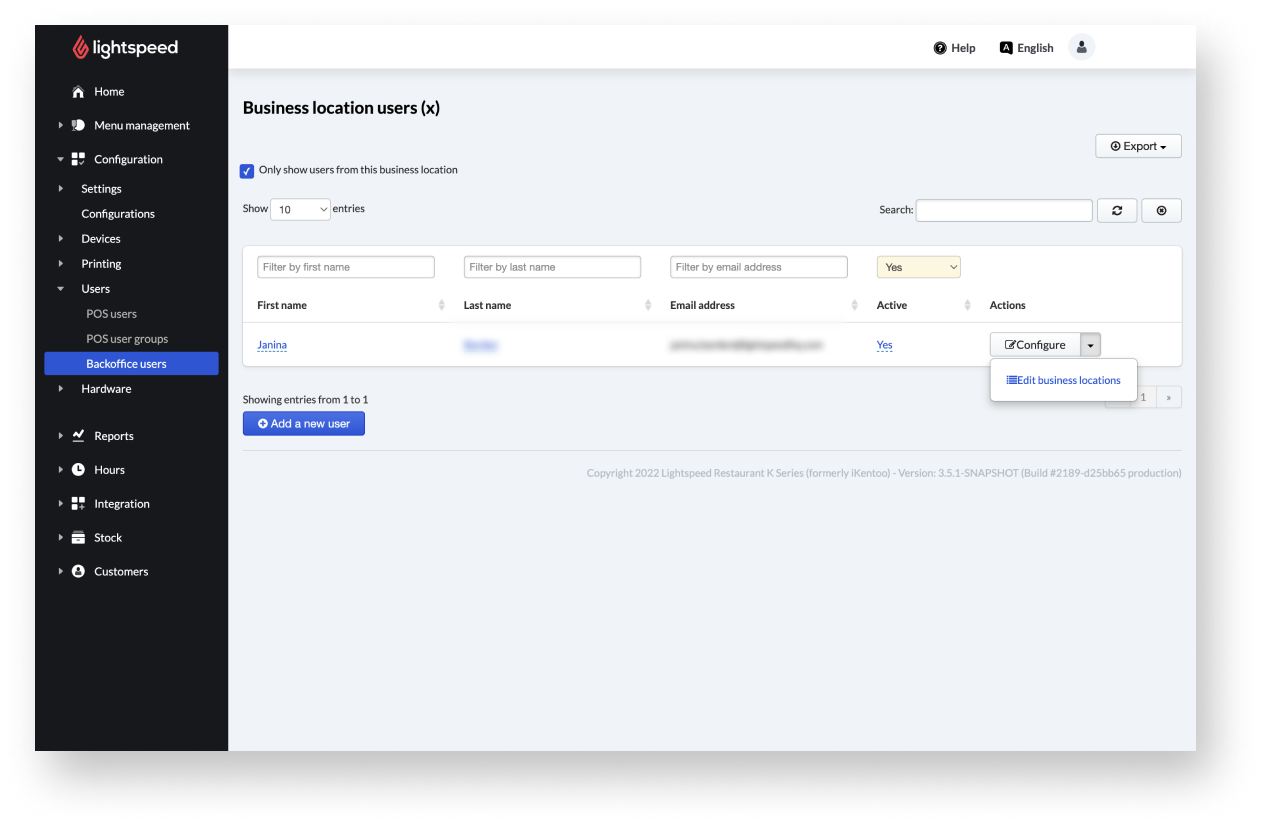
If you have multiple business locations, you can manage which Back Office users can access your various locations from the Back Office > Users page.
- Select the arrow next to the Configure button.
- Select Edit business locations.
- To give a user access to a new business location: select a business location via the dropdown menu and select the+.
- To remove user access to a business location: Identify the business location to which the user no longer has access to from the Business location table, then select Remove access.
- Select Back to save changes.
Comments
0 comments
Please sign in to leave a comment.