Step By Step - How To Add A POS User (Click Me)
From the Back Office, create a user account for every employee that will access Restaurant POS. For accurate reporting and management, we recommend that you create a dedicated user account for each employee.
When you add a POS user, you can either manually adjust their permissions, or you can simply assign them the desired user group and associated permissions, such as manager or bartender.
If you would like to add several users at once you have the possibility to import users from a *CSV file.
- Log in to the Back Office with your Lightspeed Restaurant account credentials.
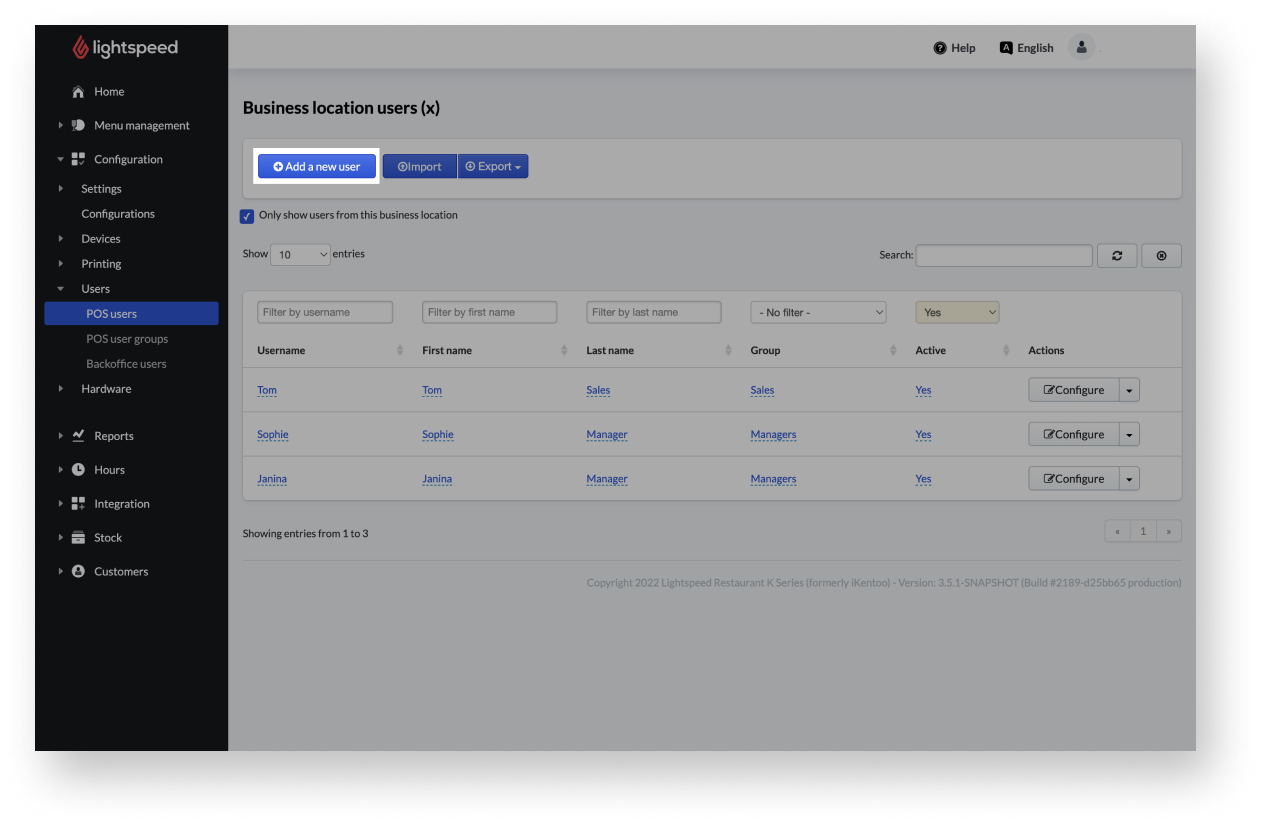
- From the main navigation menu, select Configuration > Users > POS users.
- Select Add a new user.
- Enter the POS user settings, such as the POS user name, the user's first and last name.
- Select a user group or select individual user roles.
- Select Add user.
POS user settings
| Setting name |
Description |
| User name |
The name that appears for the user throughout the POS. |
| First name |
The user’s first name. |
| Last name |
The user’s last name. |
| Group |
User group to which the user can be assigned. All groups created in Configuration > Users > POS user groups are available. By selecting a group, all rights assigned to the group are automatically assigned to the user. |
|
User roles (User permissions)
Only available if no Group is selected.
|
- User is a POS manager:
The user automatically has all listed user permissions.
- User can print duplicates of a customer receipt:
In the POS a customer receipt can be printed as a copy.
- User is in training, transactions aren’t committed:
The user can log in to the POS, but cannot make any bookings or payments that would affect day-to-day operations.
- User can send a receipt by email:
The user can send a receipt on the POS to a required email address.
- User can cancel receipts on the POS:
A receipt already created in the POS can be canceled. For example, customers have decided to stay and have a drink after all.
- User can create an invoice from a customer receipt:
The user changes a receipt to an invoice on the POS. The receipt is then not paid immediately but at a later date.
- User can change the payment method of a customer receipt:
The customer decides at short notice to pay by card, for example, because he does not have enough cash on him. The user can then change this on the POS.
- User can use the time clock to track worked hours:
The user can clock in and out on the POS.
- User can apply an account profile:
The user can add categories.
- User can transfer items from one account to another:
Items can be added to another order.
- User can return items:
Items that have already been sold can be returned on the POS.
- User can open the cash drawer using the open drawer button:
The cash drawer can be opened at any time without a transaction.
- User can recall a closed account into an open account:
The user can change a closed order to an open order.
- User can disable printing manually:
The user can decide for each transaction whether a receipt should be printed on the POS.
- User can cancel items that have been sent:
After the items have already been sent to, for example the kitchen or bar the user can cancel them.
- User has manager rights for table transfers:
The user has all the rights for table transactions, such as moving booked items to another table or canceling a table.
- User can change the default configuration:
On the POS it is possible to define which POS profile is used by default when logging in. The user can change this configuration.
- User can split accounts:
Multiple customers at a table want to pay separately. The user can divide the order into different receipts.
- User can force gratuity on an account:
The user can add a tip manually to the receipt.
- User can open and close shifts:
The user can open and close a sales period on the POS.
- User can reload the POS configuration:
Configurations are POS profiles that are associated with a specific menu and settings. When changes are made on the Back Office, the user can reload the configuration on the POS to see these changes.
- User can view and manage consumers:
Consumers are customer accounts.
|
| Identifier for local orders |
Only used with Lightspeed Payments, Payment Sense and Dojo Pay At Table integration. The code is entered on the card machine to pull a list of open tables. |
| iButton ID |
Only used for Dallas key integration; you need to enter the dallas key number in this field to make sure iKentoo can match this User with their key. |
Comments
0 comments
Please sign in to leave a comment.