Hourly performance
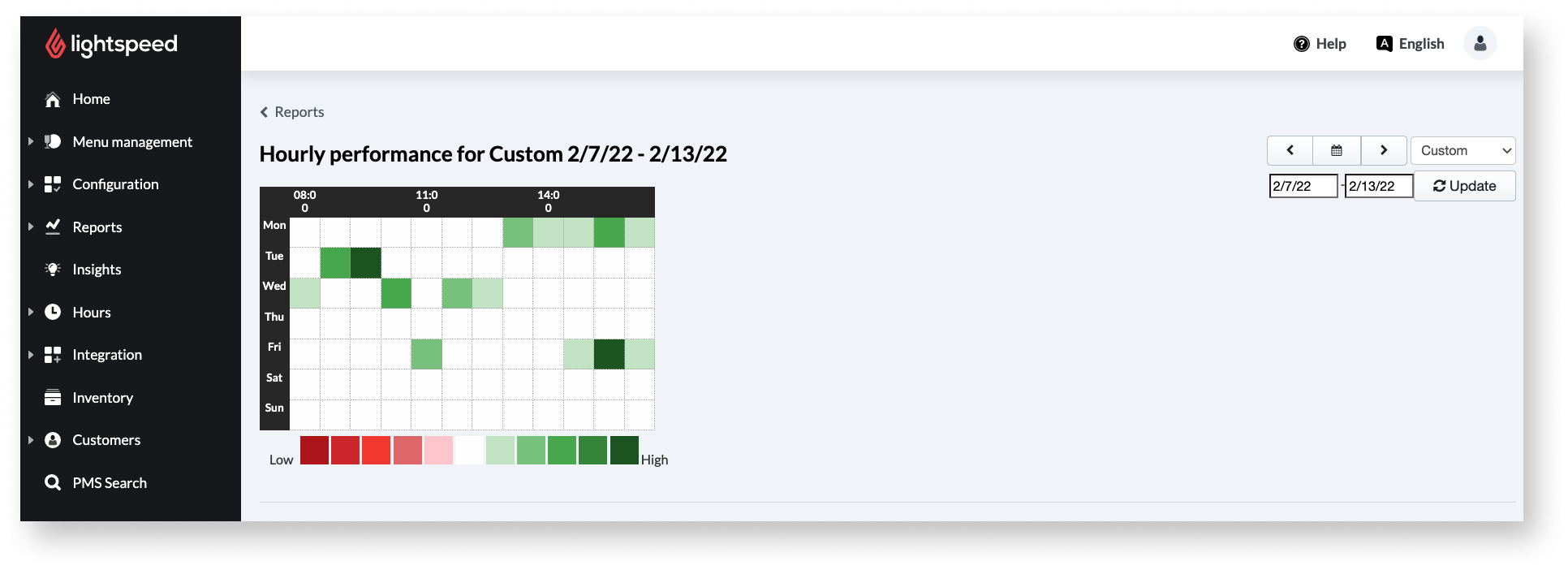
Accessing the Hourly Performance report
To access the Hourly Performance report:
- Log in to the Back Office using your Lightspeed credentials
- Select Reports>Reportsfrom the navigation menu
- Click Hourly Performance the sales Report section
- Use the drop-down menu and calendar icon in the upper-right corner to change the report's time period
- Hover over any cell to see the average revenue earned within that time frame. Each cell represents a 30-minute interval
What's next?
The reports linked below are additional Sales Reports:
Business reports give a quick overview of important business data, such as profits, losses, and taxes.
Products Reportsdisplay an overview of sold products for the selected time period categorized by Total, Discounted, Offered, Loss, Returned, Transaction, Margin, and Cost.
Product Mix Reports give an overview of product sales broken down by accounting groups, account profiles, statistical categories, and products.
In the Shifts Reportgross (Sales) and net results (Takings) are broken down by reporting shift periods.
Staff Report provides sales data for each staff member who used the POS during the selected time period.
Device Reports provide sales data for each POS device used during the selected time period.
Text Messages Reportslist all custom notes entered on the POS device during the selected period.
KDS Statistics shows the number of products prepared, the fastest, slowest, and average preparation time, as well as the total time it took to prepare the items.
Comments
0 comments
Please sign in to leave a comment.