About Discounts and Corrections
Access reports containing discounts, and order cancellations.
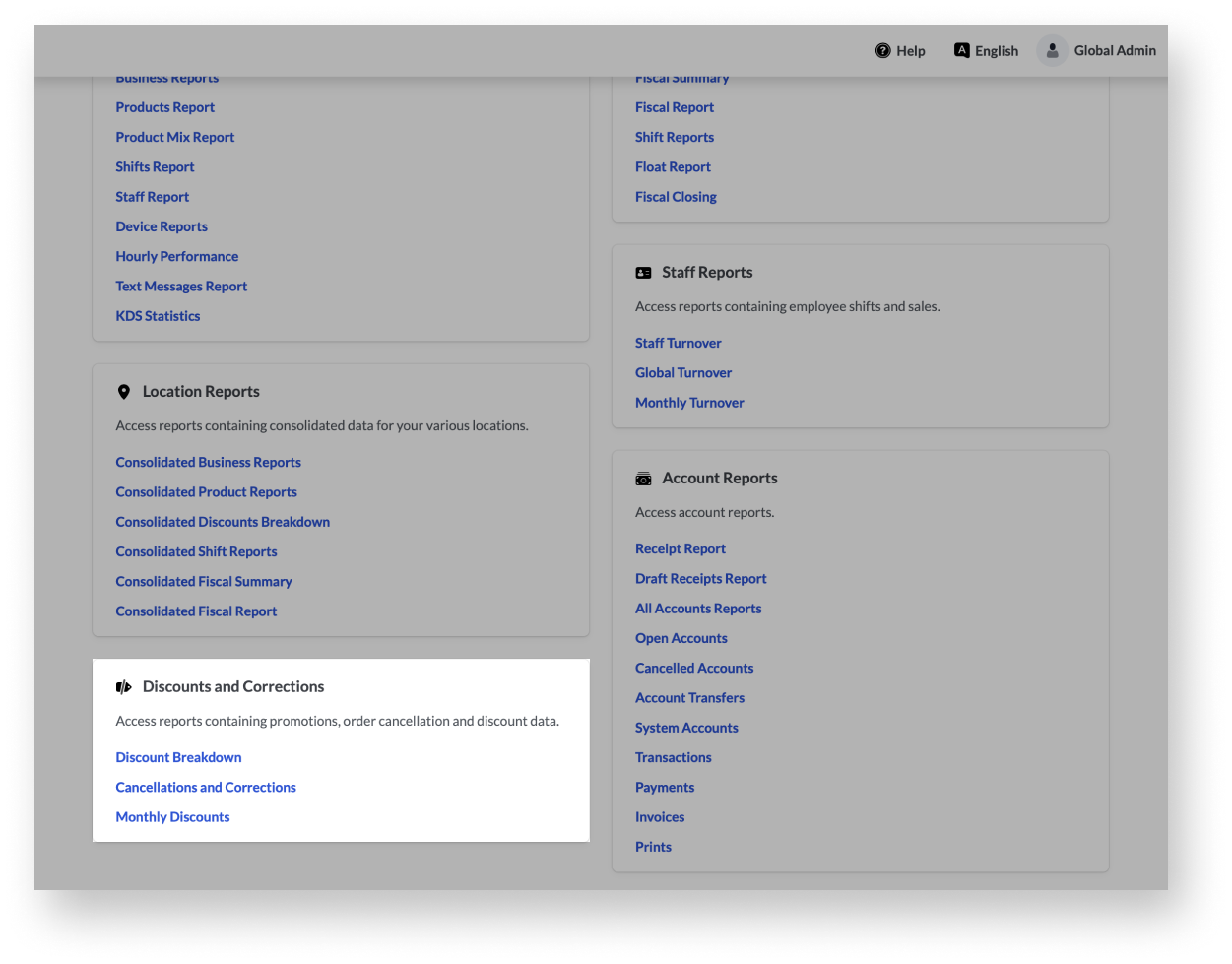
| Report | Description |
| Discounts Breakdown | The report summarizes the discounts given on orders for the selected time period. |
| Cancellations and Corrections | All cancellations and corrections given on orders are shown for the selected time period. |
| Monthly Discounts | The discounts given in a particular month are broken down by day in the Monthly Discounts report. |
Discount Breakdown
The Discount Breakdown offers an overview of discounts issued over a user-selected time period. The column headers show the names of the discounts, while each row represents the Accounting group of the items that were discounted. Use this report to assess how many discounts were issued, the monetary value of those discounts, and which items are being discounted most often.
Accessing the Discounts Breakdown
To access the Discounts Breakdown:
- Log in to the Back Office using your Lightspeed credentials.
- Select Reports>Reportsfrom the navigation menu.
- Click Discounts Breakdown in the discounts and correction section.
- Use the drop-down menu and calendar icon in the upper-right corner to change the report's time period.
- (Optional) Use the drop-down menu contained within the report to filter the report based on a particular user or POS device.
- (Optional) Click the name of an Accounting group to see the items that were discounted.
- (Optional) Download a CSV file of a report by clicking export CSV, selecting your operating system, (Mac or PC), and then clicking export.
- Click the full report to download a PDF version of the Discounts Breakdown. This PDF includes a full list of items that were discounted, their value, and the account numbers associated with each sale where a discount was applied.
Understanding the Discounts Breakdown table
The Discounts Breakdown table dedicates a column to each discount that you've created. Those columns are further segmented into Amount and Quantitywhich are detailed in the table below. To learn how to create more discounts, visit ourAdding discounts article.
Discounts Breakdown table
| Column | Description |
| Amount | The combined monetary value of discounts issued. |
| Quantity | Number of discounts issued. |
| Total | Total monetary value of all discounts issued—all amount(s) combined. |
Cancellations and Corrections
- Accessing the Cancellations and Corrections report
- Understanding the Cancellations and Corrections table
The Cancellations and Corrections report offers an overview of items that were voided after being sent to a production centre, like the kitchen or bar. Use this report to see a list of items that were removed from sale and the declared void reason.
To learn how to add more void reasons, visit our adding void reasons article.
Items that are cleared or removed from a sale before being sent to a production centre are not included in this report.
Accessing the Cancellations and Corrections report
To access the Cancellations and Corrections report:
- Log in to the Back Office using your Lightspeed credentials.
- Select Reports>Reportsfrom the navigation menu.
- ClickCancellations and Corrections in the discounts and correction section.
- Use the drop-down menu and calendar icon in the upper-right corner to change the report's time period.
- (Optional) Download a CSV file of a report by clicking export CSV, selecting your operating system, (Mac or PC), and then clicking export.
- (Optional) Click the full report and download a PDF version of the Cancellations and Corrections report. This PDF includes a full list of items that were cancelled, their value, and the account numbers associated with each sale where the cancellation was made.
- (Optional) If there are tags associated with specific device profiles in your configurations, filter results by tag using the filter drop-down.Note: this option does not appear if no tags are set up.
Understanding the Cancellations and Corrections table
| Column | Description |
| Receipt ID | Receipt identification number associated with the cancelled item. |
| Account | Account name associated with the cancelled item. |
| Item | Name of the item that was cancelled. |
| Qty | Number of items that were cancelled. |
| Amount | Monetary value of the item that was cancelled. |
| Date | Calendar date of the cancellation. |
| Reason | Shows the system's reason for the cancellation. This column indicates whether an item was voided because the order was modified or the account was canceled entirely (either on the POS or in Back Office). |
| Reason #2 | Shows the user-declared reason for the cancellation. This is the reason for the void that was selected by the user who removed the item. See our article About void reasonsto learn more. |
Monthly Discounts
- Accessing the Monthly Discounts report
- Understanding the Monthly Discounts table
The Monthly Discounts report offers a quick overview of discounts that were issued over the course of that month. Use this report for making at-a-glance assessments of the discounts that were issued on a given day, as well as seeing their value.
Accessing the Monthly Discounts report
To access the Monthly Discounts report:
- Log in to the Back Office using your Lightspeed credentials.
- Select Reports>Reportsfrom the navigation menu.
- Click Monthly Discounts in the discounts and correction section.
- Use the arrows in the upper-right corner to change the month of the report.
- (Optional) Download a CSV file of a report by clicking export CSV, selecting your operating system, (Mac or PC), and then clicking export.
- (Optional) Use the drop-down menu contained within the report to filter the report based on a particular user or POS device.
- (Optional) If there are tags associated with specific device profiles in your configurations, filter results by tag using the filter drop-down.Note: this option does not appear if no tags are set up.
Understanding the Monthly Discounts table
The Monthly Discounts table dedicates a column to each discount that you've created. Those columns are further segmented into "Amount" and "Quantity" which are described in the table below. To learn how to create more discounts, visit ourAdding discounts article.
| Column | Description |
| Day | Full date where the discounts were issued. |
| Qty | Number of items that were discounted. |
| Amount | Monetary value of the discounts issued. |
Comments
0 comments
Please sign in to leave a comment.