The Business Report is among Lightspeed Restaurant's most visited reports. It offers a detailed overview of earnings, business activity, and other financial information, including a variety of Display views(Classic, Accounting, Statistical, Account profiles, and Condensed) that parse and separate data according to your needs. For complete details on what's included, refer to the tables contained within this article. Use the Business Report to assess your restaurant's performance and stay informed about your sales.
Accessing the Business Report
To access and generate the Business Report:
- Log in to the Back Office with your Lightspeed credentials.
- Select Reports > Reports from the navigation menu.
- Click Business Reports in the Sales Reports section.
- (Optional) Select the Display view to filter data based on: Classic, Accounting, Statistical, Account profiles, or Condensed views. Descriptions of what's included in each view are contained below.
- (Optional) To see specific data on the classic, Accounting, or condensed report, organize the report by accounting Group (default) or category according to your preference.
- (Optional) If available, set the takings view to include Details or totals(only the final earnings of each payment method).
- (Optional) To filter by reporting shift, select a time interval for the report.
- (Optional) Download a CSV file of a report by clicking export CSV, selecting your operating system, (Mac or PC), and then clicking export.
Classic view
The Classic view of the business Report offers a complete overview of daily transactions, including sales, Takings, Drawer openings, and shift notes made by staff. See the table below for descriptions of the various sections.
- View example
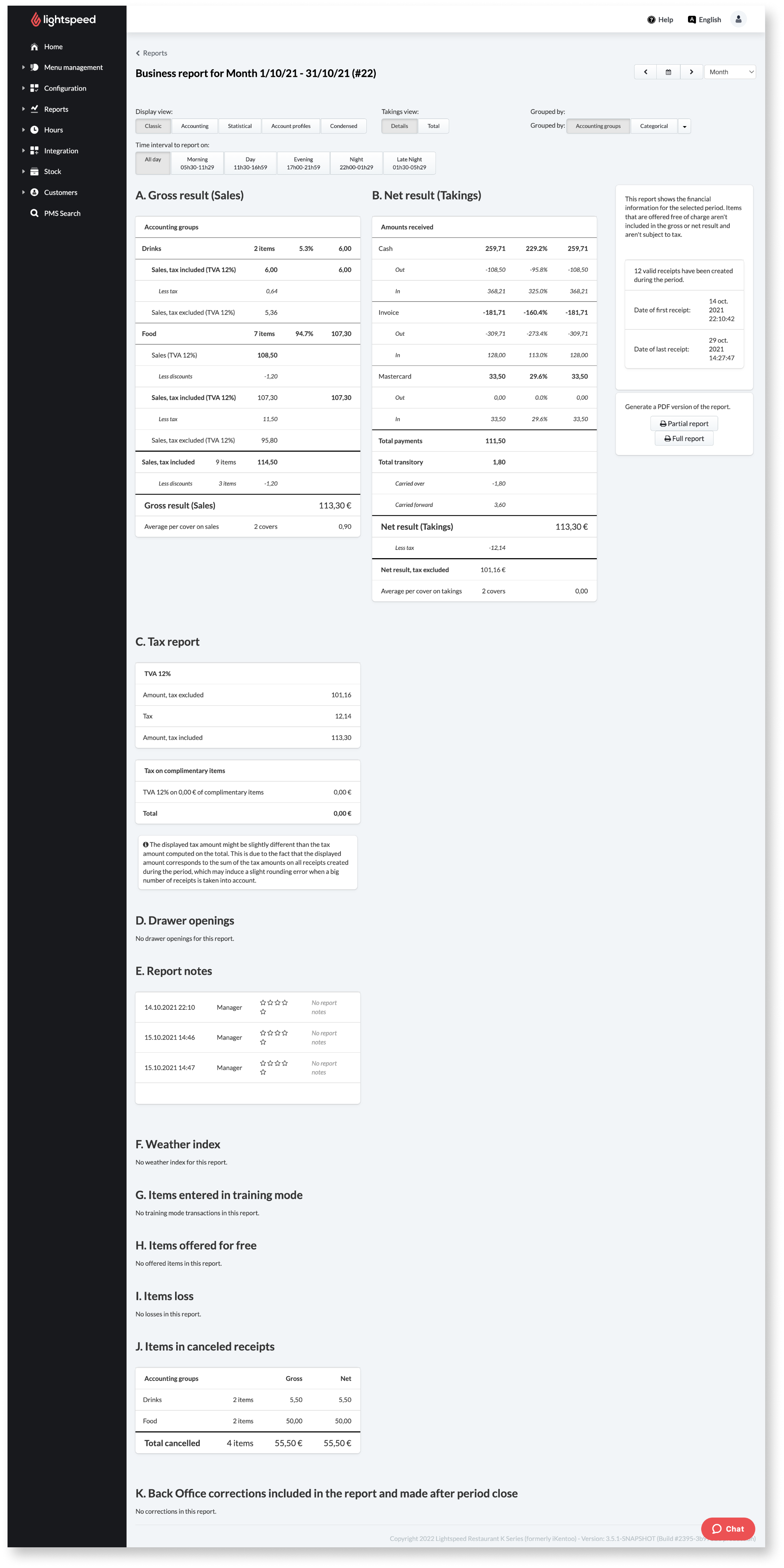
From the classic view, generate a PDF of the report based on your needs:
- Partial report: Generates a PDF file containingTakingsandSales, and excludes information such as takings outputs, voided and modified transactions, and report notes.
- Full report: Generates a PDF file containing all information found in classic view.
Classic view sections
| Report section | Description |
| Gross results (Sales) | Total sales with service charges included. |
| Net results (Takings) | The total amount of checks opened, paid, corrected, and cancelled. |
| Tax report | Total cash received, dispensed, and taken as tips. Moreover, this section shows cash drawer activity, including float drops and lifts. |
| Drawer openings | Number of times that the drawer was opened. The drawer can be opened in 3 ways:
|
| Report Notes | Notes are made when a user is opening or closing a shift, including the user's name, and impression of the shift (depicted by stars). |
| Weather index | Reported weather status when a user opens or closes a shift. |
| Items entered in training mode | Transactions made by a user in training mode. These transactions do not affect totals or other reporting. |
| Items offered for free | List of items that received a 100% discount. |
| Items loss | Items that receive a discount where this discount denotes wastages enabled in the discount settings. |
| Items in cancelled receipts | Items that were voided from receipts. |
Accounting view
The Accounting view shows sales organized by Gross results (Sales) and Net results (Takings). InGross results, item sales are grouped together by accounting group or category. In Net results, payments received are listed in two Amountcolumns. One column includes tips, and the other excludes them.
- View example

Statistical view
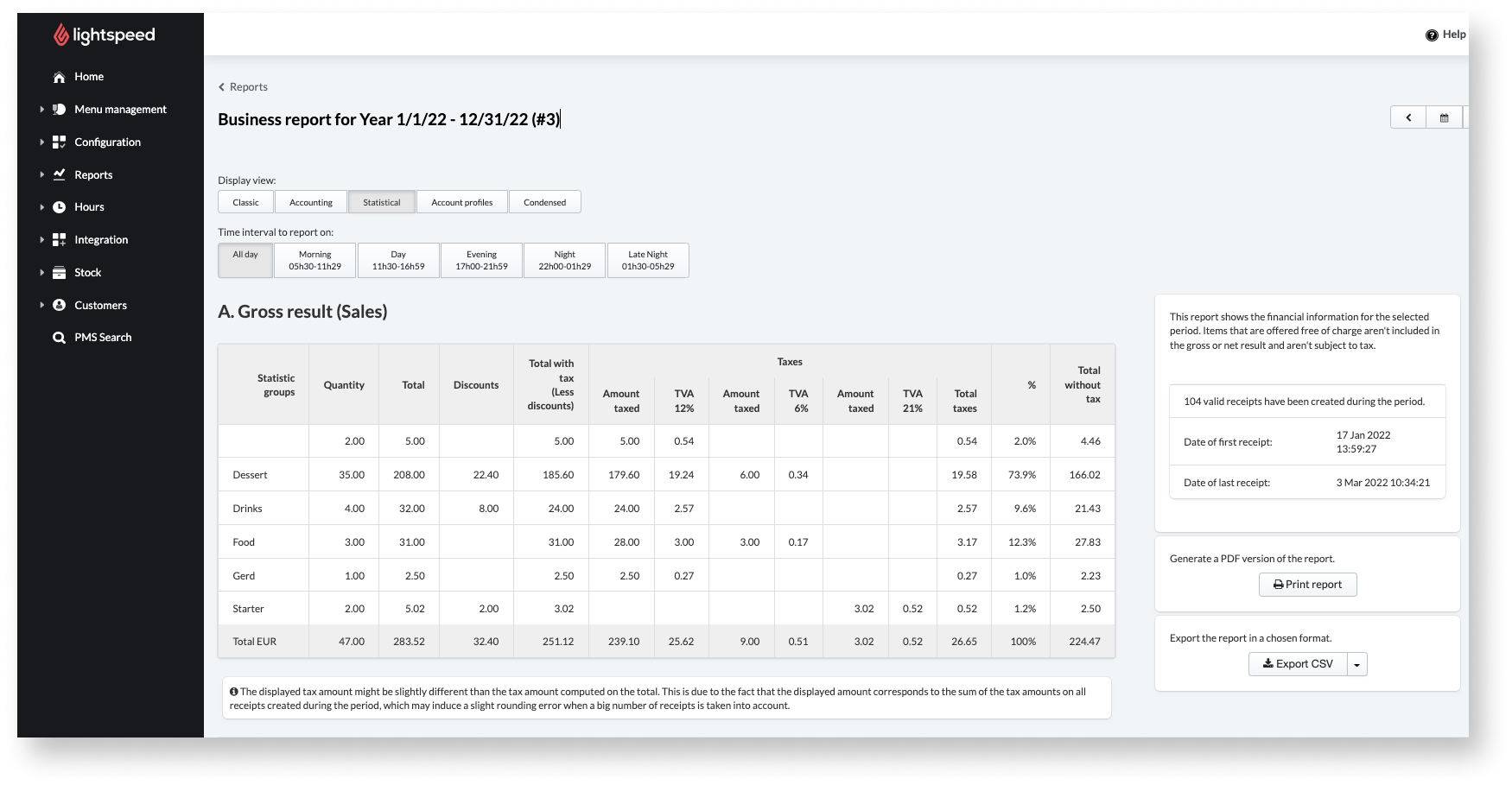
The Statistical view showsGross results(Sales) according to the statistics group that you've specified for your items. For details on howStatisticsandAccounting groups differ,
- View example
Account profiles view
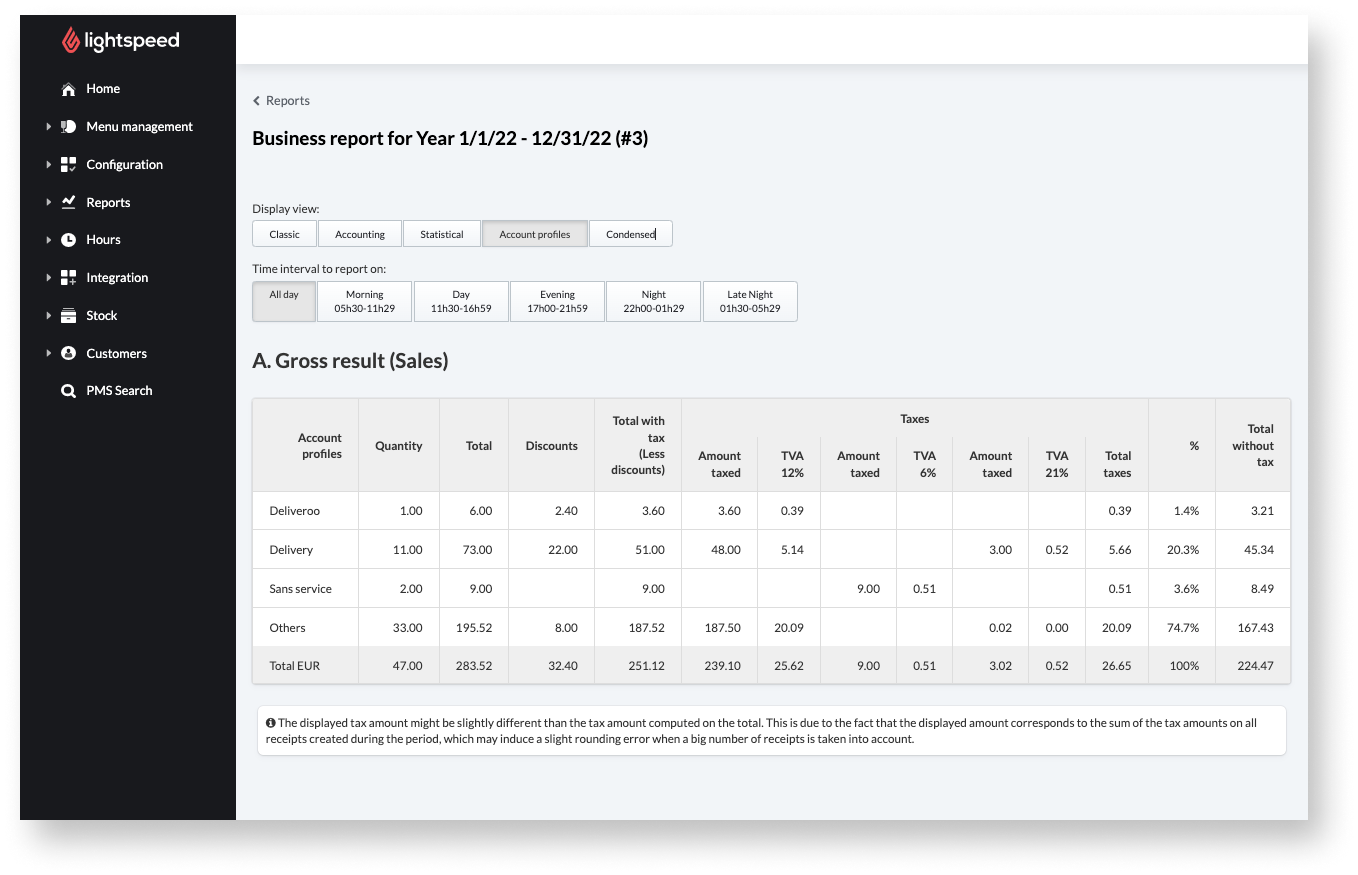
The Account profiles view shows sales grouped together according to the account profile used to complete the sale. Use this to compare sales between multiple account profiles. For example, if you have an account profile for delivery and another for pickup, use the account profiles view to see which takeaway method performs better.
- View example
Condensed view
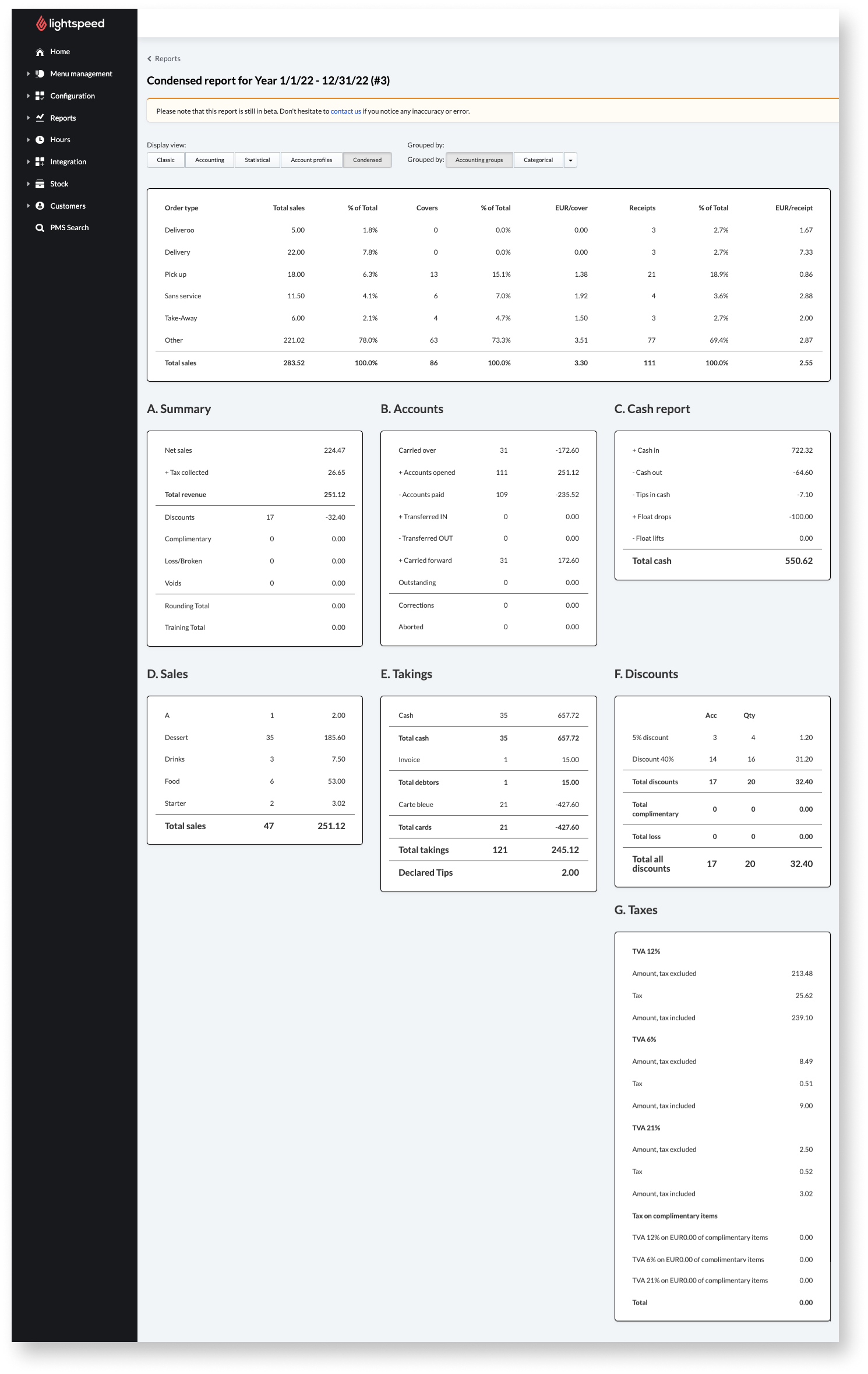
TheCondensedview shows sales grouped compactly, which offers an easy and at-a-glance assessment of your business' performance. It includes account profiles, Summary, Accounts, Cash reports, Sales, Takings, Discounts, and taxes. For full details on what's in the condensed view, refer to the table below.
- View example
- View example
- View example
- View example
Comments
0 comments
Please sign in to leave a comment.