The Product Mix Report gives an overview of sales by accounting group, account profile, statistical category, and product.
Generate a Product Mix Report in the Back Office by choosing a reporting period and filtering or searching the report as needed. Enable and disable report columns to add or remove information from the table, customizing it to your business needs. Export reports as a spreadsheet to save them outside the Back Office.
Generating Product Mix reports
Generate the Product Mix report by choosing a reporting period, filtering, and searching its data. Filter by account profile, device, staff, shift, or tag.
- Log in to the Back Office with your Lightspeed Restaurant credentials.
- Select Reports > Reports from the navigation bar.
- Click Product Mix Reporting in the Sales Reports section.
- Click the calendar icon and choose a range of days from the calendar to adjust the reporting period.
- To filter the view:
- Search in results or select account profile, accounting group, device, staff, shift, or tags from the Filters drop-down.
- Enable them from the list.
- click apply.
- Review the data on the Product Mix Report. For help understanding each column, see the table below.
- (Optional) Switch between tabs to see sales by statistic categories
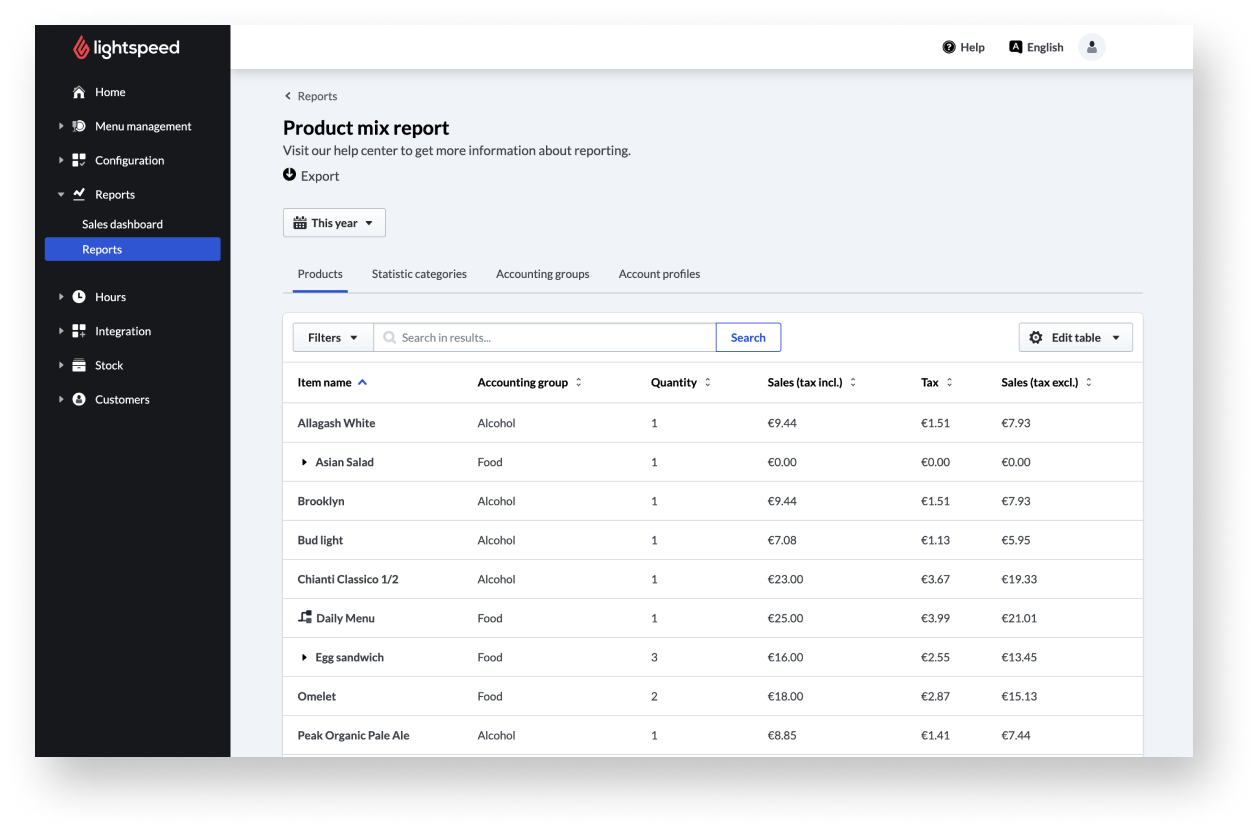
Product Mix report table
Find out what items have been sold and how much Sales have been made including and excluding taxes, broken down by products, statistic categories, accounting groups, and account profiles. If some columns are not visible, they are not enabled in the Back Office. Refer to editing columns on Product Mix reports for details on enabling columns.
Editing columns on Product Mix reports
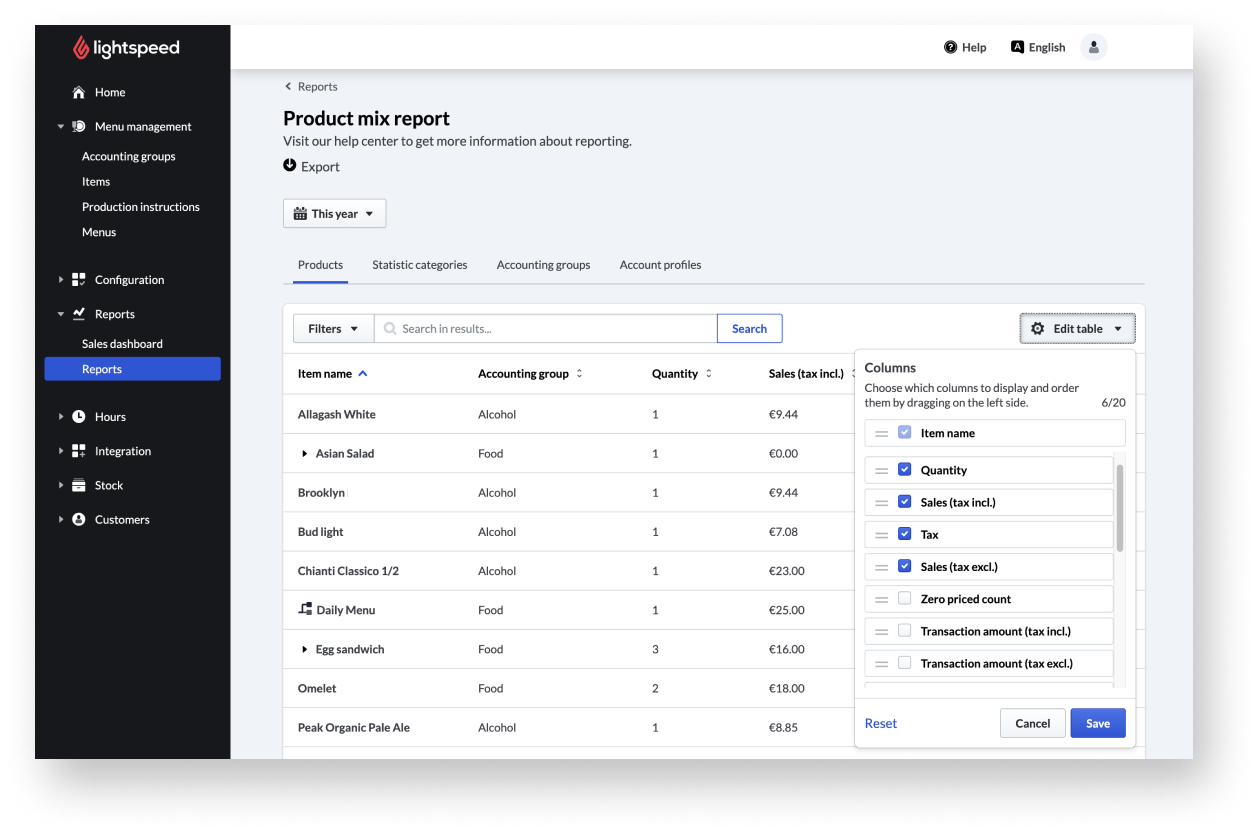
Enable and disable columns in the Back Office to customize the product mix table based on your preferences. This customization changes the view of the report in the Back Office, but all columns will be visible when exporting the report.
- Log in to the Back Office with your Lightspeed Restaurant credentials.
- Select Reports > Reports from the navigation bar.
- ClickProduct Mix Reportin theSales Reportssection.
- Click Edit table and modify the report:
- Enable columns you wish to see in the table and disable columns that are not needed.
- To change the order of columns, click the dashes and drag the column upward or downward.
- click save.
Exporting Product Mix reports
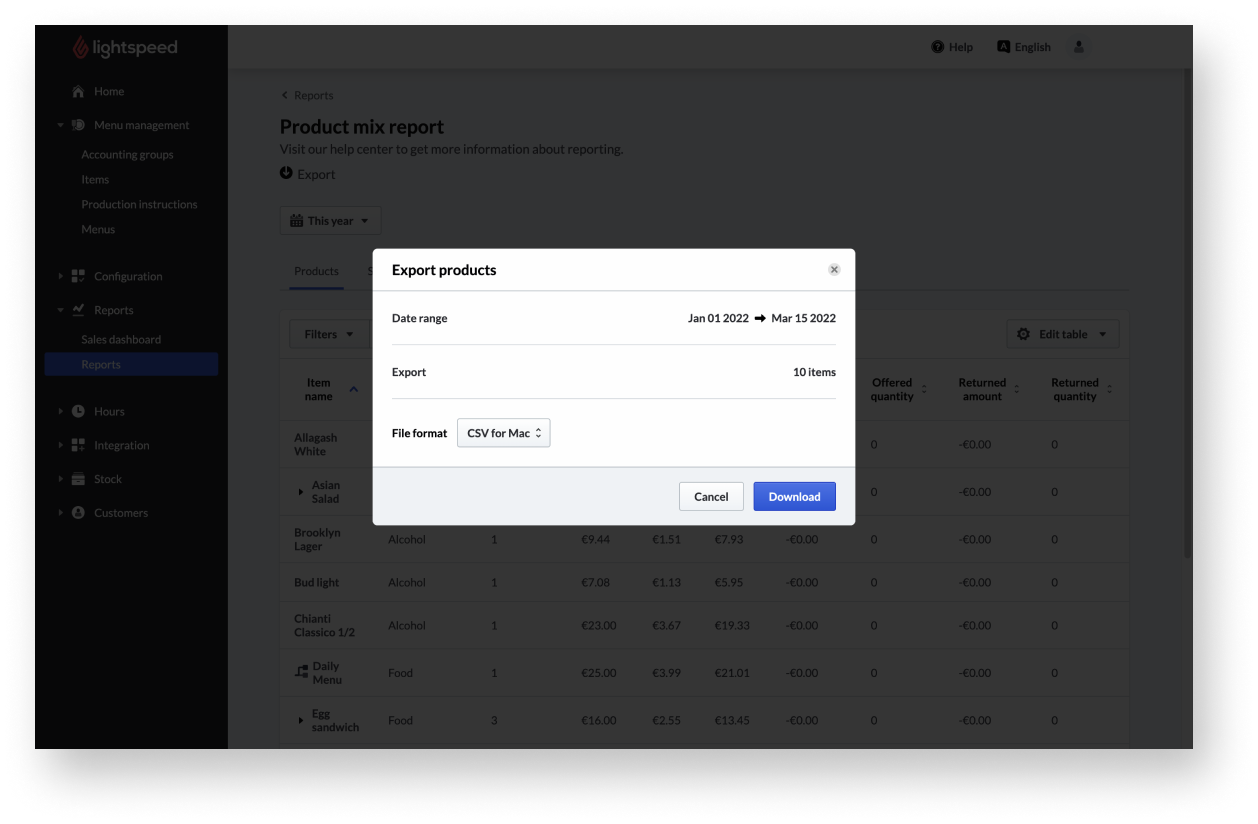
Export product mix reports into a CSV spreadsheet file to save the data outside the Back Office to analyze in spreadsheet software.
The export takes into account the report's date range, the filters, and all columns not only the ones enabled when editing product mix reports.
- Log in to the Back Office with your Lightspeed Restaurant credentials.
- Select Reports > Reports from the navigation bar.
- Click Product Mix Reporting in the sales Reports section.
- ClickExport.
- Select a file format for the CSV export based on the device where you will open the file (Mac or Windows).
- Click Export to start the file download.
Comments
0 comments
Please sign in to leave a comment.