Invoices
- Accessing the Invoices report
- Looking up and filtering receipts
- Viewing and managing receipt details
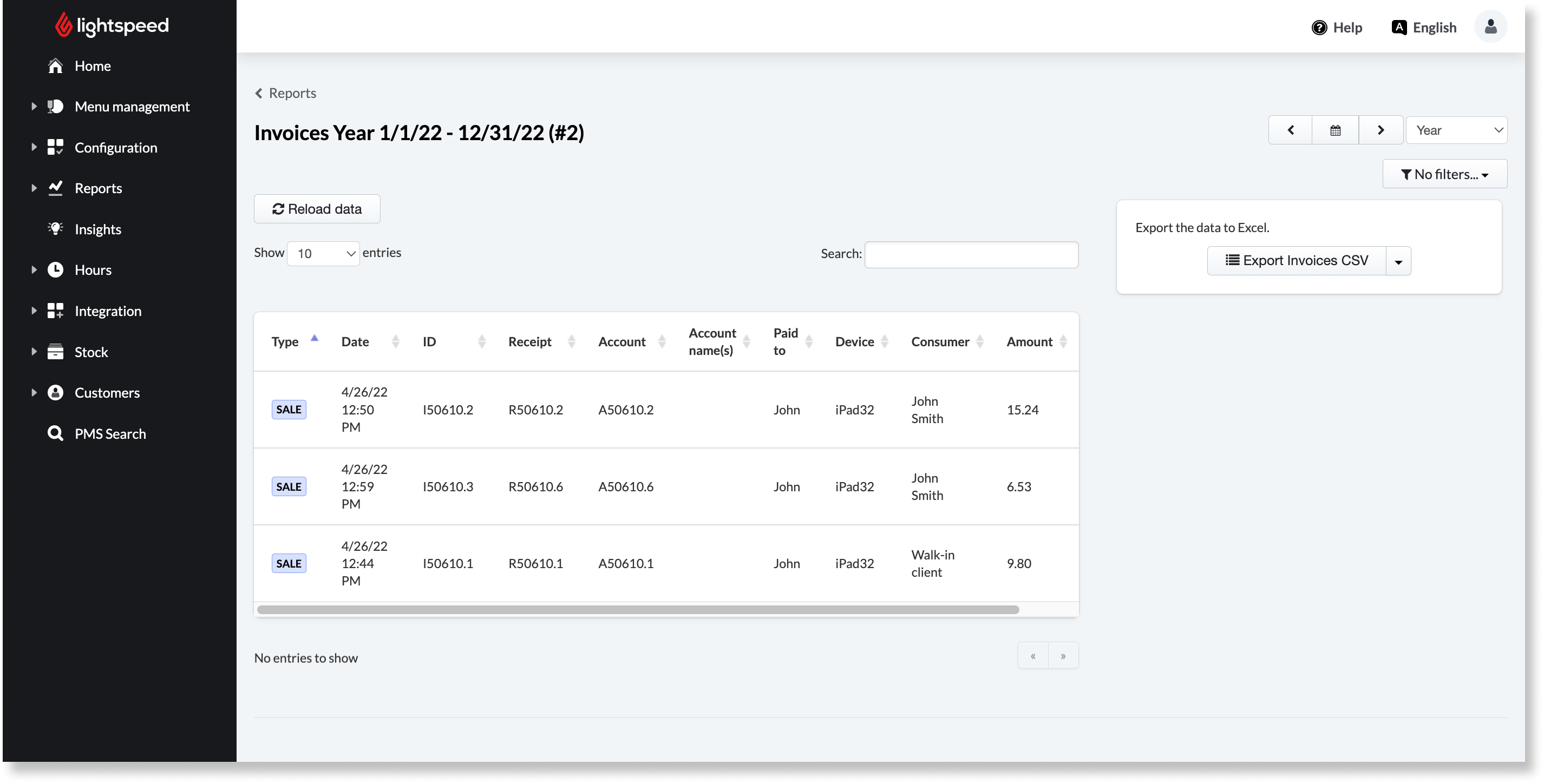
TheInvoicesreport shows a list of all transactions that were settled by creating a customer invoice. Use this report to see an overview of customer invoices and access the event logs of those transactions.
Accessing the Invoices report
To access and generate the Invoices report:
- Log in to the Back Office with your Lightspeed Restaurant credentials.
- SelectReports>Reportsfrom the navigation bar.
- ClickInvoices in the account Reports section.
- Set the time period of the report using the arrows and calendar icon in the upper-right corner.
Looking up and filtering receipts
Zero in on specific receipts with the following options in the invoice report:
- Use the search field to find a particular receipt. Searchable information includes account name, Amount, Tender, Created by, Paid to, Device, Account, and reference.
- Use the show entries drop-down menu to choose how many receipts should appear on a single page.
- Sort receipts by column by clicking the column header once for ascending order or twice for descending.
- If there are tags associated with specific device profiles in your configurations, filter receipts by tag usingFilterdrop-down.Note: this option does not appear if no tags are set up.
- To download the report as a spreadsheet, click export Invoices CSV> select your device (Mac or PC) >Export.
Comments
0 comments
Please sign in to leave a comment.