Text Messages Report
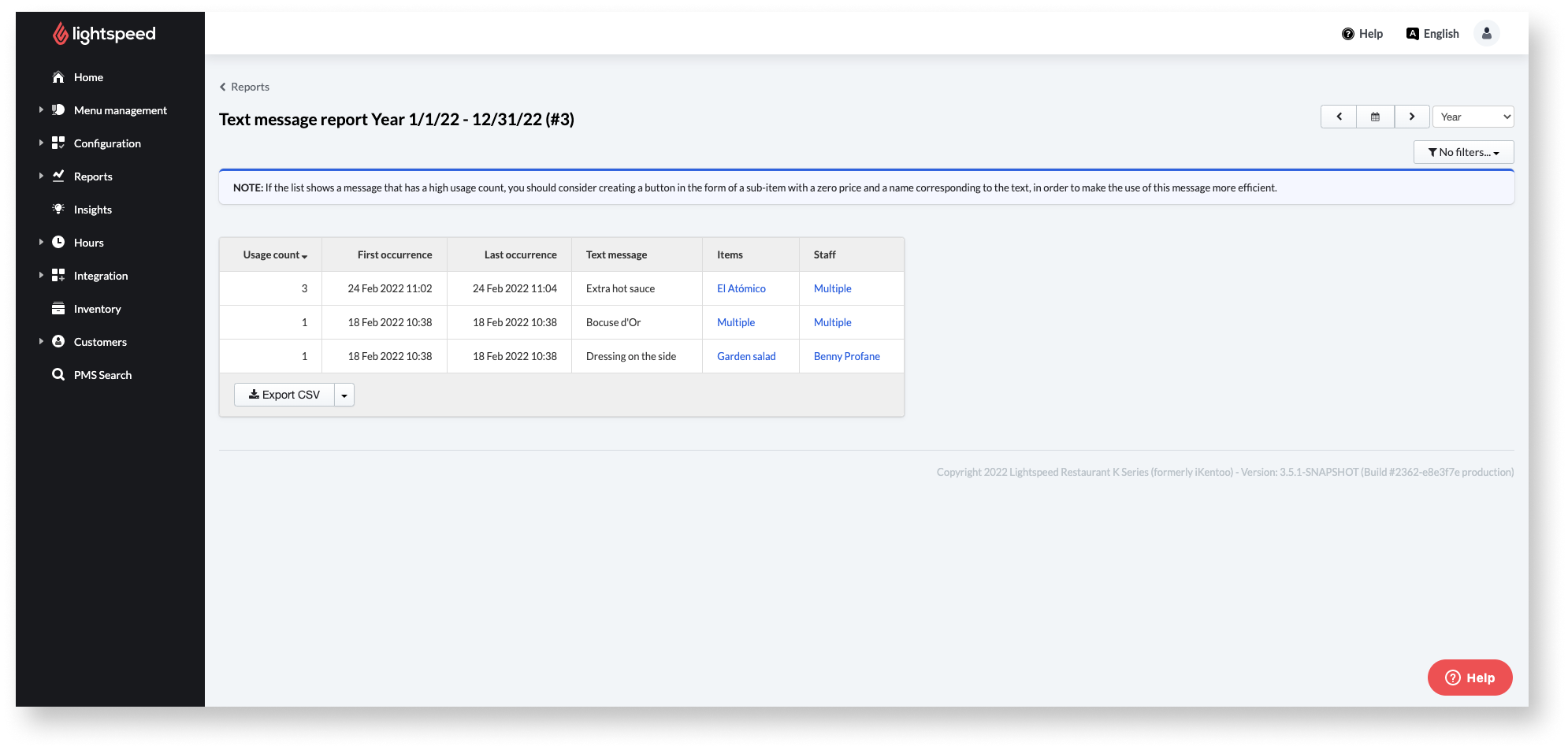
The Text Messages Report lists all text messages used on the POS device over a selected period. Text messages include any subitem with the item entered by the user feature enabled (this setting is found when creating or editing items). These messages indicate notes or modifications made to an order, such as "extra toppings," "dressing on the side," or general notices such as "faster" or "important customer." Use the Text Messages Report to see what information your front staff communicates to the kitchen and what modifications are requested most often.
Tip: If the same messages are frequently being sent to the kitchen, consider adding a button to the menu that can quickly add the text to order.
Accessing the Text Messages Report
To access the Text Messages report:
- Log in to the Back Office using your Lightspeed credentials.
- Select Reports>Reports from the navigation menu.
- ClickText Messages Reporting the sales Reports section.
- Use the drop-down menu and calendar icon in the upper-right corner to change the report's time period.
- (Optional) If the staff uses a text message multiple times, click multiple in the Items and Staff columns to get a list with all usages and related info like date, Account, Items, and staff.
Comments
0 comments
Please sign in to leave a comment.