Transactions
Accessing the transactions
The Transactions report shows all item-related events for the selected time period, including sales, voids, and transitory operations. All POS operations are recorded here. Each transaction includes the transaction ID, date, account, employee, device, and item details, such as SKU, Quantity, and amount.
Accessing the Transactions report
To access and generate the Transactions report:
- Log in to the Back Office with your Lightspeed Restaurant credentials.
- Select Reports>Reports from the navigation bar.
- Click Transactions in the account Reports section.
- Set the time period of the report using the arrows and calendar icon in the upper-right corner.
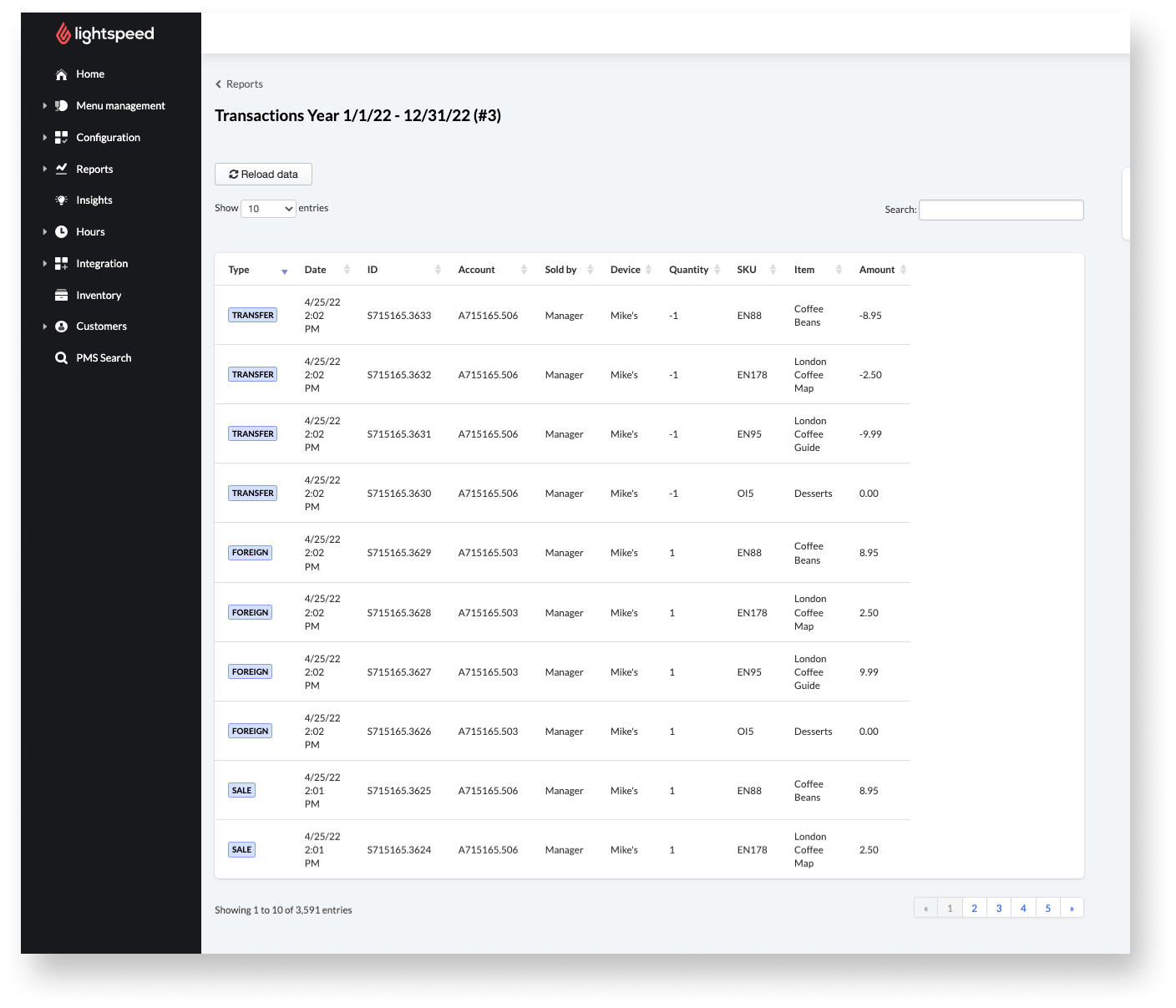
Searching and filtering accounts
Zero in on specific accounts with the following options in the transactions report:
- Use the search field to find particular transactions. Searchable information includes account name, Amount, Tender, Created by, Paid to, Device, Account, and reference.
- Use the Show_entries drop-down menu to choose how many transactions should appear on a single page.
- Sort transactions by column by clicking the column header once for ascending order or twice for descending.
- If there are tags associated with specific device profiles in your configurations, Filter transactions by tag usingFilterdrop-down. Note: this option does not appear if no tags are set up.
- To download the report as a spreadsheet, click export Transactions CSV> select your device (Mac or PC) >Export.
Understanding Transaction types
In the theTransactions report, transactions are listed with variousTypes. Refer to the table below for descriptions of what they mean.
Comments
0 comments
Please sign in to leave a comment.