Accessing the Payments report
To access and generate the Payments report:
- Log in to the Back Office with your Lightspeed Restaurant credentials.
- SelectReports>Reportsfrom the navigation bar.
- ClickPayments in the account Reports section.
- Set the time period of the report using the arrows and calendar icon in the upper-right corner.
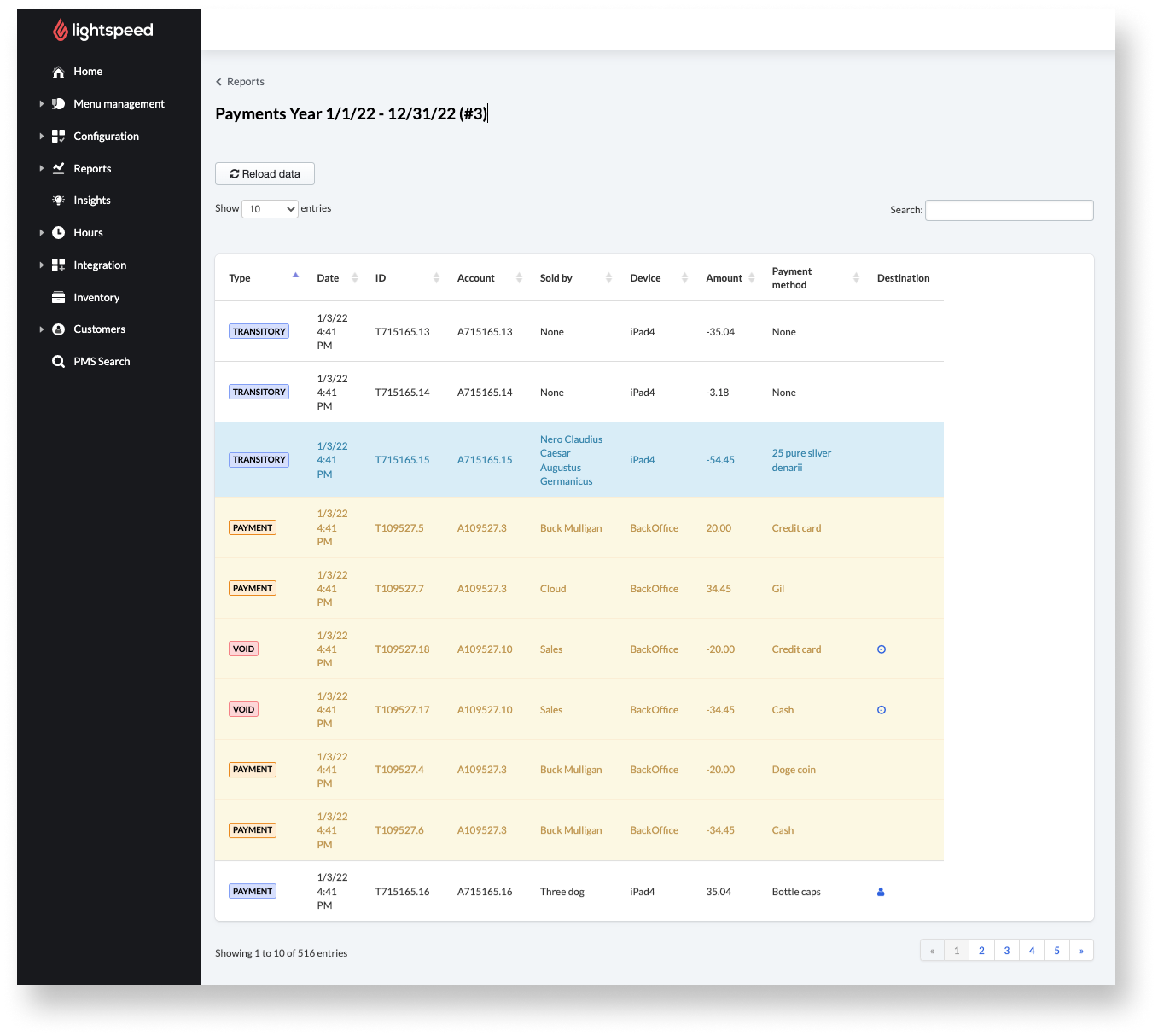
Searching and filtering accounts
Zero in on specific accounts with the following options in the payments report:
Note: lines that appear in yellow in the Payments report were created in the back office and will have Back Office listed as their device of origin.
- Use the search field to find particular payments. Searchable information includes account name, Amount, Tender, Created by, Paid to, Device, Account, and reference.
- Use the Show entries drop-down menu to choose how many payments should appear on a single page.
- Sort payments by column by clicking the column header once for ascending order or twice for descending.
- If there are tags associated with specific device profiles in your configurations, Filter payments by tag using Filter drop-down.Note: this option does not appear if no tags are set up.
- To download the report as a spreadsheet, click export Payments CSV> select your device (Mac or PC) >Export.
Understanding Payment types
In the payment report, payments are listed with a type that describes the account. Refer to the table below for descriptions of what these types represent.
Payments types
| Types | Description |
| Float | A cash drop or lift from the cash drawer. |
| Payment | Paid and completed transaction. |
| Transfer | Tender transfer created through a transfer operation. |
| Transitory | An account was still open at the end of a business day and moved to the next day. |
| Update | An account was created to revert/recreate a payment. |
| Void | Payment was cancelled/deleted. |
Comments
0 comments
Please sign in to leave a comment.