Cancelled Accounts
- Accessing the Canceled Accounts report
- Printing and filtering accounts.
- Adding a transaction
- Viewing and managing account details
The Canceled Accounts report shows all orders that were cancelled during the selected period. Use this report to review orders that were voided and see event logs to gauge why an order may have been cancelled.
Accessing the Canceled Accounts report
To access and generate the Canceled Accounts report:
- Log in to the Back Office with your Lightspeed Restaurant credentials.
- Select Reports > Reports from the navigation bar.
- Click Canceled Accounts in the account Reports section.
- Set the time period of the report using the arrows and calendar icon in the upper-right corner.
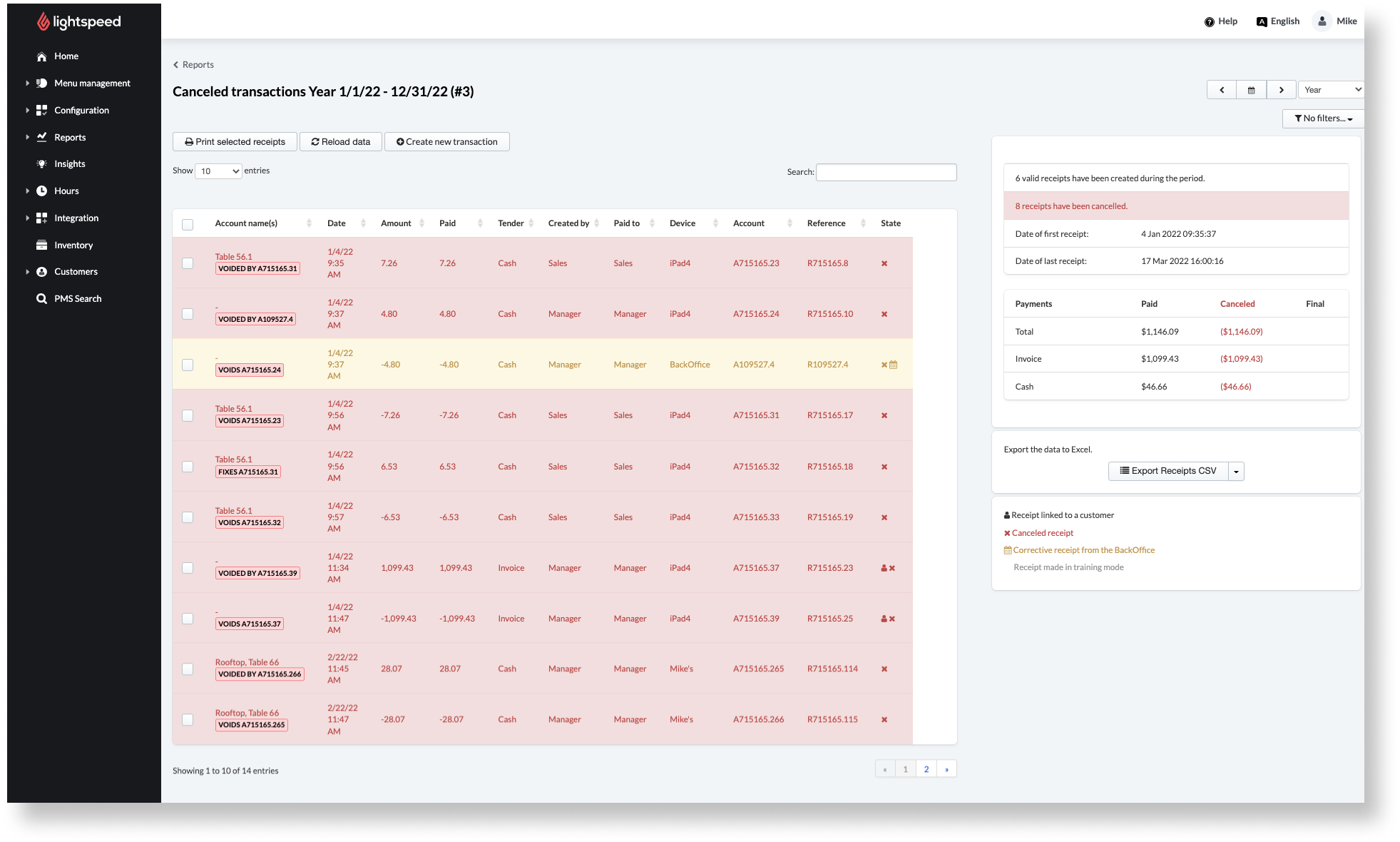
Printing and filtering accounts.
Print or zero in on specific receipts with the following options in the cancelled Accountsreport:
- Use the search field to find a particular receipt. Searchable information includes account name, Amount, Tender, Created by, Paid to, Device, Account, and reference.
- Use the show entries drop-down menu to choose how many receipts should appear on a single page.
- Sort receipts by column by clicking the column header once for ascending order or twice for descending.
- If there are tags associated with specific device profiles in your configurations, Filter results by tag using the filter drop-down. Note: this option does not appear if no tags are set up.
- To print one or more receipts, select the receipt(s) using the checkbox in the same row and click Print selected receipts.
- To download the report as a spreadsheet, click export Receipts CSV> select your device (Mac or PC) >Export.
Adding a transaction
Important: Be selective when adding transactions, cancelling receipts, or changing payment types. Manipulating receipts after the end of the business day may invalidate reports already printed by the POS since those existing reports will no longer match the back-end data.
Creating a new transaction from the cancelled Accountsreport will create a finished transaction, not a cancelled account.
- From the cancelled Accountsreport, click create a new transaction.
- Specify the description, Amount, Payment method, Transaction Owner, and accounting group
- (Optional) include tips, Payment method for gratuity, and available tags.
- click create Transaction.
- Since you’re modifying past sales data, enter a meaningful reason for the change.
- ClickConfirmto finish.
- ClickReload data to refresh the listed receipts. Accounts created in the back office appear in yellow, with BackOffice listed as the device.
Viewing and managing account details
Click on any receipt from the cancelled Accountsreport to see more details. From here, you can perform various actions and see more information specific to your chosen transaction.
Cancelled accounts actions
| Actions | Description |
| Print Receipt | Prints a single copy of the receipt. If no printer is connected, it downloads a PDF version of the receipt. This action only works on accounts where a draft receipt was printed. |
| Cancel Receipt | Voids the receipt.Note: this action cannot be undone. Choosing to cancel a receipt opens a new window where you can specify a reason for the cancellation. |
| Save to text | Downloads a text file that includes information from both theJournalandPrintsviews. |
| Journal(view) | An event log is used for auditing purposes and for tracking all actions performed on the selected check. Click an event from the list to see more details. |
| Prints(view) | Shows all printed versions of the chosen receipt, including production tickets sent to the kitchen or bar. |
Comments
0 comments
Please sign in to leave a comment.